







Question: Assignment 5 - Interactive Forms using JavaScript This assignment will show you how to make the HTML form your created last week interactive by adding
Assignment 5 - Interactive Forms using JavaScript
This assignment will show you how to make the HTML form your created last week interactive by adding in JavaScript. It will calculate the correct gross pay for each valid employee entered into our form. A template (see other file link in this assignment) containing both HTML and JavaScript will be provided that will show you how to use JavaScript to test your form elements for valid data input. Instead of using a database (we'll cover that in the last week), we will use a two dimensional array that associates a unique employee number with the full name of the employee.
Name - Employee Name (stored in our array) Clock - Unique Employee Number to identify an employee (stored in our JavaScript array) Wage - Pay per hour Hours - Hours worked in a given week OT - Overtime Hours (total hours - 40.0) ... 40 hours is a normal work week Overtime Pay Factor - 1.5 (time and half) or 2.0 (double time) Gross Pay - Normal Pay (wage * normal hours) + overtime pay (overtime hours * wage * overtime pay factor)
Employee Payroll information to test our Gross Pay Calculator (note: gross pay based on overtime pay at time and a half - 1.5):
| Name | Clock | Wage | Hours | OT | Gross Pay |
| Connie Cobol | 098401 | 10.60 | 51.0 | 11.0 | 598.90 |
| Mary Apl | 526488 | 9.75 | 42.5 | 2.5 | 426.56 |
| Frank Fortran | 765349 | 10.50 | 37.0 | 0.0 | 388.50 |
| Jeff Ada | 034645 | 12.25 | 45.0 | 5.0 | 581.88 |
| Anton Pascal | 127615 | 8.35 | 0.0 | 0.0 | 0.00 |
The JavaScript code will test the various HTML form elements once a "Calculate" button is clicked to show the employee name and associated gross pay for a given week, in particular:
Test an array to determine the existence of a given employee number.
Ensure that all fields contain a value (not empty)
Ensure that specific fields contain a numeric value
The overtime rate used is either 1.5 (time and a half) or 2.0 (double time)
Assignment Options
Like each week, there is a minimum assignment, and a challenge assignment, resulting in a different set of possible points. In either case, please use the template provided. The template will work out of the box, but only checking the clock and wage form fields ... ignoring the others. Paste it into the HTML Real Time Editor and watch it run.
DO NOT start this assignment from scratch, go easy on yourself and use my template. Add a little bit of code at a time, test it in real time, then add more code, test, and so on. DO NOT just add all the code at once ... JavaScript can be very difficult to debug given our freely available tool suite.
Minimum Assignment (80 point maximum)
Use the template provided (template at the bottom page) and use the standard set of fields already provided. Simply add the missing code (its easy, you just mimic code in areas clearly marked in the template). Carefully follow the directions and you will have no problems. DO NOT add additional code not specified in the template.
Challenge Assignment (100 point maximum)
1) Add another text input field to your form called "Service Years" that shows the number of years an employee worked for the company. Like the other fields, ensure that the Service Years value gets entered into the form field and is a numeric value.
2) Add three more fields to your form:
Pick List Field
Radio Buttons for a field
Check Boxes for a field
Perhaps the same form elements you added if you did the challenge from the homework assignment last week. You do not have to add any JavaScript validation checking on those extra three fields as unlike text fields, validation is essentially built into into these three field types as they limit what can be selected.
Tip: Get the min assignment working first before starting the challenge assignment.
Submitting the Assignment
The template you are updating this week is an HTML file that contains JavaScript code. Verify that your program works (see Use Cases below) in either the HTML Real Time Editor, or by saving and opening the HTML file on your computer with your favorite web browser.
IMPORTANT SUBMISSION NOTE: Just like last week, you will have to place your JavaScript file which will have an *.htm or *.html type file extension into a zip file to submit it since BlackBoard will not allow you to upload a native HTML file.
DO WATCH the "Forms and JavaScript" video I posted in this week's lecture notes. It shows you exactly what you need to do with this assignment and gives you a real time demo on how the calculator actually works. Additionally, use cases are show in the next section below to help you understand what needs to be tested.
DO VERIFY that everything works. If you click the Calculate button and nothing happens, you likely have an error in one of your statements that you added. Add only a few statements at a time and click the Calculate button frequently to ensure that either an alert box is displaying for an invalid field entry or the gross pay is being calculated and displayed.
DO NOT add all the statements at once, otherwise if there is any error, you have no idea which set of statements is causing it ... at that point you'll have to comment out or delete statements, clicking the Calculate button, until you can figure out which statements are invalid. For example, you spelled the field name incorrectly, or you forgot an end curly brace to correspond to an open curly brace in an if statement. Unfortunately, JavaScript isn't like compiling a program and getting a listing of errors up front.
How to Submit the Assignment: Once satisfied, just attach the HTML file when you submit the assignment. If you use the HTML Real Time Editor, simply copy and paste your final code from it into an HTML file (has an *.html or *.htm file extension) and submit that file. This file format will allow me to download your assignment submission to verify it is correct. Submission Note: You will likely have to put your file into a zip file to submit it into BlackBoard Learn given its recently added "security" feature, as it no longer accepts native files containing HTML and/or JavaScript.
Important Note: if you notice your program works fine in the HTML Square Free Editor ... but does not work with your web browser ... make sure your web browser is not disabling JavaScript. Some browsers may disable JavaScript automatically if specific security settings are set too high.
A good web site that provides instructions on how to check your specific web browser to determine if JavaScript is enabled can be found at: http://www.enable-javascript.com
Use Cases
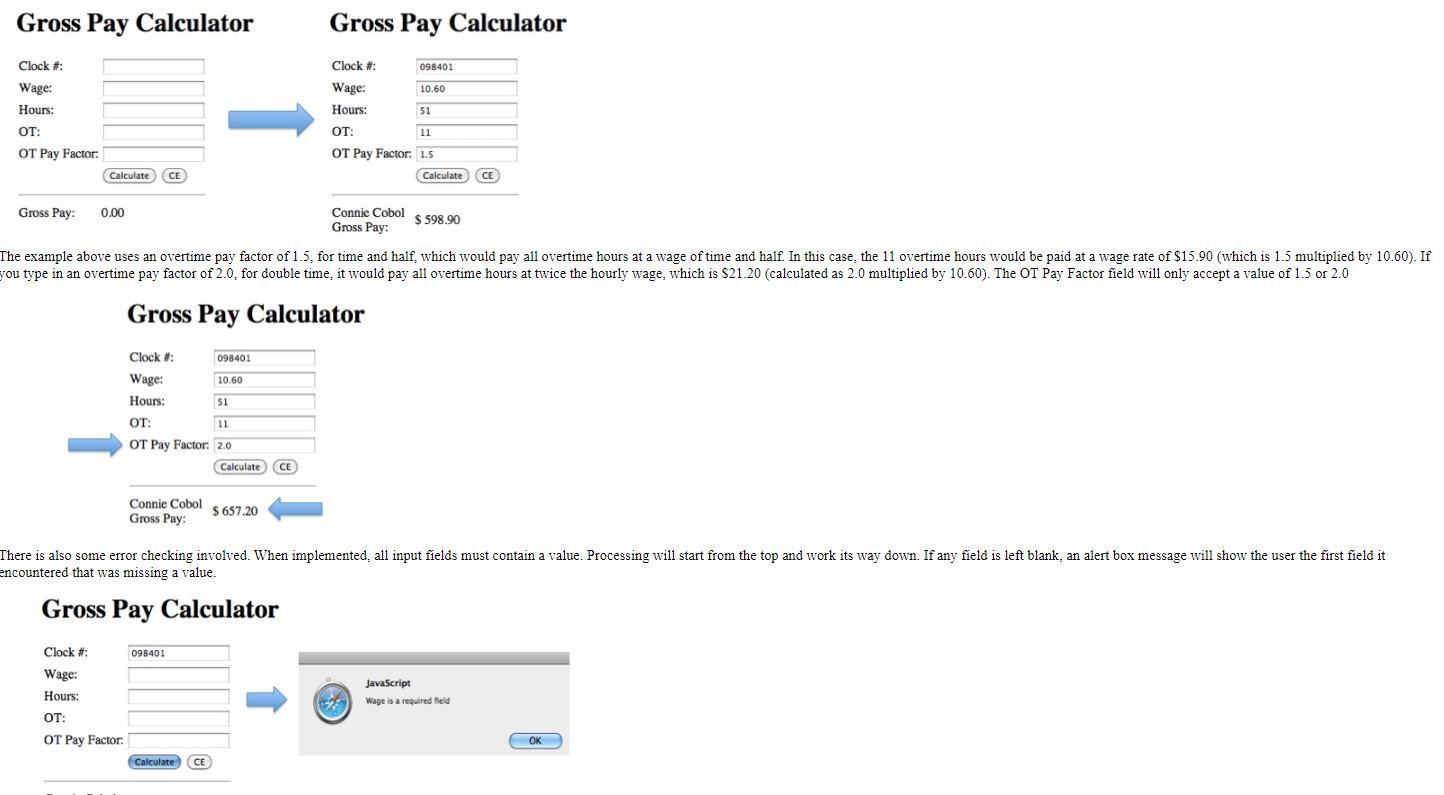
The sequence of screen shots below show how the form is designed to work. The first screen shot shows how the form should work if everything is correctly entered. In this case, the clock number has been defined in the two dimensional array, all fields have been filled out, the OT Pay factor is either 1.5 and 2.0, and each field is a number.
The key to making all the "magic" happen is to click the Calculate button. At that point, the JavaScript code will activate to ensure that all fields are filled in correctly, and if so, display the Employee Name associated with the clock number, and calculate their gross pay.
Note: The template will work out of the box with no changes on your part. Checking is already done on the Clock and Wage fields. Your job is to add the missing code to the template to verify the values entered into the Hours, OT, and OT Pay Factor fields.
Template for your JavaScript Assignment
This template will generate an HTML form powered by JavaScript that will run right out the box. It will check that you have a value in the clock and wage field, and that the clock number is a one of the valid values in your test data set. Your job is to complete the rest of the form so that it will process the other form fields to make sure it works, in particular, the processing of the hours, ot, and OT Pay Rate fields. Remember, just look for the lines in the template that start with: // TODO
It will tell you exactly what you need to do. Often, it is just copying and pasting the previous statement and modifying it slightly to use the right field information. DO NOT add additional code unless you are adding other fields to complete the challenge assignment.
To get started, you can do one of two things.
1) Use the HTML Square Free Editor and simply paste the template code into it.
2) Create a file with a *.htm or *.html extension and copy and paste the template code into it.
Below is your code template, color coded in PURPLE for HTML and BLUE for JavaScript Code. Looks like a lot of code, but you really only have to fill in a few blanks to get everything working.
Gross Pay Calculator
Gross Pay Calculator Gross Pay Calculator Gross Pay Calculator encountered that was missing a value. Gross Pay Calculator
Step by Step Solution
There are 3 Steps involved in it

Get step-by-step solutions from verified subject matter experts
 Study Help