







Question: Assignment During this milestone (lesson 3), you will write half of this Python program. Specifically, by the end of this milestone, your program will read
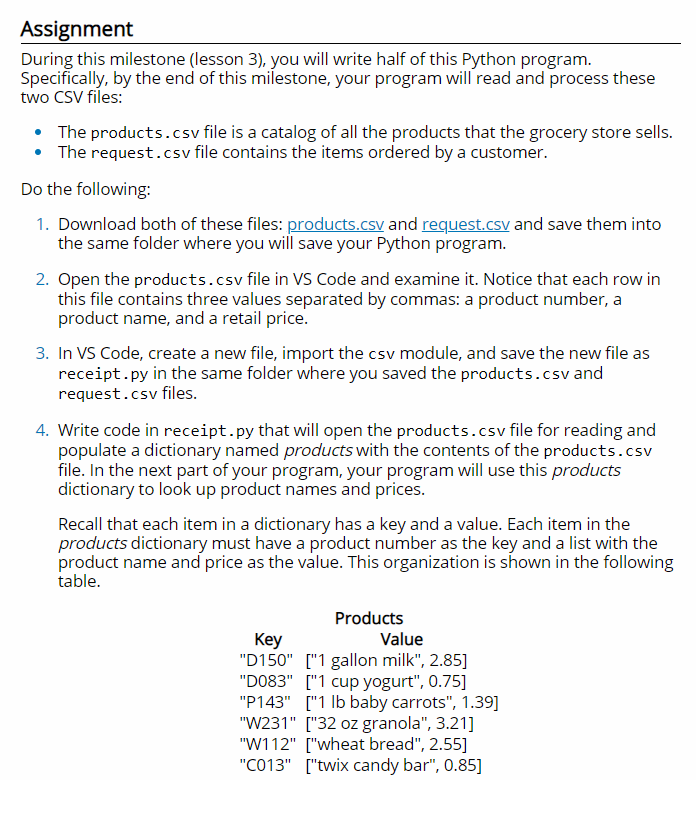
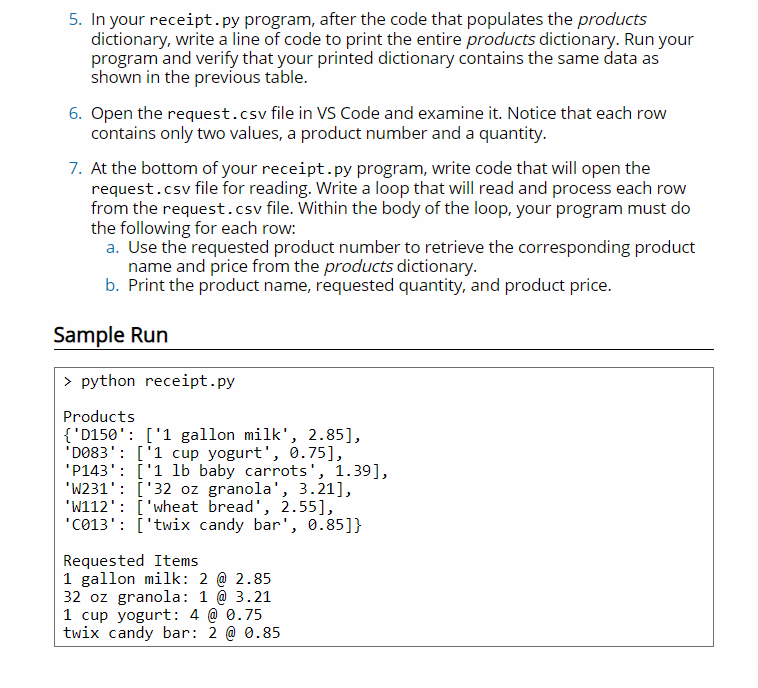
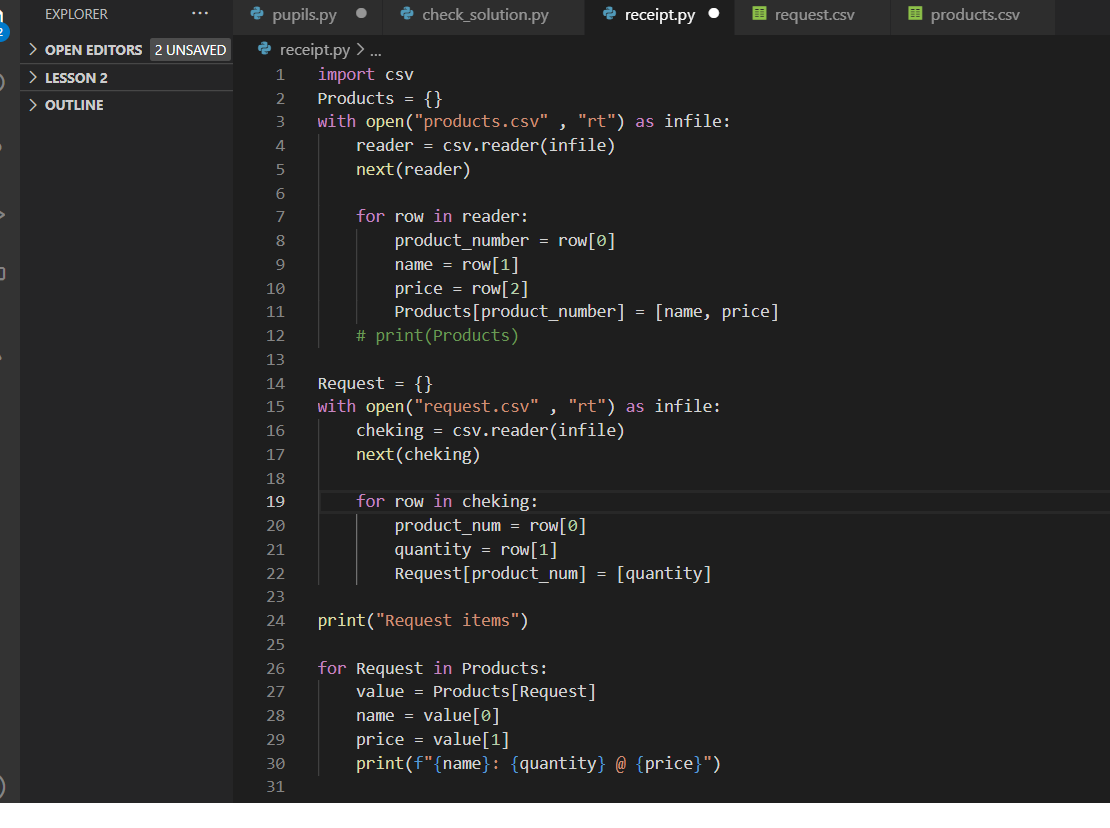
Assignment During this milestone (lesson 3), you will write half of this Python program. Specifically, by the end of this milestone, your program will read and process these two CSV files: The products.csv file is a catalog of all the products that the grocery store sells. The request.csv file contains the items ordered by a customer. Do the following: 1. Download both of these files: products.csv and request.csv and save them into the same folder where you will save your Python program. 2. Open the products.csv file in VS Code and examine it. Notice that each row in this file contains three values separated by commas: a product number, a product name, and a retail price. 3. In VS Code, create a new file, import the csv module, and save the new file as receipt.py in the same folder where you saved the products.csv and request.csv files. 4. Write code in receipt.py that will open the products.csv file for reading and populate a dictionary named products with the contents of the products.csv file. In the next part of your program, your program will use this products dictionary to look up product names and prices. Recall that each item in a dictionary has a key and a value. Each item in the products dictionary must have a product number as the key and a list with the product name and price as the value. This organization is shown in the following table. Products Key Value "D150" ["1 gallon milk", 2.85] "D083" ["1 cup yogurt", 0.75] "P143" ["1 lb baby carrots", 1.39] "W231" ["32 oz granola", 3.21] "W112" ["wheat bread", 2.55] "C013" ["twix candy bar", 0.85] 5. In your receipt.py program, after the code that populates the products dictionary, write a line of code to print the entire products dictionary. Run your program and verify that your printed dictionary contains the same data as shown in the previous table. 6. Open the request.csv file in VS Code and examine it. Notice that each row contains only two values, a product number and a quantity. 7. At the bottom of your receipt.py program, write code that will open the request.csv file for reading. Write a loop that will read and process each row from the request.csv file. Within the body of the loop, your program must do the following for each row: a. Use the requested product number to retrieve the corresponding product name and price from the products dictionary. b. Print the product name, requested quantity, and product price. Sample Run > python receipt.py Products {'D150': ['1 gallon milk', 2.85), D083': ['1 cup yogurt', 0.75], 'P143': ['1 lb baby carrots', 1.39], 'W231': ['32 oz granola', 3.21), 'W112': [ 'wheat bread', 2.55), 2013': ('twix candy bar', 0.85]} Requested Items 1 gallon milk: 2 @ 2.85 32 oz granola: 1 @ 3.21 1 cup yogurt: 4 @ 0.75 twix candy bar: 2 @ 0.85 EXPLORER request.csv products.csv > OPEN EDITORS 2 UNSAVED > LESSON 2 . pupils.py check_solution.py e receipt.py receipt.py > ... 1 import csv 2 Products = {} 3 with open("products.csv" , "rt") as infile: 4. reader = csv.reader(infile) 5 next(reader) > OUTLINE 6 7 8 9 10 ) for row in reader: product_number = row[0] name = row[1] price = row[ 2] Products[product_number] = [name, price] # print(Products) 11 12 13 14 15 Request = {} with open("request.csv" "rt") as infile: cheking = csv.reader(infile) next(cheking) 16 17 18 19 20 for row in cheking: product_num = row[@] quantity = row[1] Request[product_num] = [quantity] 21 22 print("Request items") 23 24 25 26 27 28 29 30 31 for Request in Products: value = Products[Request] name = value[0] price = value[1] print(f"{name}: {quantity} @ {price}")
Step by Step Solution
There are 3 Steps involved in it

Get step-by-step solutions from verified subject matter experts
 Study Help