







Question: Borrowing the sizer and opacityer objects created in Section 24.4 and using the object you just created in (c) to control fill, create an interactive
Borrowing the sizer and opacityer objects created in Section 24.4 and using the object you just created in (c) to control fill, create an interactive scatterplot of calories on protein. Tidy up the axis titles and suppress the legend title for the point color fill. The result should essentially be the same, in terms of functionality, as the graphic appearing as the topmost screenshot in Figure 24-8.
Finally, re-create the interactive scatterplot of calories on protein exactly as in (d), but this time additionally assigning shaper from (e) to the shape modifier in your call to ggvis. To prevent the legends for the two sets of radio buttons from overlapping each other, you need to add the following pipes to your code:
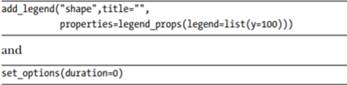
The first simply moves the legend for the shape modifier vertically downward, and the second eliminates the slight “animation delay” that occurs by default when switching between options in the interactive graphic. Once more, use additional calls to add_axis and add_legend to clarify or suppress axis and legend titles.
add_legend("shape", title="", properties-legend_props (legend-list (y=100))) and set_options (duration=0)
Step by Step Solution
There are 3 Steps involved in it
To create the interactive scatterplot as described you will use R with the ggvis package Below is a ... View full answer

Get step-by-step solutions from verified subject matter experts
 Study Help