





Question: Business 101 Tutorial 1 Getting Started with Excel | Excel EX 15 Creating a New Workbook You create new workbooks from the New screen in

Business 101
Business 101 Tutorial 1 Getting Started with
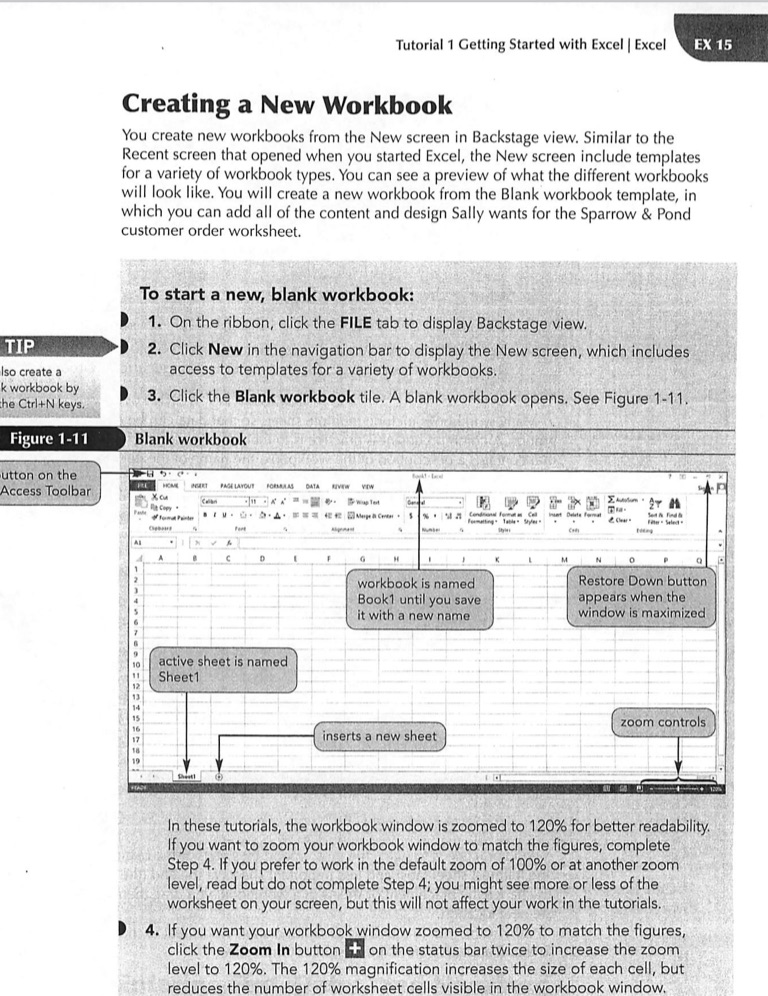
Tutorial 1 Getting Started with Excel | Excel EX 15 Creating a New Workbook You create new workbooks from the New screen in Backstage view. Similar to the Recent screen that opened when you started Excel, the New screen include templates for a variety of workbook types. You can see a preview of what the different workbooks will look like. You will create a new workbook from the Blank workbook template, in which you can add all of the content and design Sally wants for the Sparrow & Pond customer order worksheet. To start a new, blank workbook: 1. On the ribbon, click the FILE tab to display Backstage view. TIP 2. Click New in the navigation bar to display the New screen, which includes so create a access to templates for a variety of workbooks. k workbook by he Ctri+N keys. 3. Click the Blank workbook tile. A blank workbook opens. See Figure 1-11. Figure 1-11 Blank workbook utton on the . .4 F Access Toolbar PRERT FAMELAYOUT FORAREAS DATA NEW VOW M workbook is named Restore Down button Book1 until you save appears when the it with a new name window is maximized active sheet is named Sheet1 zoom controls inserts a new sheet In these tutorials, the workbook window is zoomed to 120% for better readability. If you want to zoom your workbook window to match the figures, complete Step 4. If you prefer to work in the default zoom of 100% or at another zoom level, read but do not complete Step 4; you might see more or less of the worksheet on your screen, but this will not affect your work in the tutorials. 4. If you want your workbook window zoomed to 120% to match the figures, click the Zoom In button + on the status bar twice to increase the zoom level to 120%. The 120% magnification increases the size of each cell, but reduces the number of worksheet cells visible in the workbook window

Step by Step Solution

There are 3 Steps involved in it

1 Expert Approved Answer
Step: 1 Unlock blur-text-image

Question Has Been Solved by an Expert!

Get step-by-step solutions from verified subject matter experts

Step: 2 Unlock
Step: 3 Unlock

Students Have Also Explored These Related Accounting Questions!