







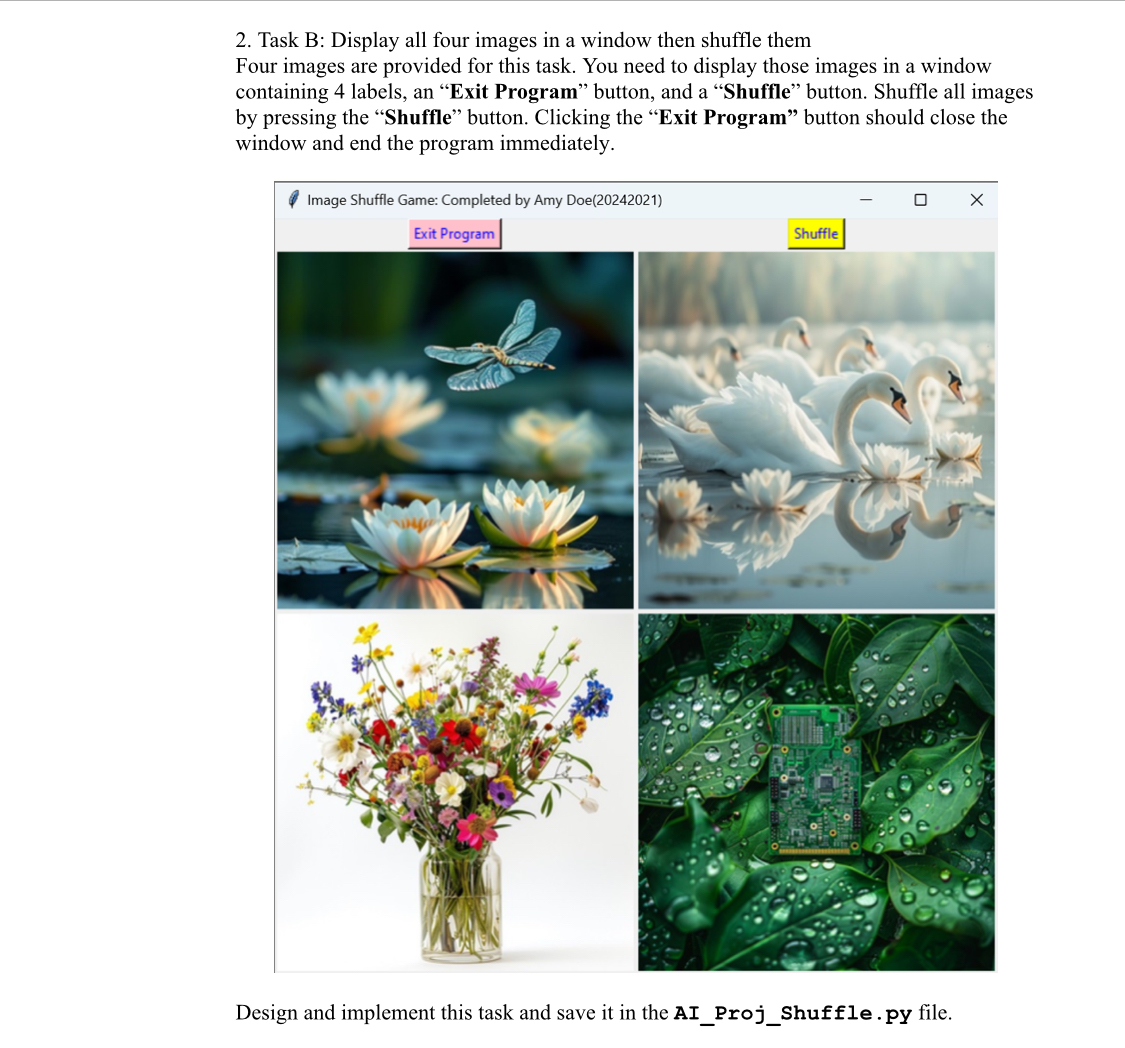
Question: by pressing the Shuffle button. Clicking the Exit Program button should close the window and end the program immediately. Design and implement this task and
by pressing the "Shuffle" button. Clicking the "Exit Program" button should close the window and end the program immediately.
Design and implement this task and save it in the AIProjShuffle.py file. The control details of Task B:
Replace "Amy Doe" with your name and replace the sample student ID with your Student ID in the title.
Images will be randomly displayed on each image label after pressing the "Shuffle" button.
The window will be closed, and the program ends after clicking the "Exit Program" button. Project
Implementation
logic
The implementation logic of Part :
Import modules from the proper package or packages
Create a window by calling mathbfT k which should work as the parent of all other controls.
Set the title and size x of this window.
Create labels and position them using the grid system.
Create entry boxes and position them using the grid system.
Create buttons and position them using the grid system.
Apply events on both buttons individually by giving a value to the "command" attribute.
Write a function to implement the rule for assigning a proper task to each student based on the student ID
Hint: Do not use hardcoded student IDs. Instead, retrieve the student ID entered in the student ID entry box.
The implementation logic of Task A:
Import modules from proper packages
Create a window, set a size times and customize the title
Create an "Exit Program" button and pack it into this window created above.
Create an OptionMenu, set images and other attributes, and pack it into the window created above.
Create an image label then pack it into the window created above.
Write a function to get the selection, create a photo in Tkimage format, and configure it to the image label.
Set the command attribute of the OptionMenu to be the function name to trigger the image display.
The implementation logic of Task B:
Import modules from proper packages
Create a window, set a sizex and customize the title
Create an "Exit Program" button, a "Shuffle" button, and position them into this window by using the grid system.
Create image labels and position them into the window with the grid system.
Display images initially.
Write a function to display the updated images after they shuffle.
Call this function by setting the function name to be the value of the "command" attribute of the "Shuffle" button.
Project Submission
For the student with an even number of student ID you must submit the below files on SOUL:
AIProjTask.py
AIProjSelection.py
AIPrompts.docx You should save and convert this one to be pdf after you fill in answers. Then submit it to SOUL
For the student with an odd number of student ID you must submit the below files on SOUL:
AIProjTask.py
AIProjShuffle.py
AIPrompts.docx You should save and convert this one to be pdf after you fill in answers. Then submit it to SOUL Imagesdragonfly.jpgflower.jpgGreen Chip.jpgswan.jpg
Step by Step Solution
There are 3 Steps involved in it
1 Expert Approved Answer
Step: 1 Unlock

Question Has Been Solved by an Expert!
Get step-by-step solutions from verified subject matter experts
Step: 2 Unlock
Step: 3 Unlock
 Study Help