







Question: By using the Flutter widgets and Dart programming language, design and implement a game mobile application. This game is called Tic - Tac - Toe
By using the Flutter widgets and Dart programming language, design and implement a game mobile application. This game is called TicTacToe game. Follow the following instructions:
Design the game as described below. Any other design will be graded
The code of the game must be clean and straightforward. Any code that does not work with errors will be graded
The game must do all functions described below. Any functions that are different from what is described below will be graded
The game must have dart files as following:
main.dart: it contains the stateless widget with the basic MaterialApp code for the game.
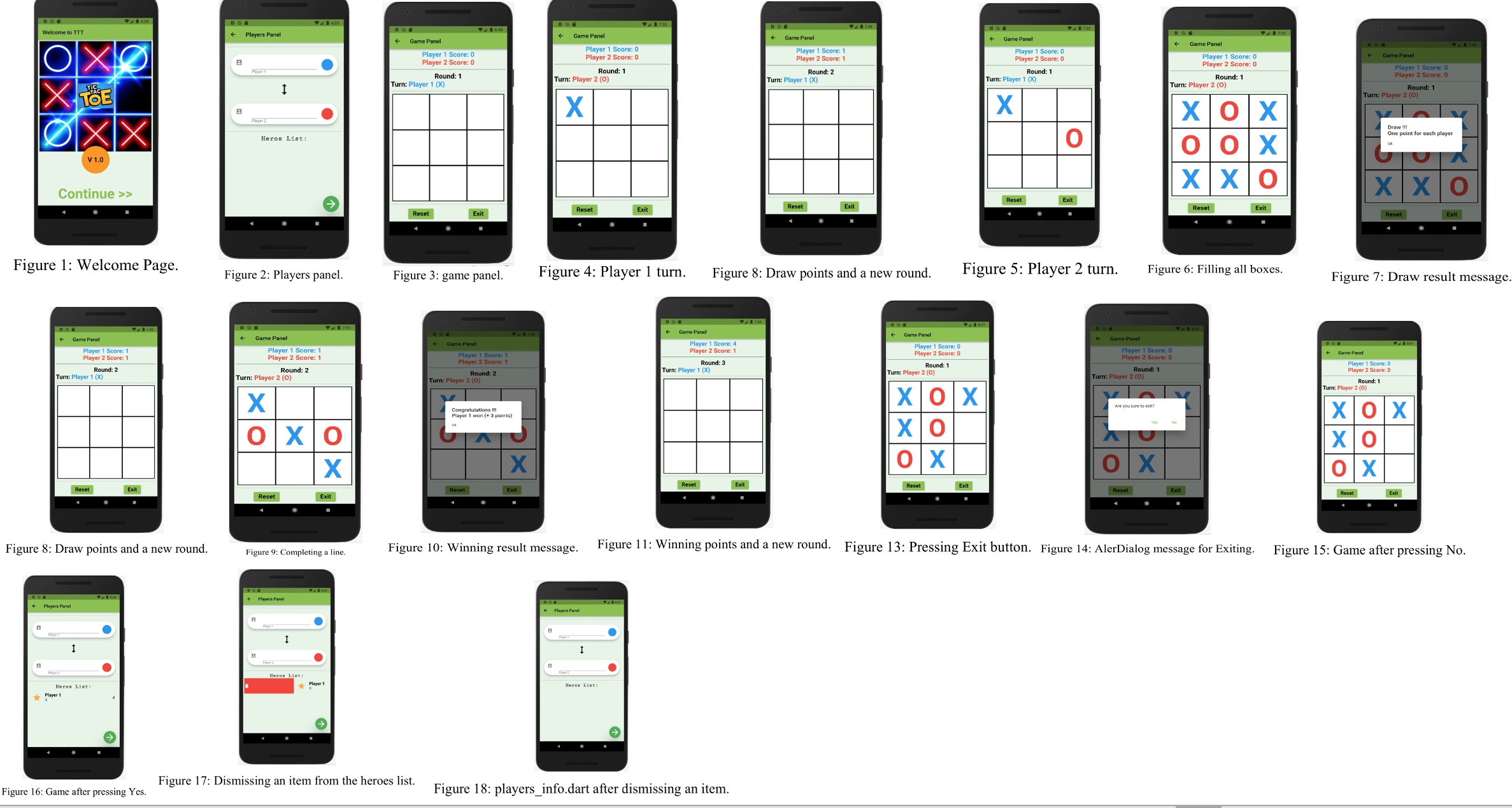
home.dart: It is a stateful widget that show the welcome screen to the user as shown in Figure
All images needed to design this page will be supplied to you. If the user clicks on the TextButton Continue then the user will navigate to playersinfo.dart page using the dynamic stack navigation method.
playersinfo.dart: It is a stateful widget to show the players panel as shown in Figure
When the user clicks on the first Card, the user can enter the name of the first player using a keyboard. When the user clicks on the second Card, the user can enter the name of the second player using a keyboard. Furthermore, there is an IconButton between the two Cards with icon of twodirection arrow. This button will swap the name of players, that is the entered name of player will be for player and vice versa. Moreover, under the two Cards, there is a list of heroes. Initially, it will be empty.
Finally, at the bottom of this page, there is a FloatingActionButton that has an icon of right arrow. This button will pass the entered name of players and navigate to gamepanel.dart page using the dynamic stack navigation method. Also, it will await until the user return back to this page again after playing in order to update the heroes list.
gamepanel.dart: It is a stateful widget to show the games panel as shown in Figure
Initially, the scores are zeros and the round value is The game will start with first entered name player who will have the bluecolored X This player can click any empty white box and his symbol will appear immediately in that box as shown in Figure
After that, the turn will be transferred to the second entered name player who will have the redcolored O This player can click any empty white box and his symbol will appear immediately in that box as shown in Figure
If any user clicks on any filled box, nothing will change. For each click on empty boxes, the game will check for horizontal, vertical, or diagonal lines for that user and if finds any of them, the user that has the current turn will win. Otherwise, the game will continue until filling all empty boxes by the users as shown in Figure
In this case, the result is draw and a SimpleDialog message will appear as shown in Figure When the user clicks Ok one point will be added for each player and a new round will be started the first entered name player will have the turn as shown in Figure
If any user completes successfully one line horizontal vertical, or diagonal as shown in Figure the result is this user won this round and a SimpleDialog message will appear as shown in Figure When the user clicks Ok three points will be added for the winner player and a new round will be started the winner player will have the turn as shown in Figure
At the end of this page, there are two ElevatedButtons, namely, Reset and Exit. If the user presses the Reset button, the game will be reset as initially started, that is all scores will become zeros and round will be started with the turn of the first entered name player as shown in Figure
Moreover, at any time, the user can press the Exit button as shown in Figure When the user presses the Exit button, an AlertDialog message will appear with Yes and No TextButtons as shown in Figure If the user clicks No button, the game will continue normally from the current point as shown in Figure However, if the user clicks Yes button, the game will be ended and the winner players name, symbol X or O and score will be sent again to the playersinfo.dart page using the dynamic stack navigation method. The heroes list at the end of playersinfo.dart page will be updated with the received information as shown in Figure
The heroes list has Dismissible items that can be dismissed if the user moves any item from left to right with red background and icon of recycle bin as shown in Figure If the user dismisses any item from the heroes list, it will be removed from the list as shown in Figure Put the image files with same names in assetsimages subfolder in your work and update the pubspec.yaml file accordingly. When you finish, copy your four dart files of the TicTacToe game App into four separate text files using the notepad: main.txt home.txt playersinfo.txt
Step by Step Solution
There are 3 Steps involved in it
1 Expert Approved Answer
Step: 1 Unlock

Question Has Been Solved by an Expert!
Get step-by-step solutions from verified subject matter experts
Step: 2 Unlock
Step: 3 Unlock
 Study Help