







Question: Caesar Cipher Create a spreadsheet to implement the Caesar Cipher: 1. Prompt the user to enter a translation factor (may be a positive or negative
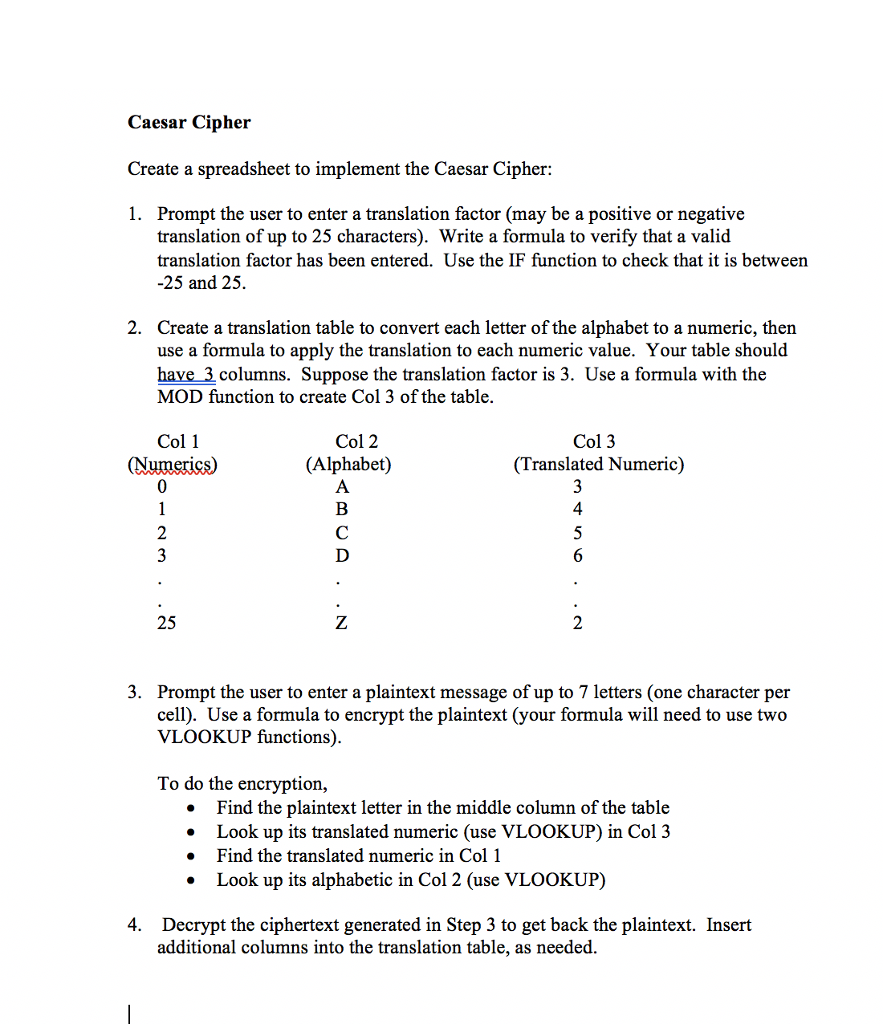
Caesar Cipher Create a spreadsheet to implement the Caesar Cipher: 1. Prompt the user to enter a translation factor (may be a positive or negative translation of up to 25 characters). Write a formula to verify that a valid translation factor has been entered. Use the IF function to check that it is between -25 and 25. 2. Create a translation table to convert each letter of the alphabet to a numeric, then use a formula to apply the translation to each numeric value. Your table should have 3 columns. Suppose the translation factor is 3. Use a formula with the MOD function to create Col 3 of the table. Col 2 (Alphabet) Col 3 (Translated Numeric) Col 1 4 25 2 3. Prompt the user to enter a plaintext message of up to 7 letters (one character per cell). Use a formula to encrypt the plaintext (your formula will need to use two VLOOKUP functions) To do the encryption, * Find the plaintext letter in the middle column of the table . Look up its translated numeric (use VLOOKUP) in Col!3 Find the translated numeric in Col 1 . Look up its alphabetic in Col 2 (use VLOOKUP) 4. Decrypt the ciphertext generated in Step 3 to get back the plaintext. Insert additional columns into the translation table, as needed Caesar Cipher Create a spreadsheet to implement the Caesar Cipher: 1. Prompt the user to enter a translation factor (may be a positive or negative translation of up to 25 characters). Write a formula to verify that a valid translation factor has been entered. Use the IF function to check that it is between -25 and 25. 2. Create a translation table to convert each letter of the alphabet to a numeric, then use a formula to apply the translation to each numeric value. Your table should have 3 columns. Suppose the translation factor is 3. Use a formula with the MOD function to create Col 3 of the table. Col 2 (Alphabet) Col 3 (Translated Numeric) Col 1 4 25 2 3. Prompt the user to enter a plaintext message of up to 7 letters (one character per cell). Use a formula to encrypt the plaintext (your formula will need to use two VLOOKUP functions) To do the encryption, * Find the plaintext letter in the middle column of the table . Look up its translated numeric (use VLOOKUP) in Col!3 Find the translated numeric in Col 1 . Look up its alphabetic in Col 2 (use VLOOKUP) 4. Decrypt the ciphertext generated in Step 3 to get back the plaintext. Insert additional columns into the translation table, as needed
Step by Step Solution
There are 3 Steps involved in it

Get step-by-step solutions from verified subject matter experts
 Study Help