





Question: Calculate Fatality Rate with Excel Using COUNTIF. Develop a spreadsheet and use the COUNTIF function to find summary data for causes of death other than

Calculate Fatality Rate with Excel Using COUNTIF. Develop a spreadsheet and use the COUNTIF function to find summary data for causes of death other than heart attack. Also, allow for no listed cause of death, and display your findings graphically, such as in a bar chart.

Prepare a report that includes all of findings:

  1. Total number of firefighters that died of heart attack.
  2. Summary data for causes of death other than heart attack
  3. Summary data for no listed cause of death.
Calculate Fatality Rate with Excel Using COUNTIF.
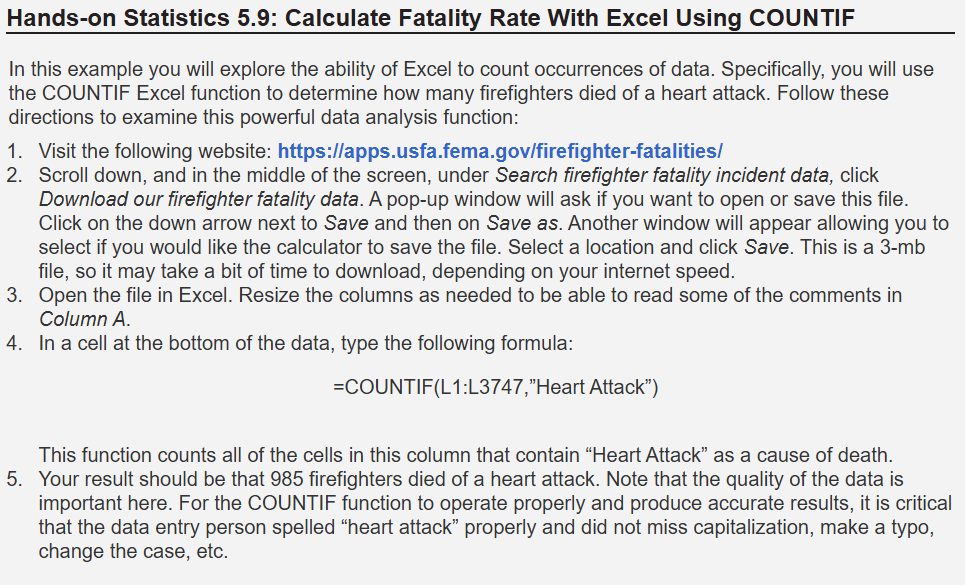
Hands-on Statistics 5.9: Calculate Fatality Rate With Excel Using COUNTIF In this example you will explore the ability of Excel to count occurrences of data. Specifically, you will use the COUNTIF Excel function to determine how many firefighters died of a heart attack. Follow these directions to examine this powerful data analysis function: 1. Visit the following website: https://apps.usfa.fema.gov/firefighter-fatalities/ 2. Scroll down, and in the middle of the screen, under Search firefighter fatality incident data, click Download our firefighter fatality data. A pop-up window will ask if you want to open or save this file. Click on the down arrow next to Save and then on Save as. Another window will appear allowing you to select if you would like the calculator to save the file. Select a location and click Save. This is a 3-mb file, so it may take a bit of time to download, depending on your internet speed. 3. Open the file in Excel. Resize the columns as needed to be able to read some of the comments in Column A. 4. In acell at the bottom of the data, type the following formula: =COUNTIF(L1:L3747,\"Heart Attack\") This function counts all of the cells in this column that contain \"Heart Attack\" as a cause of death. 5. Your result should be that 985 firefighters died of a heart attack. Note that the quality of the data is important here. For the COUNTIF function to operate properly and produce accurate results, it is critical that the data entry person spelled \"heart attack\" properly and did not miss capitalization, make a typo, change the case, etc

Step by Step Solution

There are 3 Steps involved in it

1 Expert Approved Answer
Step: 1 Unlock blur-text-image

Question Has Been Solved by an Expert!

Get step-by-step solutions from verified subject matter experts

Step: 2 Unlock
Step: 3 Unlock

Students Have Also Explored These Related Mathematics Questions!