Question: Can I get a solved solution for chapter WDM.4, Problem 1PRA in New Perspectives Microsoft Office 365 & Office 2019 Introductory (1st Edition)? The Librarian
Can I get a solved solution for chapter WDM.4, Problem 1PRA in New Perspectives Microsoft Office 365 & Office 2019 Introductory (1st Edition)?
The Librarian News
For Employees of the Metropolitan Library System
Win a Vacation Getaway
To show its gratitude for everything the Metropolitan Library System does for the Indianapolis area, the Chamber of Commerce is sponsoring a vacation getaway raffle for all employees. Stop by the front desk at the Central Library, or any local branch, and purchase your raffle ticket for $5.00 (one per employee). First prize is a trip to the gorgeous San Juan Islands in Puget Sound.
The San Juan Islands consist of three main islandsOrcas, Lopez, and San Juan. They are famous for stunning scenery, great biking and hiking, and miles of quiet beaches. Visitors to San Juan Island will find quaint and historic fishing villages, and, if theyre lucky, spot some of the magnificent orca whales that frequent the western side of the island. Orcas Island, with its many galleries, is the perfect destination for art and pottery lovers. Lopez attracts thousands of bikers and kayakers each year.
The raffle winner will receive round-trip airfare for two, one-week accommodations at the Blackberry Bed and Breakfast on Orcas Island, vouchers for dinners at local restaurants, free Sun Power Scooter rentals, and daily passes for the San Juan Islands ferry, which travels to all three islands.
Time to Say Goodbye
The entire staff of the Metropolitan Library system is invited to celebrate the retirement of Otis Boswell, one of our most distinguished librarians. After 25 years of excellent work as our chief reference librarian, Otis is retiring next month. A reception in his honor will be held in September during the annual Tri-County Book Festival. Otis began his work at the library as the childrens room manager. As chief reference librarian, he oversaw the renovation of the Technology Center, dramatically improving our audiovisual services. He is a native of eastern Arkansas, with a masters in library science from the University of Texas at Austin.
Golf Team Wins Third Place
If youre asking yourself what the Metropolitan Library System is doing with a golf team, youre not alone. Thats what many of the participants at the Indiana Amateur Golf Associations Team Championships were also wondering. Not only did the Metropolitan Library System field a team, but it finished third behind teams from Creighton Investments and National Family and Home Insurance.
On the other hand, golf aficionados throughout the state wouldnt have been surprised at all by the Metropolitan Library Systems high showing. After all, the team included reference librarian Conner McCoy, who also happens to be the reigning Indiana Amateur Golf Champion, Senior Division. The four-person team boasts two other golf pros, Aiko Furuya, development director, who finished fifth last year in the U.S. Womens Senior Invitational held in Minneapolis, and childrens librarian Carlos Capablanca, a former golf pro at West End Country Club. Rounding out the team is Suze Dayton, a former high school golf champ.
Congratulations to the whole team!
Inga Peterson Honored
Technology Director, Inga Peterson, has been honored with the Alumnus Trophy from Sumner University in Des Moines, Iowa. Peterson was cited for her technological know-how as well as her community service, which includes memberships on the board of directors of the Clean Rivers Consortium, and the Indiana Drug Abuse Resistance Education program. She was one of the founders and charter members of the governing board of The Phoenix House, a local community organization that helps widowed and divorced mothers re-enter the job market.
Congratulations to our Award-Winning Staff!
Devante Adams, New Moon Journal of the Arts, Poetry Prize
Lucy Campos, Crestwood Church, Service Award
Oliver Delarosa, Indie Stand-Up Contest, Second Place
Pearl Houghton, Cody Film Festival, Honorable Mention
Fahima Husain, Red Barn Theater, Peoples Choice Award
Everett Lozano, Jewish Federation, Yehuda Prize
Ari Robbins, Blue Grass Fiddler Fest, Third Place
Neveah Jackson, Indie Comic Con, Graphic Novel Prize
Taylan Sparks, Tri-County Softball, All-Star Pitcher
Mohammad Qaisrani, Medical Relief Fund, Social Justice Prize
Joe Underwood, Illustrator Club, Excellence Medal
Sasha Giroux, Oakley Marathon, First Place
Carrie Vang, Westwood Bridge Tournament, First Prize
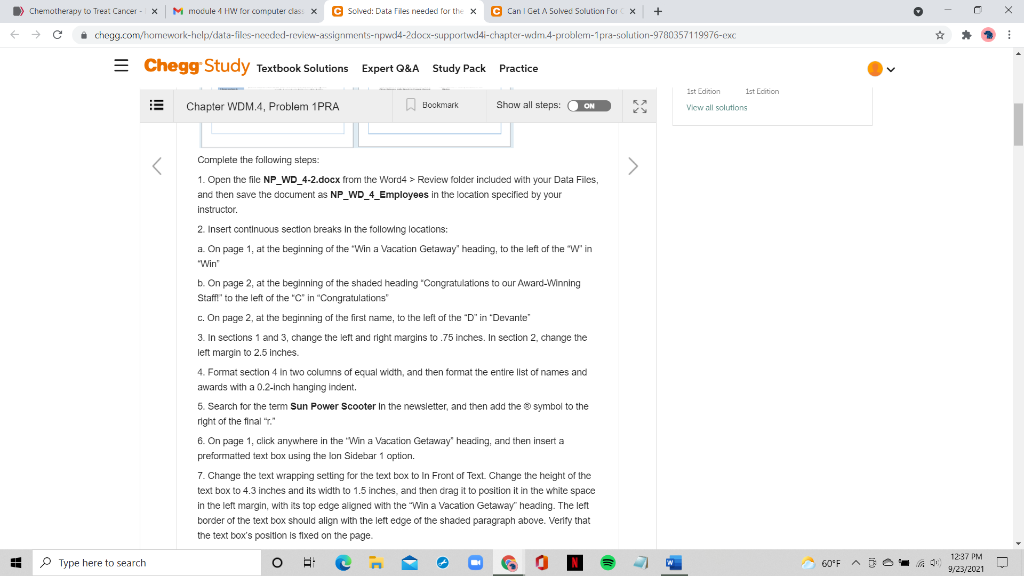
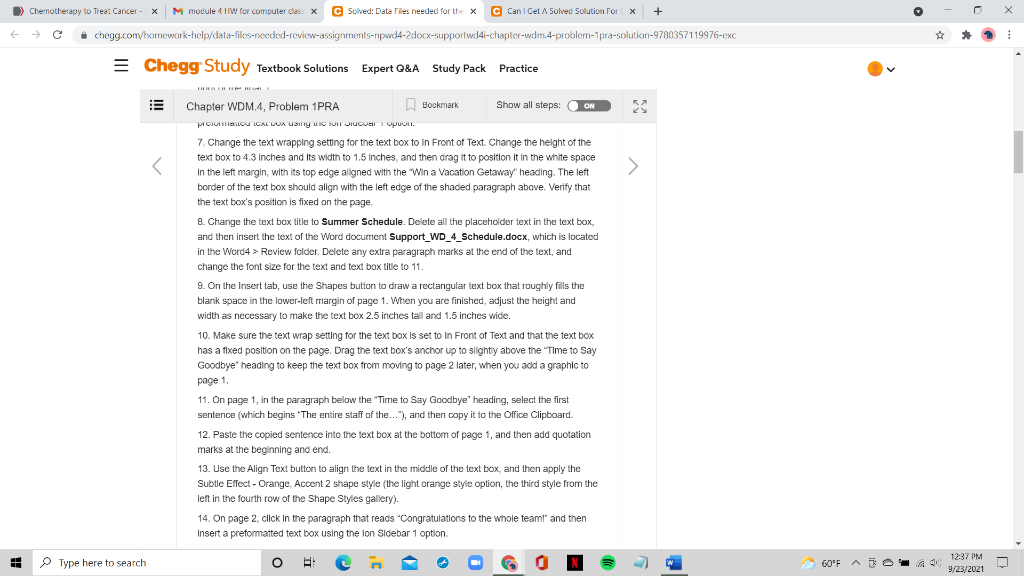
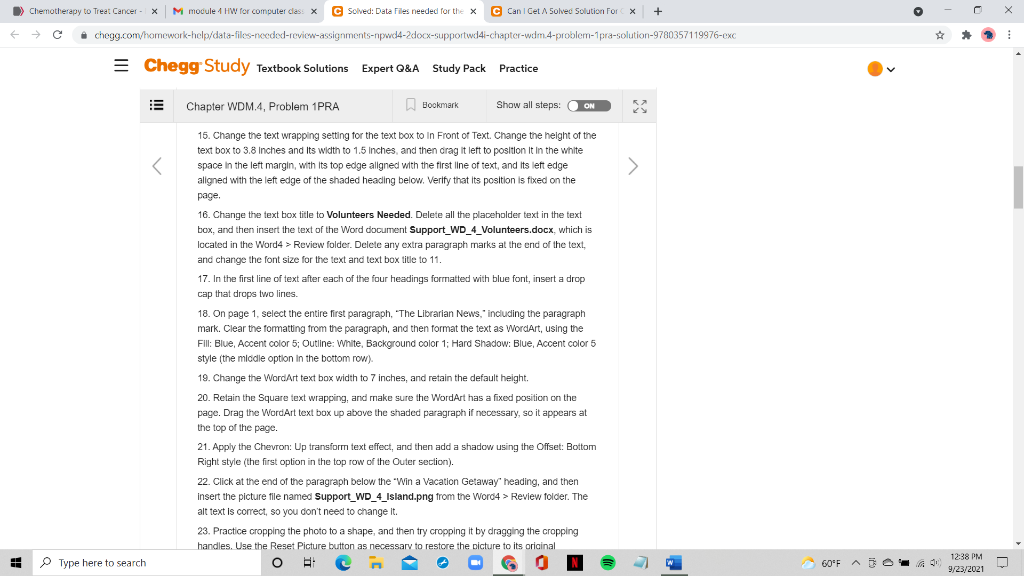
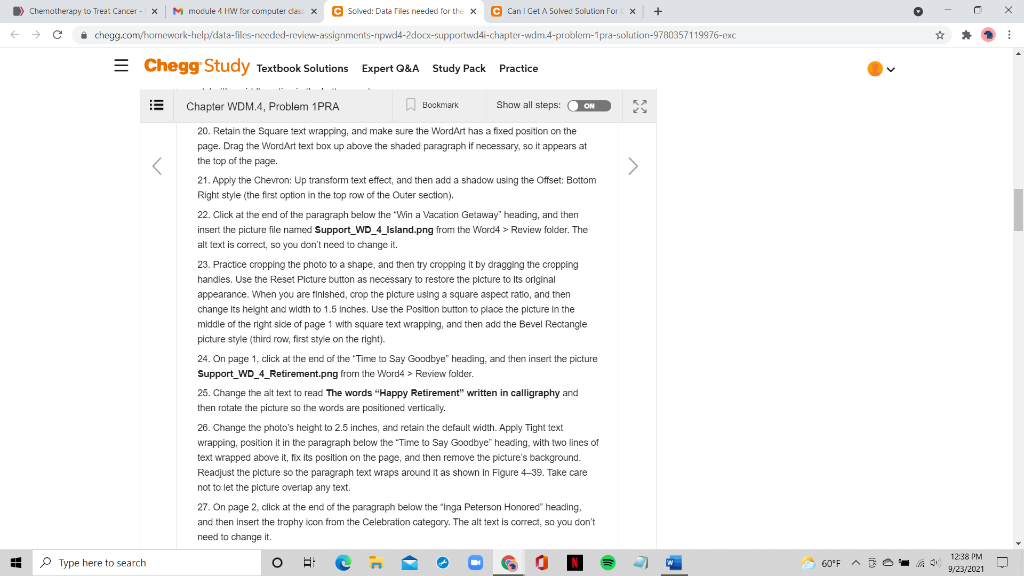
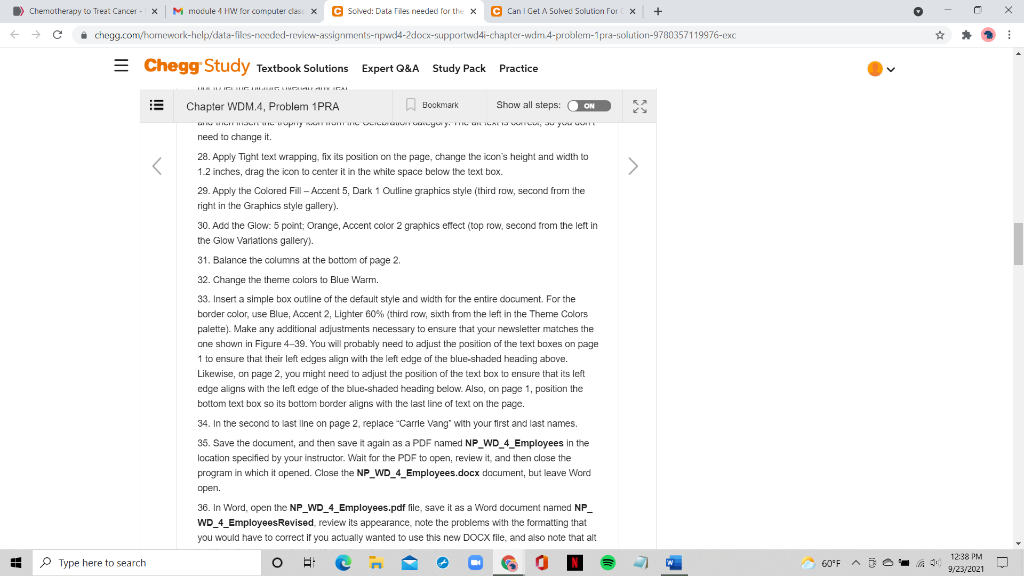
> Chemotherapy to Treat Cancer - x M module 1 HW for computer class X C Solved: Data Files needed for the x C Can I Get A Solved Solution For X + c chegg.com/homework-help/data-files-needed-review-assignments-npwd4-2docx-supportwd4i-chapter-wdm.4-problem-pra-solution-9780357119976-cxc * = Chegg Study Textbook Solutions Expert Q&A Study Pack Practice Chapter WDM.4. Problem 1PRA Bookmark Show all steps: ON Ist Edition 1st Edition View all solutions Complete the following steps: 1. Open the file NP_WD_4-2.docx from the Word4 > Review folder included with your Data Files, and then save the document as NP_WD_4_Employees in the location specified by your instructor. 2. Insert continuous section breaks in the following locations: a. On page 1, at the beginning of the "Win a Vacation Getaway" heading, to the left of the Win "Win b. On page 2, at the beginning of the shaded heading "Congratulations to our Award-Winning Staffl' to the left of the "C" in "Congratulations c. On page 2, at the beginning of the first name, to the left of the "D" in 'Devante 3. In sections 1 and 3, change the left and right margins to.75 inches. In section 2 change the left margin to 2.5 inches. 4. Format section 4 in two columns of equal width, and then format the entire list of names and awards with a 0.2-Inch hanging indent. 5. Search for the term Sun Power Scooter in the newsletter, and then add the symbol to the right of the final 6. On page 1, click anywhere in the 'Win a Vacation Getaway" heading, and then insert a preformatted text box using the lon Sidebar 1 option. 7. Change the text wrapping setting for the text box to In Front of Text. Change the height of the text box to 4.3 inches and its width to 1.5 inches, and then drag it to position it in the white space in the left margin, with its top edge aligned with the "Win a Vacation Getaway" heading. The left border of the text box should align with the left edge of the shaded paragraph above. Verify that the text box's position is fixed on the page. O 1 Type here to search 60-F A5 00 12:37 PM 9/23/2021 > Chemotherapy to Treat Cancer - x M module 4 HW for computer class X C Solved: Data Files needed for the x C Can I Get A Solved Solution For X + c chegg.com/homework-help/data-files-needed-review-assignments-npwd4-2docx-supportwd4i-chapter-wdm.4-problem-pra-solution-9780357119976-cxc * = Chegg Study Textbook Solutions Expert Q&A Study Pack Practice 52 Chapter WDM4, Problem 1PRA Bookmark Show all steps: ON PICILLOU CALLUA Lang I TOI JIUCval Topuoli. 7. Change the text wrapping setting for the text box to in front of Text. Change the height of the text box to 4.3 Inches and its width to 1.5 inches, and then drag it to position it in the white space In the left margin, with its top edge aligned with the Win a Vacation Getaway" heading. The left border of the text box should align with the left edge of the shaded paragraph above. Verify that the text box's position is fixed on the page. 8. Change the text box title to Summer Schedule. Delete all the placeholder text in the text box, and then insert the text of the Word document Support_WD_4_Schedule.docx, which is located the Word4 > Review folder. Delete any extra paragraph marks at the end of the text, and change the font size for the text and text box title to 11. 9. On the Insert tab, use the Shapes button to draw a rectangular text box that roughly fills the blank space in the lower-left margin of page 1. When you are finished, adjust the height and width as necessary to make the text box 2.5 inches tall and 1.5 inches wide. 10. Make sure the text wrap setting for the text box is set to In Front of Text and that the text box has a fixed position on the page. Drag the text box's anchor up to slightly above the "Time to Say Goodbye" heading to keep the text box from moving to page 2 later, when you add a graphic to page 1. 11. On page 1, in the paragraph below the "Time to Say Goodbye" heading, select the first sentence (which begins "The entire staff of the..."), and then copy it to the Office Clipboard. 12. Paste the copied sentence into the text box at the bottom of page 1, and then add quotation marks at the beginning and end. 13. Use the Align Text button to align the text in the middle of the text box, and then apply the Subtle Effect - Orange, Accent 2 shape style (the light orange style option, the third style from the left in the fourth row of the Shape Styles gallery). 14. On page 2, click in the paragraph that reads "Congratulations to the whole teaml and then Insert a preformatted text box using the lon Sidebar 1 option. A Type here to search OE 60-F A5 00 12:37 PM 9/23/2021 > Chemotherapy to Treat Cancer - x M module 4 HW for computer class X 1 * C Solved: Data Files needed for the x C Can I Get A Solved Solution For X + c chegg.com/homework-help/data-files-needed-review-assignments-npwd4-2docx-supportwd4i-chapter-wdm.4-problem-pra-solution-9780357119976-cxc * = Chegg Study Textbook Solutions Expert Q&A Study Pack Practice Bookmark Chapter WDM.4. Problem 1PRA 52 Show all steps: ON Review folder. Delete any extra paragraph marks at the end of the text, and change the font size for the text and text box title to 11. 17. In the first line of text after each of the four headings formatted with blue font, insert a drop cap that drops two lines. 18. On page 1, select the entire first paragraph, "The Librarian News, including the paragraph mark. Clear the formatting from the paragraph, and then format the text as WordArt, using the Fill: Blue, Accent color 5; Outline: White Background color 1; Hard Shadow: Blue, Accent color 5 style (the middle option in the bottom row). 19. Change the WordArt text box width to 7 inches, and retain the default height. 20. Retain the Square text wrapping, and make sure the WordArt has a fixed position on the page. Drag the WordArt text box up above the shaded paragraph if necessary, so it appears at the top of the page. 21. Apply the Chevron: Up transform text effect, and then add a shadow using the Offset: Bottom Right style (the first option in the top row of the Outer section). 22. Click at the end of the paragraph below the "Win a Vacation Getaway" heading, and then insert the picture file named Support_WD_4_Island.png from the Word4 > Review folder. The alt text is correct, so you don't need to change it. 23. Practice cropping the photo to a shape, and then try cropping it by dragging the cropping handles. Use the Reset Picture button as necessary to restore the picture to its original O + c Type here to search A 12:38 PM A5 60-F 9/23/2021 > Chemotherapy to Treat Cancer - x M module 1 HW for computer class X 1 C Solved: Data Tiles needed for the x C Can I Get A Solved Solution For X + c chegg.com/homework-help/data-files-needed-review-assignments-npwd4-2docx-supportwd4i-chapter-wdm.4-problem-pra-solution-9780357119976-cxc * = Chegg Study Textbook Solutions Expert Q&A Study Pack Practice Chapter WDM.4. Problem 1PRA Bookmark 52 Show all steps: OON Review folder. The alt text is correct, so you don't need to change 23. Practice cropping the photo to a shape, and then try cropping it by dragging the cropping handles. Use the Reset Picture button as necessary to restore the picture to its original appearance. When you are finished, crop the picture using a square aspect ratio, and then change its height and width to 1.5 Inches. Use the Position button to place the picture in the middle of the right side of page 1 with square text wrapping, and then add the Bevel Rectangle picture style (third row, first style on the right). 24. On page 1click at the end of the Time to Say Goodbye" heading, and then insert the picture Support_WD_4_Retirement.png from the Word4 > Review folder. 25. Change the alt text to read The words "Happy Retirement" written in calligraphy and then rotate the picture so the words are positioned vertically. 26. Change the photo's height to 2.5 inches, and retain the default width. Apply Tight text wrapping, position it in the paragraph below the "Time to Say Goodbye" heading, with two lines of text wrapped above it, fix its position on the page, and then remove the picture's background. Readjust the picture so the paragraph text wraps around it as shown in Figure 439. Take care not to let the picture overlap any text. 27. On page 2, click at the end of the paragraph below the "Inga Peterson Honored" heading, and then insert the trophy icon from the Celebration category. The alt text is correct, so you don't need to change it. 1 O + 12:38 PM Type here to search A5 60-F 9/23/2021 > Chemotherapy to Treat Cancer - x M module 4 HW for computer class X C Solved: Data Files needed for the x C Can I Get A Solved Solution For X + c chegg.com/homework-help/data-files-needed-review-assignments-npwd4-2docx-supportwd4i-chapter-wdm.4-problem-pra-solution-9780357119976-cxc * 52 > = Chegg Study Textbook Solutions Expert Q&A Study Pack Practice THRICH LINGUALITY CAL Chapter WDM.4. Problem 1PRA Bookmark Show all steps: ON CECIL. wory . I. CUI Lys y. I. CALICU you or need to change it. 28. Apply Tight text wrapping, fix its position on the page, change the icon's height and width to Chemotherapy to Treat Cancer - x M module 1 HW for computer class X C Solved: Data Files needed for the x C Can I Get A Solved Solution For X + c chegg.com/homework-help/data-files-needed-review-assignments-npwd4-2docx-supportwd4i-chapter-wdm.4-problem-pra-solution-9780357119976-cxc * = Chegg Study Textbook Solutions Expert Q&A Study Pack Practice Chapter WDM.4. Problem 1PRA Bookmark Show all steps: ON Ist Edition 1st Edition View all solutions Complete the following steps: 1. Open the file NP_WD_4-2.docx from the Word4 > Review folder included with your Data Files, and then save the document as NP_WD_4_Employees in the location specified by your instructor. 2. Insert continuous section breaks in the following locations: a. On page 1, at the beginning of the "Win a Vacation Getaway" heading, to the left of the Win "Win b. On page 2, at the beginning of the shaded heading "Congratulations to our Award-Winning Staffl' to the left of the "C" in "Congratulations c. On page 2, at the beginning of the first name, to the left of the "D" in 'Devante 3. In sections 1 and 3, change the left and right margins to.75 inches. In section 2 change the left margin to 2.5 inches. 4. Format section 4 in two columns of equal width, and then format the entire list of names and awards with a 0.2-Inch hanging indent. 5. Search for the term Sun Power Scooter in the newsletter, and then add the symbol to the right of the final 6. On page 1, click anywhere in the 'Win a Vacation Getaway" heading, and then insert a preformatted text box using the lon Sidebar 1 option. 7. Change the text wrapping setting for the text box to In Front of Text. Change the height of the text box to 4.3 inches and its width to 1.5 inches, and then drag it to position it in the white space in the left margin, with its top edge aligned with the "Win a Vacation Getaway" heading. The left border of the text box should align with the left edge of the shaded paragraph above. Verify that the text box's position is fixed on the page. O 1 Type here to search 60-F A5 00 12:37 PM 9/23/2021 > Chemotherapy to Treat Cancer - x M module 4 HW for computer class X C Solved: Data Files needed for the x C Can I Get A Solved Solution For X + c chegg.com/homework-help/data-files-needed-review-assignments-npwd4-2docx-supportwd4i-chapter-wdm.4-problem-pra-solution-9780357119976-cxc * = Chegg Study Textbook Solutions Expert Q&A Study Pack Practice 52 Chapter WDM4, Problem 1PRA Bookmark Show all steps: ON PICILLOU CALLUA Lang I TOI JIUCval Topuoli. 7. Change the text wrapping setting for the text box to in front of Text. Change the height of the text box to 4.3 Inches and its width to 1.5 inches, and then drag it to position it in the white space In the left margin, with its top edge aligned with the Win a Vacation Getaway" heading. The left border of the text box should align with the left edge of the shaded paragraph above. Verify that the text box's position is fixed on the page. 8. Change the text box title to Summer Schedule. Delete all the placeholder text in the text box, and then insert the text of the Word document Support_WD_4_Schedule.docx, which is located the Word4 > Review folder. Delete any extra paragraph marks at the end of the text, and change the font size for the text and text box title to 11. 9. On the Insert tab, use the Shapes button to draw a rectangular text box that roughly fills the blank space in the lower-left margin of page 1. When you are finished, adjust the height and width as necessary to make the text box 2.5 inches tall and 1.5 inches wide. 10. Make sure the text wrap setting for the text box is set to In Front of Text and that the text box has a fixed position on the page. Drag the text box's anchor up to slightly above the "Time to Say Goodbye" heading to keep the text box from moving to page 2 later, when you add a graphic to page 1. 11. On page 1, in the paragraph below the "Time to Say Goodbye" heading, select the first sentence (which begins "The entire staff of the..."), and then copy it to the Office Clipboard. 12. Paste the copied sentence into the text box at the bottom of page 1, and then add quotation marks at the beginning and end. 13. Use the Align Text button to align the text in the middle of the text box, and then apply the Subtle Effect - Orange, Accent 2 shape style (the light orange style option, the third style from the left in the fourth row of the Shape Styles gallery). 14. On page 2, click in the paragraph that reads "Congratulations to the whole teaml and then Insert a preformatted text box using the lon Sidebar 1 option. A Type here to search OE 60-F A5 00 12:37 PM 9/23/2021 > Chemotherapy to Treat Cancer - x M module 4 HW for computer class X 1 * C Solved: Data Files needed for the x C Can I Get A Solved Solution For X + c chegg.com/homework-help/data-files-needed-review-assignments-npwd4-2docx-supportwd4i-chapter-wdm.4-problem-pra-solution-9780357119976-cxc * = Chegg Study Textbook Solutions Expert Q&A Study Pack Practice Bookmark Chapter WDM.4. Problem 1PRA 52 Show all steps: ON Review folder. Delete any extra paragraph marks at the end of the text, and change the font size for the text and text box title to 11. 17. In the first line of text after each of the four headings formatted with blue font, insert a drop cap that drops two lines. 18. On page 1, select the entire first paragraph, "The Librarian News, including the paragraph mark. Clear the formatting from the paragraph, and then format the text as WordArt, using the Fill: Blue, Accent color 5; Outline: White Background color 1; Hard Shadow: Blue, Accent color 5 style (the middle option in the bottom row). 19. Change the WordArt text box width to 7 inches, and retain the default height. 20. Retain the Square text wrapping, and make sure the WordArt has a fixed position on the page. Drag the WordArt text box up above the shaded paragraph if necessary, so it appears at the top of the page. 21. Apply the Chevron: Up transform text effect, and then add a shadow using the Offset: Bottom Right style (the first option in the top row of the Outer section). 22. Click at the end of the paragraph below the "Win a Vacation Getaway" heading, and then insert the picture file named Support_WD_4_Island.png from the Word4 > Review folder. The alt text is correct, so you don't need to change it. 23. Practice cropping the photo to a shape, and then try cropping it by dragging the cropping handles. Use the Reset Picture button as necessary to restore the picture to its original O + c Type here to search A 12:38 PM A5 60-F 9/23/2021 > Chemotherapy to Treat Cancer - x M module 1 HW for computer class X 1 C Solved: Data Tiles needed for the x C Can I Get A Solved Solution For X + c chegg.com/homework-help/data-files-needed-review-assignments-npwd4-2docx-supportwd4i-chapter-wdm.4-problem-pra-solution-9780357119976-cxc * = Chegg Study Textbook Solutions Expert Q&A Study Pack Practice Chapter WDM.4. Problem 1PRA Bookmark 52 Show all steps: OON Review folder. The alt text is correct, so you don't need to change 23. Practice cropping the photo to a shape, and then try cropping it by dragging the cropping handles. Use the Reset Picture button as necessary to restore the picture to its original appearance. When you are finished, crop the picture using a square aspect ratio, and then change its height and width to 1.5 Inches. Use the Position button to place the picture in the middle of the right side of page 1 with square text wrapping, and then add the Bevel Rectangle picture style (third row, first style on the right). 24. On page 1click at the end of the Time to Say Goodbye" heading, and then insert the picture Support_WD_4_Retirement.png from the Word4 > Review folder. 25. Change the alt text to read The words "Happy Retirement" written in calligraphy and then rotate the picture so the words are positioned vertically. 26. Change the photo's height to 2.5 inches, and retain the default width. Apply Tight text wrapping, position it in the paragraph below the "Time to Say Goodbye" heading, with two lines of text wrapped above it, fix its position on the page, and then remove the picture's background. Readjust the picture so the paragraph text wraps around it as shown in Figure 439. Take care not to let the picture overlap any text. 27. On page 2, click at the end of the paragraph below the "Inga Peterson Honored" heading, and then insert the trophy icon from the Celebration category. The alt text is correct, so you don't need to change it. 1 O + 12:38 PM Type here to search A5 60-F 9/23/2021 > Chemotherapy to Treat Cancer - x M module 4 HW for computer class X C Solved: Data Files needed for the x C Can I Get A Solved Solution For X + c chegg.com/homework-help/data-files-needed-review-assignments-npwd4-2docx-supportwd4i-chapter-wdm.4-problem-pra-solution-9780357119976-cxc * 52 > = Chegg Study Textbook Solutions Expert Q&A Study Pack Practice THRICH LINGUALITY CAL Chapter WDM.4. Problem 1PRA Bookmark Show all steps: ON CECIL. wory . I. CUI Lys y. I. CALICU you or need to change it. 28. Apply Tight text wrapping, fix its position on the page, change the icon's height and width to









 Study Help