







Question: Can someone help with my lap with the Command-Line Interface 340 Chapter 16: Working the The commands you learm about in this lab exercise will
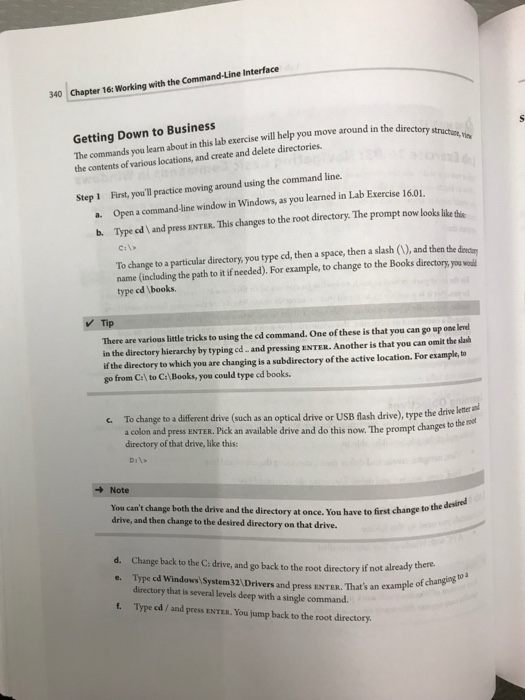
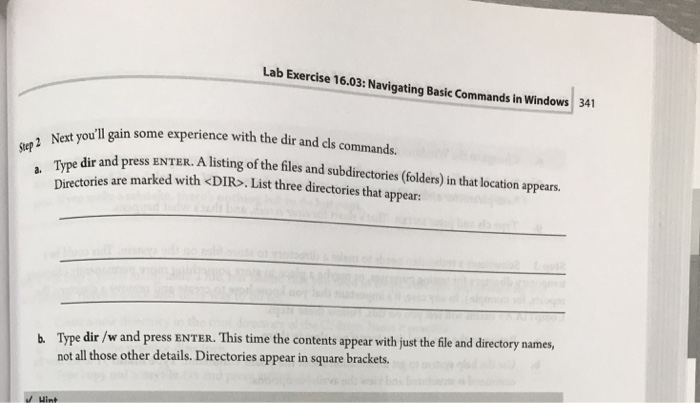
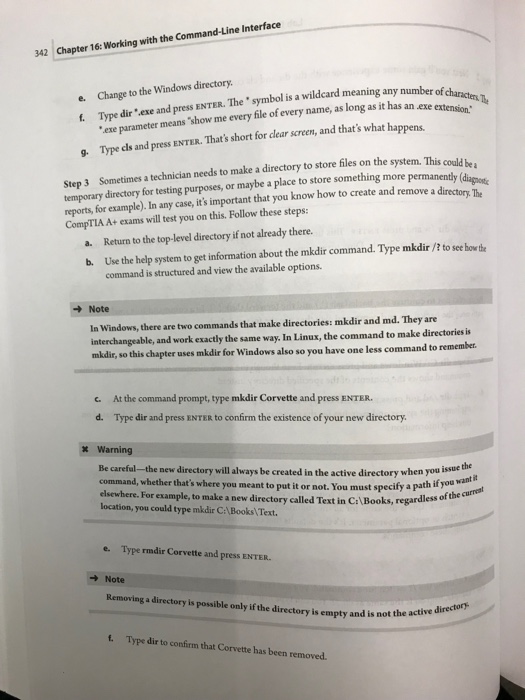
with the Command-Line Interface 340 Chapter 16: Working the The commands you learm about in this lab exercise will help you move around in the directory the contents of various locations, and create and delete directories Getting Down to Business First, you'll practice moving around using the command line. a. Open a command-line window in Windows, as you learned in Lab Exercise 16.01. b. Type cd l and press ENTER. This changes to the root directory. The prompt now looks likethe Step 1 To change to a particular directory, you type cd, then a space, then a slash (U, and then the denecen name (including the path to it if needed). For example, to change to the Books directory,you wd type cd \books. Tp There are various little tricks to using the ed command. One of these is that you can go up one level in the directory hierarchy by typing cd and pressing ENTER. Another is that you can omit the slash if the directory to which you are changing is a subdirectory of the active location. For example, to go from Cl to C:lBooks, you could type cd books. C. To change to a different drive(such as an optical drive or USB flash drive), type the drive ketera a colon and press ENTER. Pick an available drive and do this now. The prompt changes tohe the oot directory of that drive, like this: Dit -Note You can't change both the drive and the directory at once. You have to drive, and then change to the desired directory on that drive. first change to the desired Change back to the C: drive, and go back to the root directory if not already t Type cd Windows System32\ Drivers and press ENTER. That's an exa directory that is several levels deep with a single command. d. e. example of changing to t. Type cd / and press ENTER. You jump back to the root directory
Step by Step Solution
There are 3 Steps involved in it

Get step-by-step solutions from verified subject matter experts
 Study Help