







Question: Can someone please help me solve this practice question? A step by step guide would be really helpful. Having a hard time understanding this unit.
Can someone please help me solve this practice question? A step by step guide would be really helpful. Having a hard time understanding this unit.
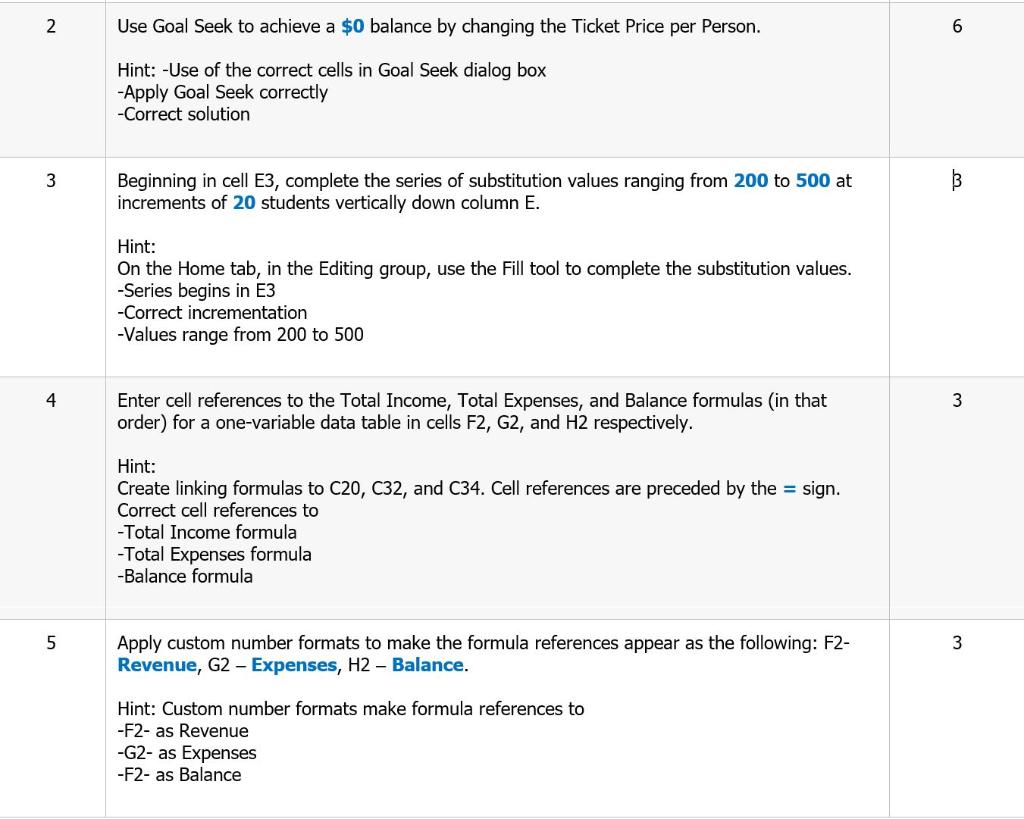
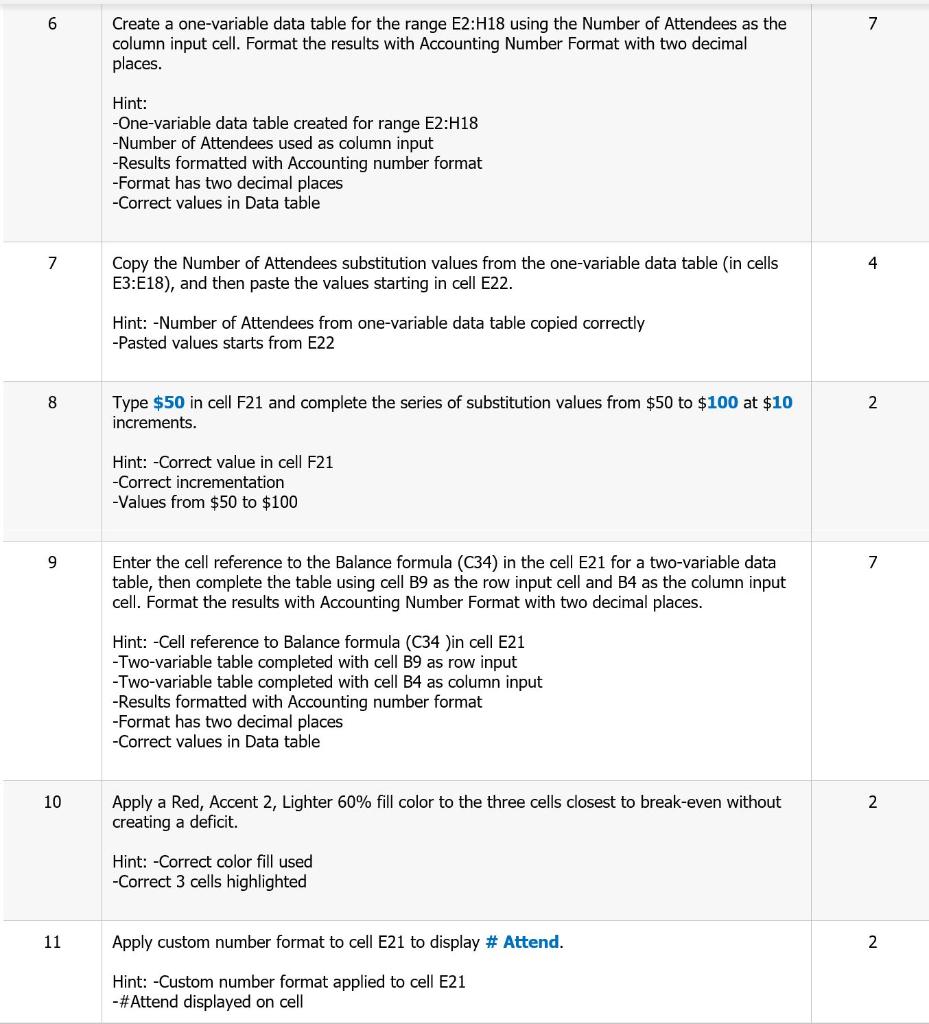
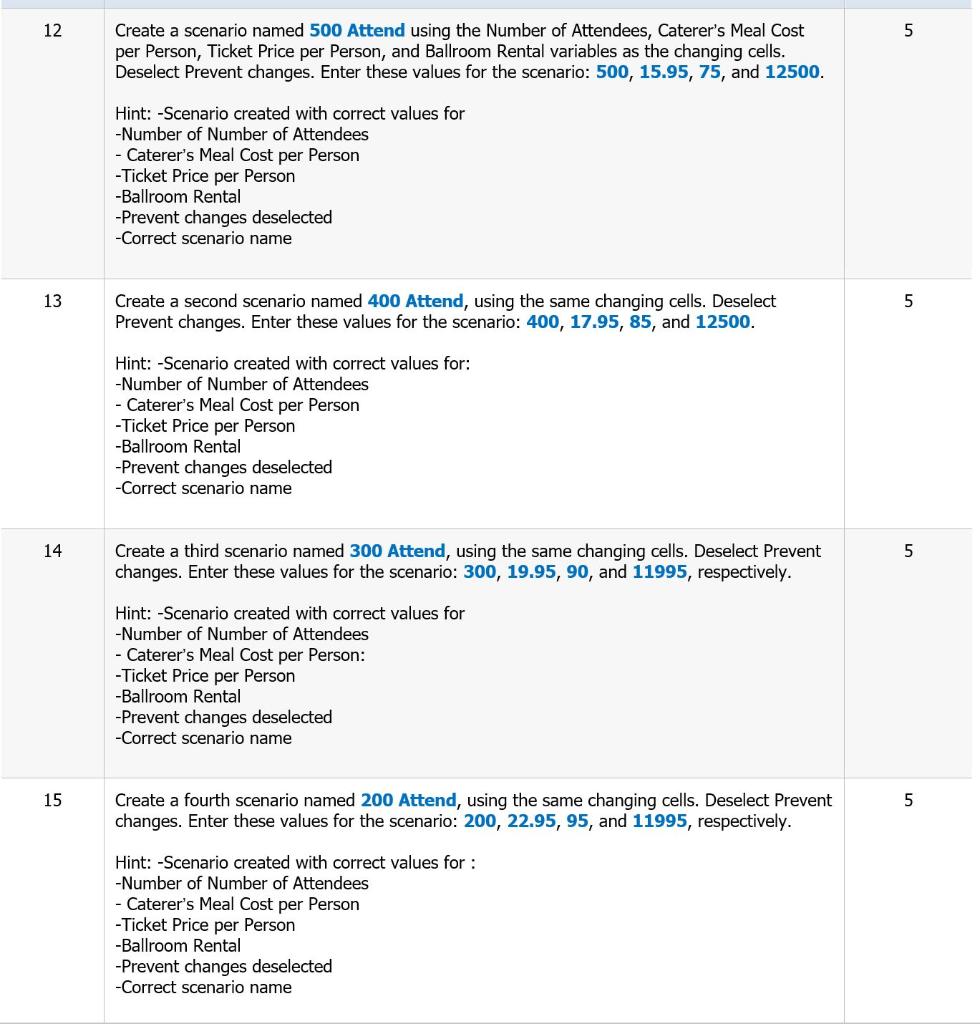
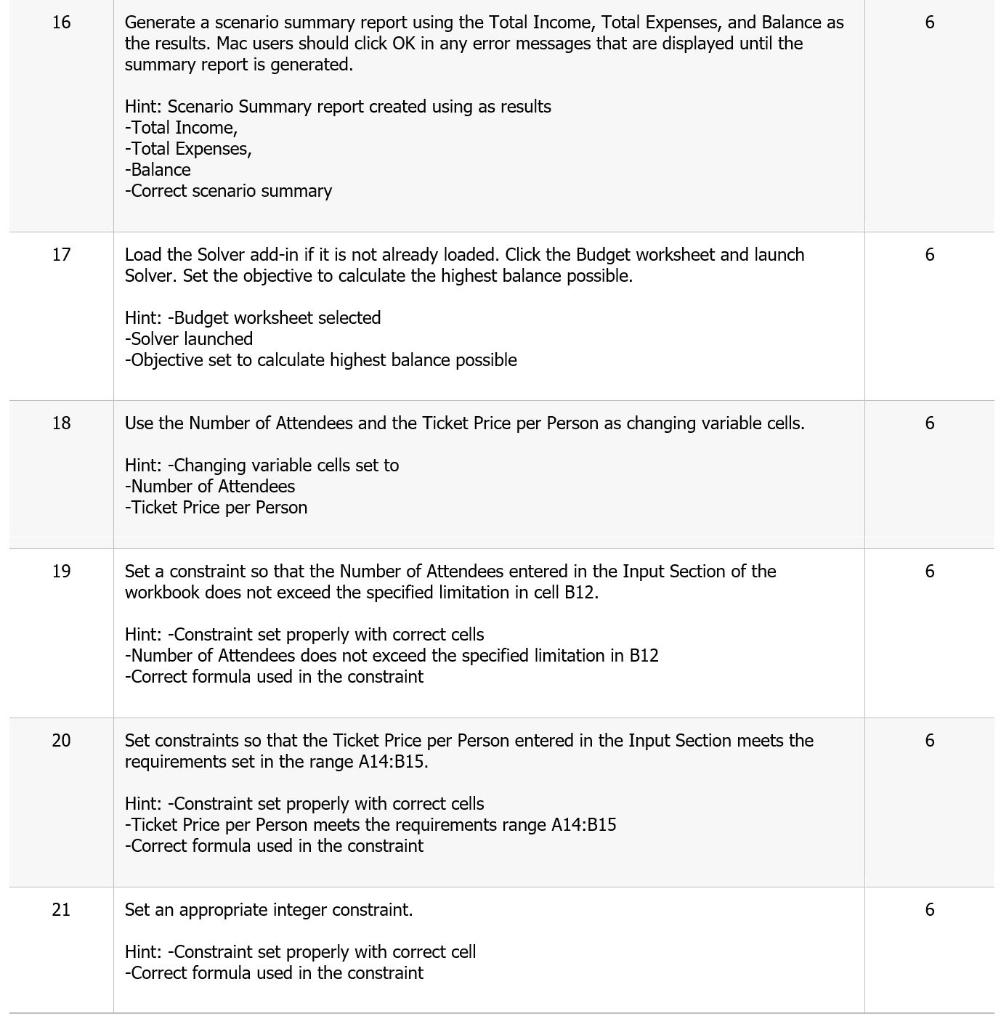
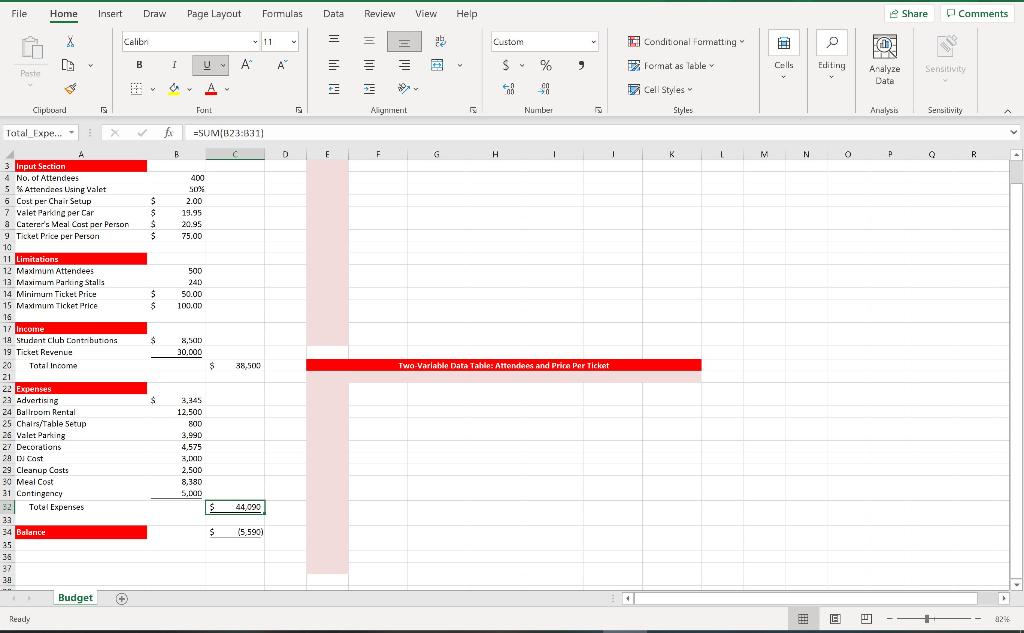
2 Use Goal Seek to achieve a $0 balance by changing the Ticket Price per Person. 6 Hint: Use of the correct cells in Goal Seek dialog box -Apply Goal Seek correctly -Correct solution 3 Beginning in cell E3, complete the series of substitution values ranging from 200 to 500 at increments of 20 students vertically down column E. Hint: On the Home tab, in the Editing group, use the Fill tool to complete the substitution values. -Series begins in E3 -Correct incrementation -Values range from 200 to 500 4 3 Enter cell references to the Total Income, Total Expenses, and Balance formulas (in that order) for a one-variable data table in cells F2, G2, and H2 respectively. Hint: Create linking formulas to C20, C32, and C34. Cell references are preceded by the = sign. Correct cell references to -Total Income formula -Total Expenses formula -Balance formula 5 3 Apply custom number formats to make the formula references appear as the following: F2- Revenue, G2 - Expenses, H2 - Balance. Hint: Custom number formats make formula references to -F2- as Revenue -G2- as Expenses -F2- as Balance 6 7 Create a one-variable data table for the range E2:H18 using the Number of Attendees as the column input cell. Format the results with Accounting Number Format with two decimal places. Hint: -One-variable data table created for range E2:H18 -Number of Attendees used as column input -Results formatted with Accounting number format -Format has two decimal places -Correct values in Data table 7 4 Copy the Number of Attendees substitution values from the one-variable data table (in cells E3:E18), and then paste the values starting in cell E22. Hint: -Number of Attendees from one-variable data table copied correctly -Pasted values starts from E22 8 2 Type $50 in cell F21 and complete the series of substitution values from $50 to $100 at $10 increments. Hint: -Correct value in cell F21 -Correct incrementation -Values from $50 to $100 9 7 Enter the cell reference to the Balance formula (C34) in the cell E21 for a two-variable data table, then complete the table using cell B9 as the row input cell and B4 as the column input cell. Format the results with Accounting Number Format with two decimal places. Hint: -Cell reference to Balance formula (C34 )in cell E21 -Two-variable table completed with cell B9 as row input -Two-variable table completed with cell B4 as column input -Results formatted with Accounting number format -Format has two decimal places -Correct values in Data table 10 N Apply a Red, Accent 2, Lighter 60% fill color to the three cells closest to break-even without creating a deficit. Hint: -Correct color fill used -Correct 3 cells highlighted 11 Apply custom number format to cell E21 to display # Attend. 2 Hint: -Custom number format applied to cell E21 -#Attend displayed on cell 12 5 Create a scenario named 500 Attend using the Number of Attendees, Caterer's Meal Cost per Person, Ticket Price per Person, and Ballroom Rental variables as the changing cells. Deselect Prevent changes. Enter these values for the scenario: 500, 15.95, 75, and 12500. Hint: -Scenario created with correct values for -Number of Number of Attendees - Caterer's Meal Cost per Person -Ticket Price per Person -Ballroom Rental -Prevent changes deselected -Correct scenario name 13 5 Create a second scenario named 400 Attend, using the same changing cells. Deselect Prevent changes. Enter these values for the scenario: 400, 17.95, 85, and 12500. Hint: -Scenario created with correct values for: -Number of Number of Attendees - Caterer's Meal Cost per Person -Ticket Price per Person -Ballroom Rental -Prevent changes deselected -Correct scenario name 14 5 Create a third scenario named 300 Attend, using the same changing cells. Deselect Prevent changes. Enter these values for the scenario: 300, 19.95, 90, and 11995, respectively. Hint: -Scenario created with correct values for -Number of Number of Attendees - Caterer's Meal Cost per Person: -Ticket Price per Person -Ballroom Rental -Prevent changes deselected -Correct scenario name 15 5 Create a fourth scenario named 200 Attend, using the same changing cells. Deselect Prevent changes. Enter these values for the scenario: 200, 22.95, 95, and 11995, respectively. Hint: -Scenario created with correct values for : -Number of Number of Attendees - Caterer's Meal Cost per Person -Ticket Price per Person -Ballroom Rental -Prevent changes deselected -Correct scenario name 16 6 Generate a scenario summary report using the Total Income, Total Expenses, and Balance as the results. Mac users should click OK in any error messages that are displayed until the summary report is generated. Hint: Scenario Summary report created using as results -Total Income, -Total Expenses, -Balance -Correct scenario summary 17 6 Load the Solver add-in if it is not already loaded. Click the Budget worksheet and launch Solver. Set the objective to calculate the highest balance possible. Hint: -Budget worksheet selected -Solver launched -Objective set to calculate highest balance possible 18 Use the Number of Attendees and the Ticket Price per Person as changing variable cells. 6 Hint: -Changing variable cells set to -Number of Attendees -Ticket Price per Person 19 6 Set a constraint so that the Number of Attendees entered in the Input Section of the workbook does not exceed the specified limitation in cell B12. Hint: -Constraint set properly with correct cells -Number of Attendees does not exceed the specified limitation in B12 -Correct formula used in the constraint 20 6 Set constraints so that the Ticket Price per Person entered in the Input Section meets the requirements set in the range A14:B15. Hint: -Constraint set properly with correct cells -Ticket Price per Person meets the requirements range A14:B15 -Correct formula used in the constraint 21 Set an appropriate integer constraint. 6 Hint: -Constraint set properly with correct cell -Correct formula used in the constraint File Home Insert Draw Page Layout Formulas Data Review View Help Share Comments X Calibr v 11 = = Custom Conditional Formatting . Kb v B 1 U A A S % 9 Format as leble Cells Editing Paste Sensitivity Analyze Date $ y A 90 > Cell Styles Style: Clipboard Font Alignment Nurubel Analysis Sensitivity A Total Expe... X =SUM:23:331) B D F F G H 1 1 K 1 M N N o Q R $ $ $ $ 400 SUX 2.00 19.95 20.95 75.00 $ $ 500 240 50.00 100.00 $ 2,500 30.000 $ 38,500 Two-Variable Data Table: Attendees and Price Per Ticket 3 Input Section 4 No. of Attendees 5 % Attandnes Using valet 6 Cost per Chair Setup 7 Valet Pandnc per Car a Caterer's Meal Cast aer Person 9 Ticket Price per Person 10 11 Limitations 12 Maximum Attendees 13 Maximum Parking Stalls 14 Minirnurn Ticket Price 15 Maximum Ticket Price 16 17 Income 19 Student Club Contrbutions 19 Ticket Revenue 20 Total income 21 22 Expenses 23 Advertising 24 Ballroom Rental 25 Chains/Table Setup 26 Valet Parking 27 Decorations 29 Di Cost 29 Cleanup Casts 30 Meal Cost 21 Contingency 32 Total Expenses 33 34 Balance 35 35 37 30 3,345 12.500 800 3.990 4,575 3.XD 2.500 8,380 5.DOD $ 44,090 $ (5,590) Budget Ready E 2246 2 Use Goal Seek to achieve a $0 balance by changing the Ticket Price per Person. 6 Hint: Use of the correct cells in Goal Seek dialog box -Apply Goal Seek correctly -Correct solution 3 Beginning in cell E3, complete the series of substitution values ranging from 200 to 500 at increments of 20 students vertically down column E. Hint: On the Home tab, in the Editing group, use the Fill tool to complete the substitution values. -Series begins in E3 -Correct incrementation -Values range from 200 to 500 4 3 Enter cell references to the Total Income, Total Expenses, and Balance formulas (in that order) for a one-variable data table in cells F2, G2, and H2 respectively. Hint: Create linking formulas to C20, C32, and C34. Cell references are preceded by the = sign. Correct cell references to -Total Income formula -Total Expenses formula -Balance formula 5 3 Apply custom number formats to make the formula references appear as the following: F2- Revenue, G2 - Expenses, H2 - Balance. Hint: Custom number formats make formula references to -F2- as Revenue -G2- as Expenses -F2- as Balance 6 7 Create a one-variable data table for the range E2:H18 using the Number of Attendees as the column input cell. Format the results with Accounting Number Format with two decimal places. Hint: -One-variable data table created for range E2:H18 -Number of Attendees used as column input -Results formatted with Accounting number format -Format has two decimal places -Correct values in Data table 7 4 Copy the Number of Attendees substitution values from the one-variable data table (in cells E3:E18), and then paste the values starting in cell E22. Hint: -Number of Attendees from one-variable data table copied correctly -Pasted values starts from E22 8 2 Type $50 in cell F21 and complete the series of substitution values from $50 to $100 at $10 increments. Hint: -Correct value in cell F21 -Correct incrementation -Values from $50 to $100 9 7 Enter the cell reference to the Balance formula (C34) in the cell E21 for a two-variable data table, then complete the table using cell B9 as the row input cell and B4 as the column input cell. Format the results with Accounting Number Format with two decimal places. Hint: -Cell reference to Balance formula (C34 )in cell E21 -Two-variable table completed with cell B9 as row input -Two-variable table completed with cell B4 as column input -Results formatted with Accounting number format -Format has two decimal places -Correct values in Data table 10 N Apply a Red, Accent 2, Lighter 60% fill color to the three cells closest to break-even without creating a deficit. Hint: -Correct color fill used -Correct 3 cells highlighted 11 Apply custom number format to cell E21 to display # Attend. 2 Hint: -Custom number format applied to cell E21 -#Attend displayed on cell 12 5 Create a scenario named 500 Attend using the Number of Attendees, Caterer's Meal Cost per Person, Ticket Price per Person, and Ballroom Rental variables as the changing cells. Deselect Prevent changes. Enter these values for the scenario: 500, 15.95, 75, and 12500. Hint: -Scenario created with correct values for -Number of Number of Attendees - Caterer's Meal Cost per Person -Ticket Price per Person -Ballroom Rental -Prevent changes deselected -Correct scenario name 13 5 Create a second scenario named 400 Attend, using the same changing cells. Deselect Prevent changes. Enter these values for the scenario: 400, 17.95, 85, and 12500. Hint: -Scenario created with correct values for: -Number of Number of Attendees - Caterer's Meal Cost per Person -Ticket Price per Person -Ballroom Rental -Prevent changes deselected -Correct scenario name 14 5 Create a third scenario named 300 Attend, using the same changing cells. Deselect Prevent changes. Enter these values for the scenario: 300, 19.95, 90, and 11995, respectively. Hint: -Scenario created with correct values for -Number of Number of Attendees - Caterer's Meal Cost per Person: -Ticket Price per Person -Ballroom Rental -Prevent changes deselected -Correct scenario name 15 5 Create a fourth scenario named 200 Attend, using the same changing cells. Deselect Prevent changes. Enter these values for the scenario: 200, 22.95, 95, and 11995, respectively. Hint: -Scenario created with correct values for : -Number of Number of Attendees - Caterer's Meal Cost per Person -Ticket Price per Person -Ballroom Rental -Prevent changes deselected -Correct scenario name 16 6 Generate a scenario summary report using the Total Income, Total Expenses, and Balance as the results. Mac users should click OK in any error messages that are displayed until the summary report is generated. Hint: Scenario Summary report created using as results -Total Income, -Total Expenses, -Balance -Correct scenario summary 17 6 Load the Solver add-in if it is not already loaded. Click the Budget worksheet and launch Solver. Set the objective to calculate the highest balance possible. Hint: -Budget worksheet selected -Solver launched -Objective set to calculate highest balance possible 18 Use the Number of Attendees and the Ticket Price per Person as changing variable cells. 6 Hint: -Changing variable cells set to -Number of Attendees -Ticket Price per Person 19 6 Set a constraint so that the Number of Attendees entered in the Input Section of the workbook does not exceed the specified limitation in cell B12. Hint: -Constraint set properly with correct cells -Number of Attendees does not exceed the specified limitation in B12 -Correct formula used in the constraint 20 6 Set constraints so that the Ticket Price per Person entered in the Input Section meets the requirements set in the range A14:B15. Hint: -Constraint set properly with correct cells -Ticket Price per Person meets the requirements range A14:B15 -Correct formula used in the constraint 21 Set an appropriate integer constraint. 6 Hint: -Constraint set properly with correct cell -Correct formula used in the constraint File Home Insert Draw Page Layout Formulas Data Review View Help Share Comments X Calibr v 11 = = Custom Conditional Formatting . Kb v B 1 U A A S % 9 Format as leble Cells Editing Paste Sensitivity Analyze Date $ y A 90 > Cell Styles Style: Clipboard Font Alignment Nurubel Analysis Sensitivity A Total Expe... X =SUM:23:331) B D F F G H 1 1 K 1 M N N o Q R $ $ $ $ 400 SUX 2.00 19.95 20.95 75.00 $ $ 500 240 50.00 100.00 $ 2,500 30.000 $ 38,500 Two-Variable Data Table: Attendees and Price Per Ticket 3 Input Section 4 No. of Attendees 5 % Attandnes Using valet 6 Cost per Chair Setup 7 Valet Pandnc per Car a Caterer's Meal Cast aer Person 9 Ticket Price per Person 10 11 Limitations 12 Maximum Attendees 13 Maximum Parking Stalls 14 Minirnurn Ticket Price 15 Maximum Ticket Price 16 17 Income 19 Student Club Contrbutions 19 Ticket Revenue 20 Total income 21 22 Expenses 23 Advertising 24 Ballroom Rental 25 Chains/Table Setup 26 Valet Parking 27 Decorations 29 Di Cost 29 Cleanup Casts 30 Meal Cost 21 Contingency 32 Total Expenses 33 34 Balance 35 35 37 30 3,345 12.500 800 3.990 4,575 3.XD 2.500 8,380 5.DOD $ 44,090 $ (5,590) Budget Ready E 2246
Step by Step Solution
There are 3 Steps involved in it

Get step-by-step solutions from verified subject matter experts
 Study Help