







Question: Can you remake it ? Problem 1 : Loan Duplicate the Loan Calculator model below in your Excel worksheet. Formulae for cells F 4 to
Can you remake it
Problem : Loan
Duplicate the Loan Calculator model below in your Excel worksheet.
Formulae for cells F to F are as per Figure
Figure
Name all appropriate ells using their labels and reconstruct the formulae replacing cell address
references.
Test by entering assumption inputs to cells C to C using input examples in Figure
Format the whole model as per Figure including:
a Model title font set to points bold and mergecentred B:F
b "Initial Assumptions" and "Result" mergecentered across columns with Thick Outside
Borders; other data with All Borders
c Format values appropriately as Number, Currency, or Percentage
d Color fill areas with different colors of your choice
e Boldface displayed data
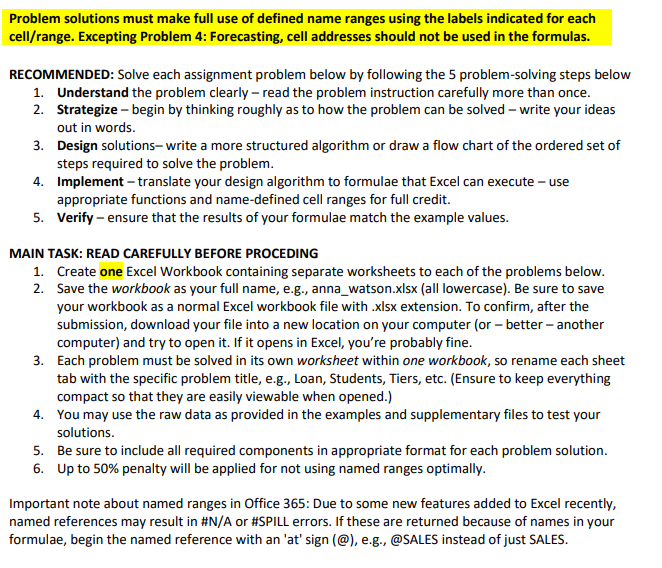
Figure Problem solutions must make full use of defined name ranges using the labels indicated for each
cellrange Excepting Problem : Forecasting, cell addresses should not be used in the formulas.
RECOMMENDED: Solve each assignment problem below by following the problemsolving steps below
Understand the problem clearly read the problem instruction carefully more than once.
Strategize begin by thinking roughly as to how the problem can be solved write your ideas
out in words.
Design solutions write a more structured algorithm or draw a flow chart of the ordered set of
steps required to solve the problem.
Implement translate your design algorithm to formulae that Excel can execute use
appropriate functions and namedefined cell ranges for full credit.
Verify ensure that the results of your formulae match the example values.
MAIN TASK: READ CAREFULLY BEFORE PROCEDING
Create one Excel Workbook containing separate worksheets to each of the problems below.
Save the workbook as your full name, eg annawatson.xlsx all lowercase Be sure to save
your workbook as a normal Excel workbook file with xlsx extension. To confirm, after the
submission, download your file into a new location on your computer or better another
computer and try to open it If it opens in Excel, you're probably fine.
Each problem must be solved in its own worksheet within one workbook, so rename each sheet
tab with the specific problem title, eg Loan, Students, Tiers, etc. Ensure to keep everything
compact so that they are easily viewable when opened.
You may use the raw data as provided in the examples and supplementary files to test your
solutions.
Be sure to include all required components in appropriate format for each problem solution.
U of just SALES.Problem : Loan
Duplicate the Loan Calculator model below in your Excel worksheet.
Formulae for cells F to F are as per Figure
Figure
Name all appropriate cells using their labels and reconstruct the formulae replacing cell address
references.
Test by entering assumption inputs to cells C to C using input examples in Figure
Format the whole model as per Figure including:
a Model title font set to points bold and mergecentred B:F
b "Initial Assumptions" and "Result" mergecentered across columns with Thick Outside
Borders; other data with All Borders
c Format values appropriately as Number, Currency, or Percentage
d Color fill areas with different colors of your choice
e Boldface displayed data
Figure Problem solutions must make full use of defined name ranges using the labels indicated for each cellrange
Step by Step Solution
There are 3 Steps involved in it
1 Expert Approved Answer
Step: 1 Unlock

Question Has Been Solved by an Expert!
Get step-by-step solutions from verified subject matter experts
Step: 2 Unlock
Step: 3 Unlock
 Study Help