





Question: Case Study: Creating Dashboards in Tableau Note: This case study is designed to work with the Excel file titled AmazingMartEU2.xisx file available in the Course
Case Study: Creating Dashboards in Tableau Note:
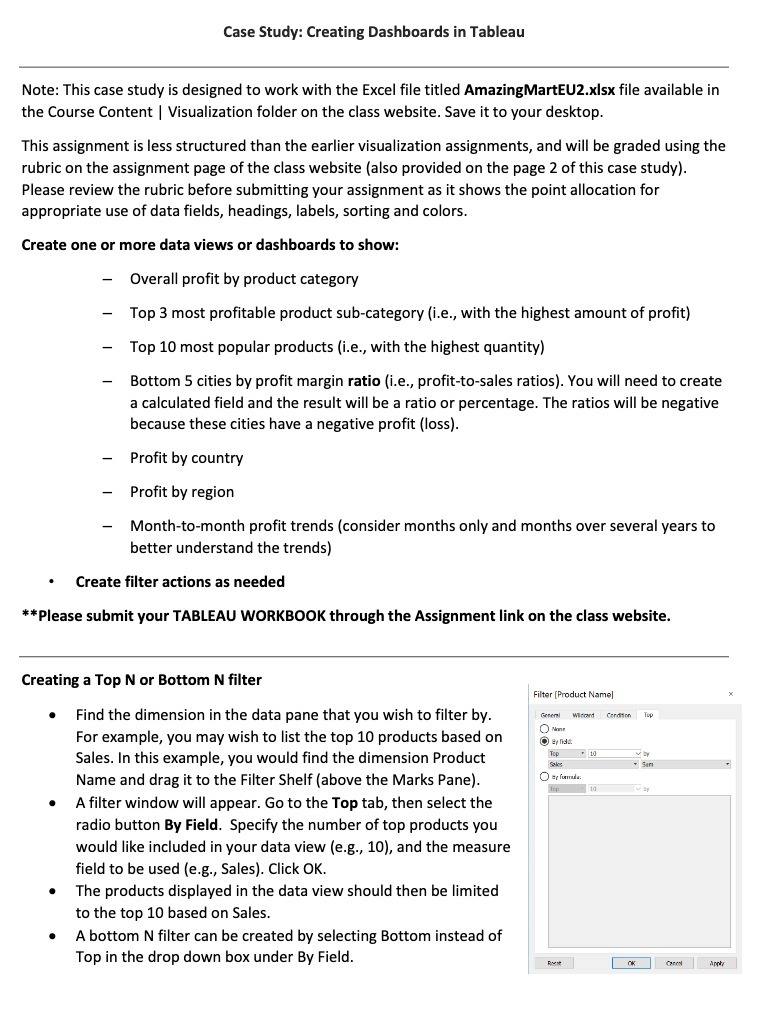
Case Study: Creating Dashboards in Tableau Note: This case study is designed to work with the Excel file titled AmazingMartEU2.xisx file available in the Course Content | Visualization folder on the class website. Save it to your desktop. This assignment is less structured than the earlier visualization assignments, and will be graded using the rubric on the assignment page of the class website (also provided on the page 2 of this case study). Please review the rubric before submitting your assignment as it shows the point allocation for appropriate use of data fields, headings, labels, sorting and colors. Create one or more data views or dashboards to show: Overall profit by product category Top 3 most profitable product sub-category (i.e., with the highest amount of profit) Top 10 most popular products (i.e., with the highest quantity) Bottom 5 cities by profit margin ratio (i.e., profit-to-sales ratios). You will need to create a calculated field and the result will be a ratio or percentage. The ratios will be negative because these cities have a negative profit (loss). Profit by country Profit by region Month-to-month profit trends (consider months only and months over several years to better understand the trends) Create filter actions as needed **Please submit your TABLEAU WORKBOOK through the Assignment link on the class website. Creating a Top N or Bottom N filter Filter [Product Name] Find the dimension in the data pane that you wish to filter by. For example, you may wish to list the top 10 products based on Q By nda Sales. In this example, you would find the dimension Product Top 10 Socks + Sar Name and drag it to the Filter Shelf (above the Marks Pane). By funda: 10 A filter window will appear. Go to the Top tab, then select the radio button By Field. Specify the number of top products you would like included in your data view (e.g., 10), and the measure field to be used (e.g., Sales). Click OK. The products displayed in the data view should then be limited to the top 10 based on Sales. A bottom N filter can be created by selecting Bottom instead of Top in the drop down box under By Field

Step by Step Solution

There are 3 Steps involved in it

1 Expert Approved Answer
Step: 1 Unlock blur-text-image

Question Has Been Solved by an Expert!

Get step-by-step solutions from verified subject matter experts

Step: 2 Unlock
Step: 3 Unlock

Students Have Also Explored These Related General Management Questions!