







Question: - Cell Reference: Allows you to refer to data from another cell in the worksheet. In the Excel Simulation below, if =C4 is entered in
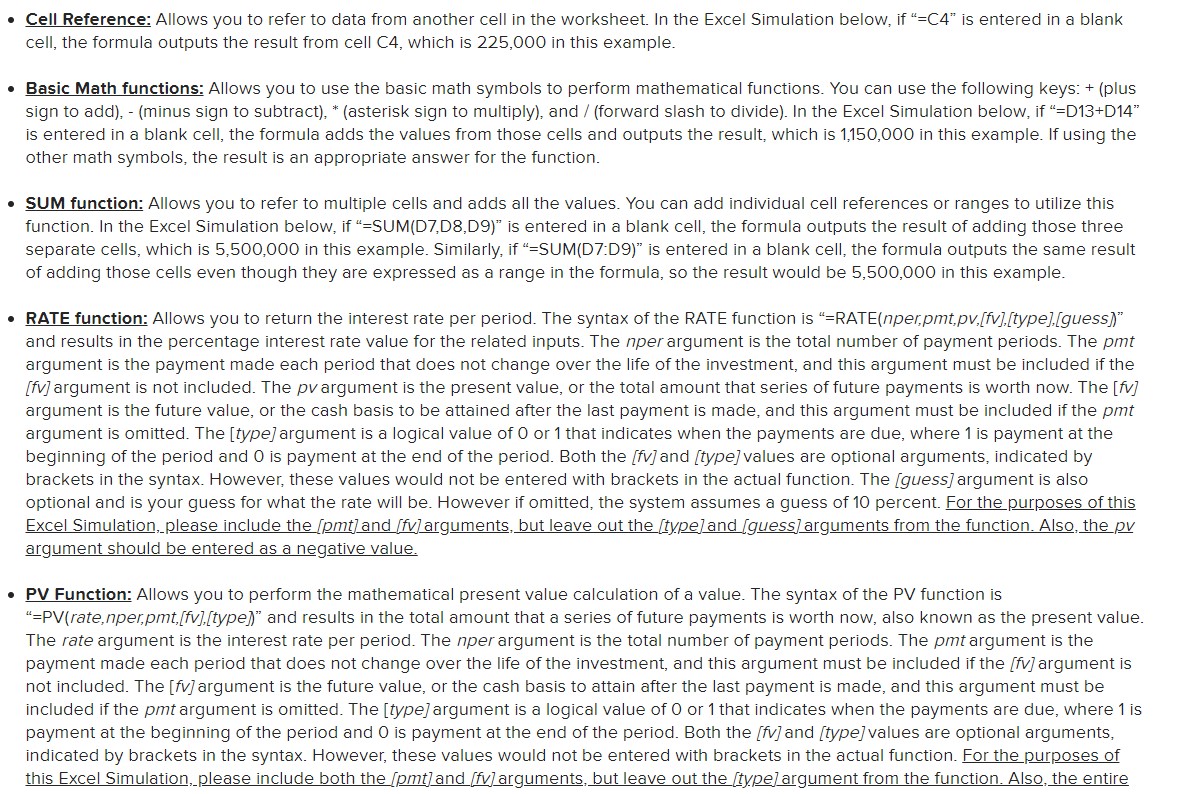
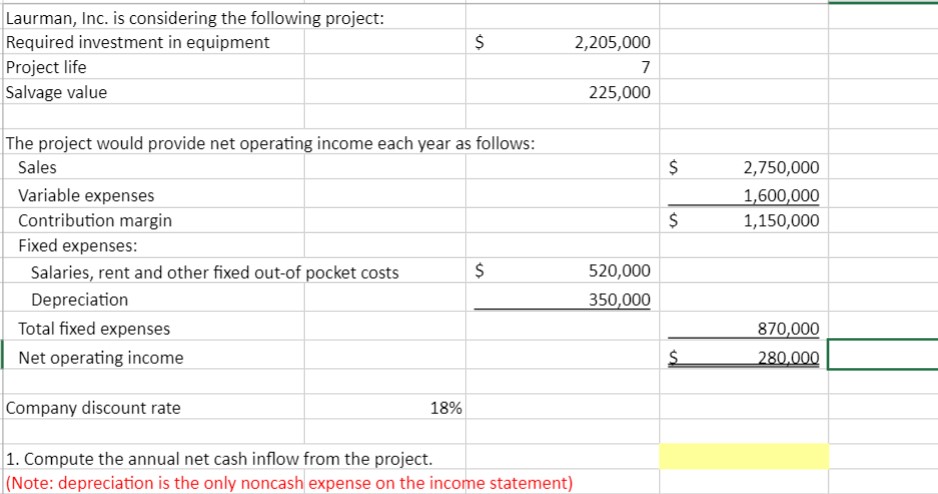
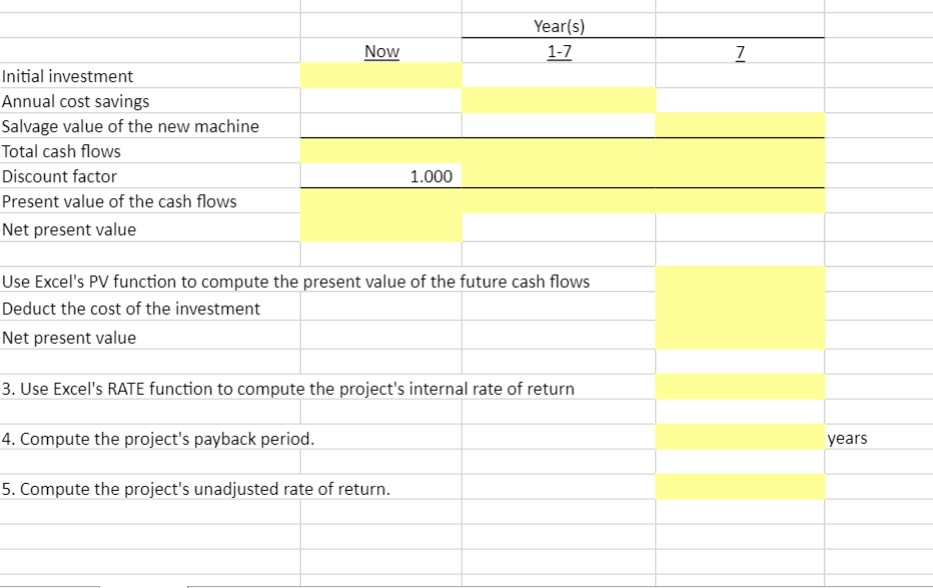
- Cell Reference: Allows you to refer to data from another cell in the worksheet. In the Excel Simulation below, if "=C4" is entered in a blank cell, the formula outputs the result from cell C4, which is 225,000 in this example. - Basic Math functions: Allows you to use the basic math symbols to perform mathematical functions. You can use the following keys: + (plus sign to add), - (minus sign to subtract), " (asterisk sign to multiply), and / (forward slash to divide). In the Excel Simulation below, if "=D13+D14" is entered in a blank cell, the formula adds the values from those cells and outputs the result, which is 1,150,000 in this example. If using the other math symbols, the result is an appropriate answer for the function. - SUM function: Allows you to refer to multiple cells and adds all the values. You can add individual cell references or ranges to utilize this function. In the Excel Simulation below, if "=SUM(D7,D8,D9)" is entered in a blank cell, the formula outputs the result of adding those three separate cells, which is 5,500,000 in this example. Similarly, if "=SUM(D7:D9)" is entered in a blank cell, the formula outputs the same result of adding those cells even though they are expressed as a range in the formula, so the result would be 5,500,000 in this example. - RATE function: Allows you to return the interest rate per period. The syntax of the RATE function is "=RATE(nper,pmt,pv,[fv],[type],[guess)" and results in the percentage interest rate value for the related inputs. The nper argument is the total number of payment periods. The pmt argument is the payment made each period that does not change over the life of the investment, and this argument must be included if the [fV] argument is not included. The pvargument is the present value, or the total amount that series of future payments is worth now. The [fV] argument is the future value, or the cash basis to be attained after the last payment is made, and this argument must be included if the pmt argument is omitted. The [type] argument is a logical value of 0 or 1 that indicates when the payments are due, where 1 is payment at the beginning of the period and 0 is payment at the end of the period. Both the [fv] and [type] values are optional arguments, indicated by brackets in the syntax. However, these values would not be entered with brackets in the actual function. The [guess] argument is also optional and is your guess for what the rate will be. However if omitted, the system assumes a guess of 10 percent. For the purposes of this Excel Simulation, please include the [pmt]and [fv]arguments, but leave out the [type] and [guess]arguments from the function. Also, the pv argument should be entered as a negative value. - PV Function: Allows you to perform the mathematical present value calculation of a value. The syntax of the PV function is "=PV(rate, nper,pmt, [fv],,[type]" and results in the total amount that a series of future payments is worth now, also known as the present value. The rate argument is the interest rate per period. The nper argument is the total number of payment periods. The pmt argument is the payment made each period that does not change over the life of the investment, and this argument must be included if the [fV] argument is not included. The [fv] argument is the future value, or the cash basis to attain after the last payment is made, and this argument must be included if the pmt argument is omitted. The [type] argument is a logical value of 0 or 1 that indicates when the payments are due, where 1 is payment at the beginning of the period and 0 is payment at the end of the period. Both the [fV] and [type] values are optional arguments, indicated by brackets in the syntax. However, these values would not be entered with brackets in the actual function. For the purposes of this Excel Simulation, please include both the [ pmt ] and [fv] arguments, but leave out the [type] argument from the function. Also, the entire Laurman, Inc. is considering the following project: The project would provide net operating income each year as follows: \begin{tabular}{|l|r|r|} \hline Sales & $ & 2,750,000 \\ \hline Variable expenses & & 1,600,000 \\ \hline Contribution margin & $ & 1,150,000 \\ \hline Fixed expenses: & $ & \\ \hline Salaries, rent and other fixed out-of pocket costs & 520,000 \\ \hline Depreciation & 350,000 \\ \hline Total fixed expenses & & $270,000 \\ \hline Net operating income & & $280,000 \\ \hline \end{tabular} Company discount rate 18% 1. Compute the annual net cash inflow from the project. (Note: depreciation is the only noncash expense on the income statement) Initial investment Annual cost savings Salvage value of the new machine Total cash flows Discount factor 1.000 Present value of the cash flows Net present value Use Excel's PV function to compute the present value of the future cash flows Deduct the cost of the investment Net present value 3. Use Excel's RATE function to compute the project's internal rate of return 4. Compute the project's payback period. years 5. Compute the project's unadjusted rate of return
Step by Step Solution
There are 3 Steps involved in it

Get step-by-step solutions from verified subject matter experts
 Study Help