







Question: Cell Reference: Allows you to refer to data from another cell in the worksheet. From the Excel Simulation below, if in a blank cell
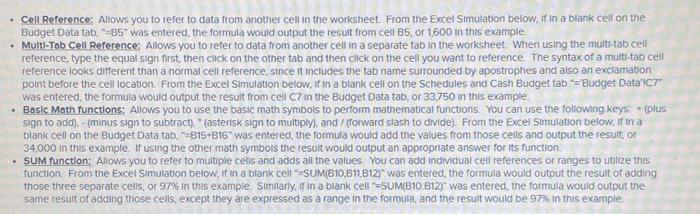
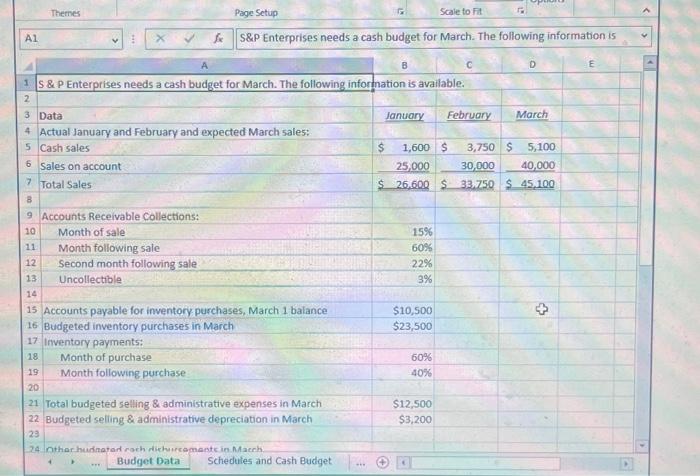
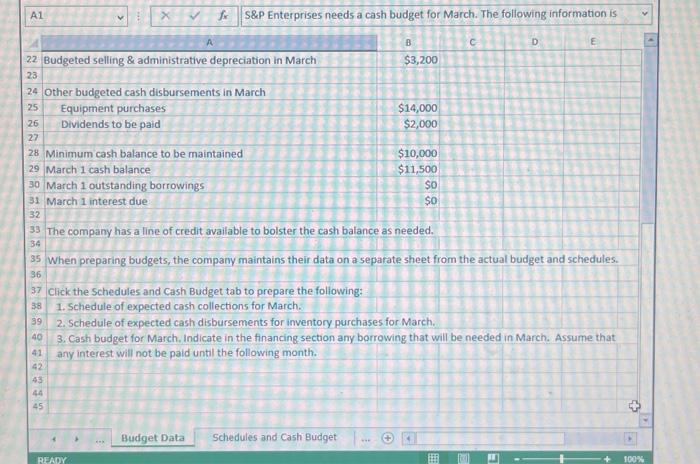
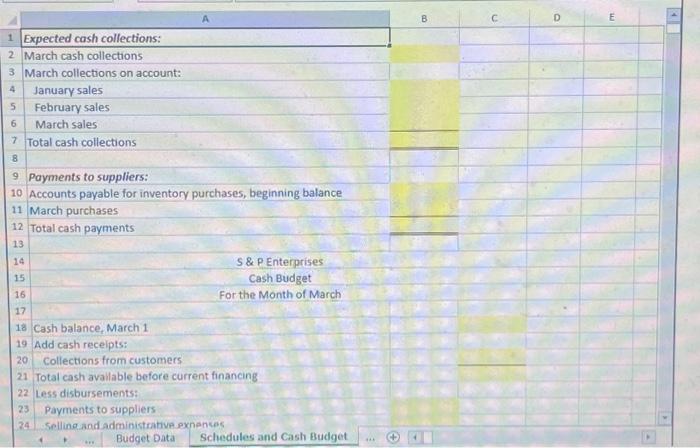
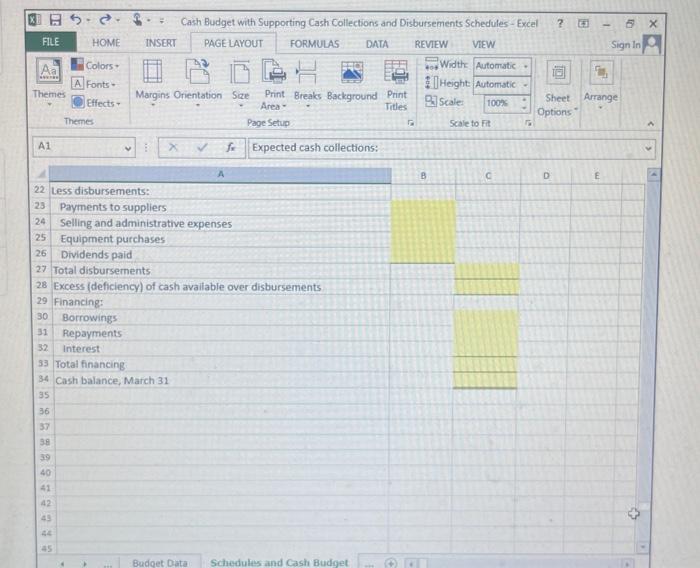
Cell Reference: Allows you to refer to data from another cell in the worksheet. From the Excel Simulation below, if in a blank cell on the Budget Data tab, "-85" was entered, the formula would output the result from cell B5, or 1,600 in this example. Multi-Tob Cell Reference; Allows you to refer to data from another cell in a separate tab in the worksheet. When using the multi-tab cell reference, type the equal sign first, then click on the other tab and then click on the cell you want to reference. The syntax of a multi-tab cell reference looks different than a normal cell reference, since it includes the tab name surrounded by apostrophes and also an exclamation point before the cell location. From the Excel Simulation below, if in a blank cell on the Schedules and Cash Budget tab Budget Data'!C7" was entered, the formula would output the result from cell C7 in the Budget Data tab, or 33,750 in this example. Basic Math functions: Allows you to use the basic math symbols to perform mathematical functions. You can use the following keys + (plus sign to add). - (minus sign to subtract), " (asterisk sign to multiply), and/ (forward slash to divide). From the Excel Simulation below, if in a blank cell on the Budget Data tab, "-815-B16" was entered, the formula would add the values from those cells and output the result, or 34,000 in this example. If using the other math symbols the result would output an appropriate answer for its function. SUM function: Allows you to refer to multiple cells and adds all the values. You can add individual cell references or ranges to utilize this function. From the Excel Simulation below, if in a blank cell =SUM(B10,B11 B12) was entered, the formula would output the result of adding those three separate cells, or 97% In this example. Similarly, if in a blank cell =SUM(B10.812) was entered, the formula would output the same result of adding those cells, except they are expressed as a range in the formula, and the result would be 97% in this example Themes Al A Page Setup Scale to Fit S&P Enterprises needs a cash budget for March. The following information is 1 S & P Enterprises needs a cash budget for March. The following information is available. D $ 26,600 $ 33,750 $ 45,100 2 3 Data January February March 4 Actual January and February and expected March sales: 5 Cash sales $ 6 Sales on account 1,600 $ 3,750 $5,100. 25,000 30,000 40,000 7 Total Sales B 9 Accounts Receivable Collections: 10 Month of sale 11 Month following sale 12 Second month following sale 13 Uncollectible 15% 60% 22% 3% 14 15 Accounts payable for inventory purchases, March 1 balance $10,500 16 Budgeted inventory purchases in March $23,500 17 Inventory payments: 18 Month of purchase 60% 19 Month following purchase 40% 20 21 Total budgeted selling & administrative expenses in March 22 Budgeted selling & administrative depreciation in March $12,500 $3,200 23 24 Other hudnated coch dichurcomants in March. Budget Data Schedules and Cash Budget + 3 A1 Sx S&P Enterprises needs a cash budget for March. The following information is B C D E $3,200 22 Budgeted selling & administrative depreciation in March 23 24 Other budgeted cash disbursements in March 25 Equipment purchases 26 Dividends to be paid 27 28 Minimum cash balance to be maintained 29 March 1 cash balance 30 March 1 outstanding borrowings 31 March 1 interest due 32 $14,000 $2,000 $10,000 $11,500 SO $0 33 The company has a line of credit available to bolster the cash balance as needed. 34 35 When preparing budgets, the company maintains their data on a separate sheet from the actual budget and schedules. 36 37 Click the Schedules and Cash Budget tab to prepare the following: 38 1. Schedule of expected cash collections for March. 39 2. Schedule of expected cash disbursements for inventory purchases for March. 40 41 3. Cash budget for March, Indicate in the financing section any borrowing that will be needed in March. Assume that any interest will not be paid until the following month. 42 43 44 45 Budget Data Schedules and Cash Budget READY + 100% 1 Expected cash collections: 2 March cash collections 3 March collections on account: January sales 4 5 February sales 6 March sales 7 Total cash collections 8 9 Payments to suppliers: 10 Accounts payable for inventory purchases, beginning balance 11 March purchases 12 Total cash payments 13 14 15 16 17 18 Cash balance, March 1 19 Add cash receipts: 20 Collections from customers S & P Enterprises Cash Budget For the Month of March 21 Total cash available before current financing 22 Less disbursements: Payments to suppliers 23 24 Selling and administrative.exnentes Budget Data Schedules and Cash Budget *** C D E B x Sign In Aa 1 FILE = HOME INSERT Colors+ A Fonts Cash Budget with Supporting Cash Collections and Disbursements Schedules-Excel ? PAGE LAYOUT FORMULAS DATA REVIEW VIEW 404 Width: Automatic- Height: Automatic Themes Margins Orientation Size Print Breaks Background Print Effects Themes Area- Page Setup Titles Scale: 100% Sheet Arrange Options 5 Scale to Fit A1 fx Expected cash collections: A B C D E 22 Less disbursements: 23 24 Payments to suppliers Selling and administrative expenses 25 Equipment purchases 26 Dividends paid 27 Total disbursements 28 Excess (deficiency) of cash available over disbursements 29 Financing: 30 Borrowings 31 Repayments 32 Interest 33 Total financing 34 Cash balance, March 31 35 36 37 38 39 40 41 421 43 44 45 Budget Data Schedules and Cash Budget 3 4
Step by Step Solution
There are 3 Steps involved in it

Get step-by-step solutions from verified subject matter experts
 Study Help