



Question: Change the constructor of the class Circle so that it allows you to specify the color during construction. Add an accessor method to Circle that
- Change the constructor of the class Circle so that it allows you to specify the color during construction.
- Add an accessor method to Circle that returns the diameter of a circle.
- Add an accessor method to Circle that returns the color of a circle.
- Add a mutator method to Circle that will change a circle's x position to a new x.
- Add a mutator method to Circle that will change a circle's y position to a new y.
- Add a mutator method to Circle that moves a circle to a new location: (x, y).
- Add an accessor method to Circle that returns the distance of the circle from (0, 0): the origin. Use: (int)(Math.sqrt(someNumber)) to get the square root of someNumber. For example, the following code stores the value 10 in the variable x: int num = 100; int numSquareRoot = (int)(Math.sqrt(num));
- Complete the displayDetails method. It should display a circle's diameter, color, and coordinates exactly as in the following example: The red circle at (55, 120) has a diameter of 5.
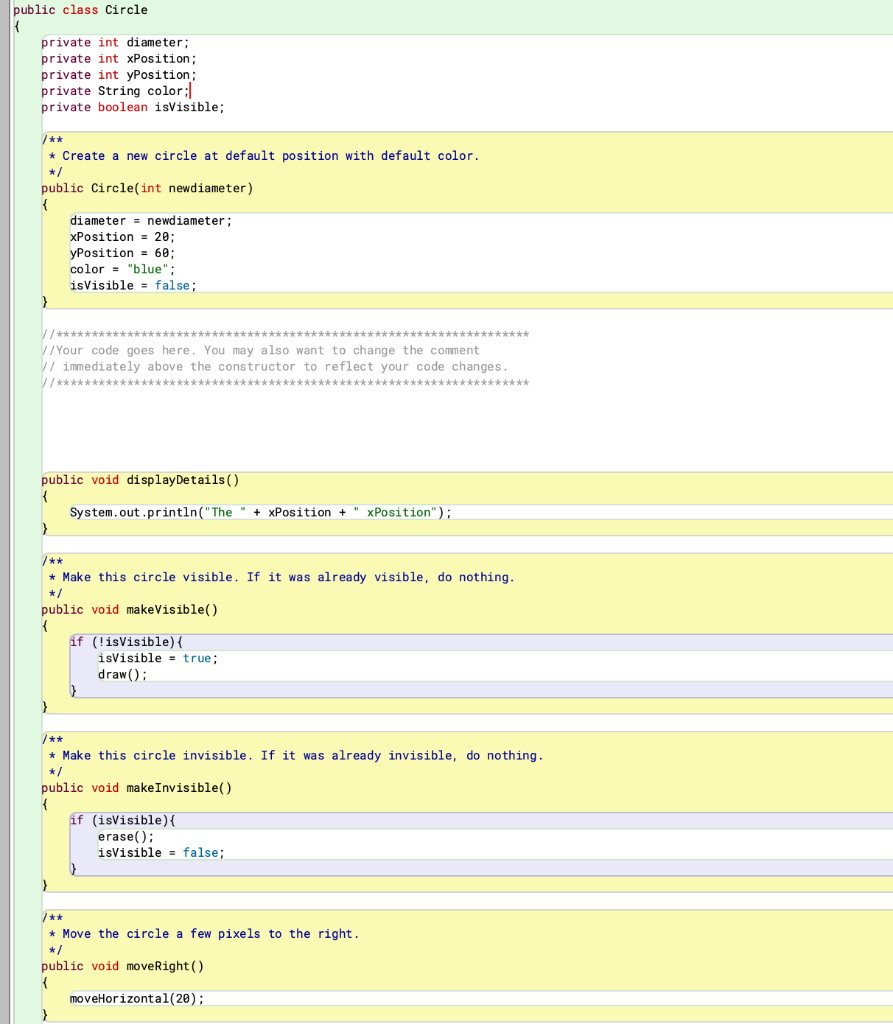
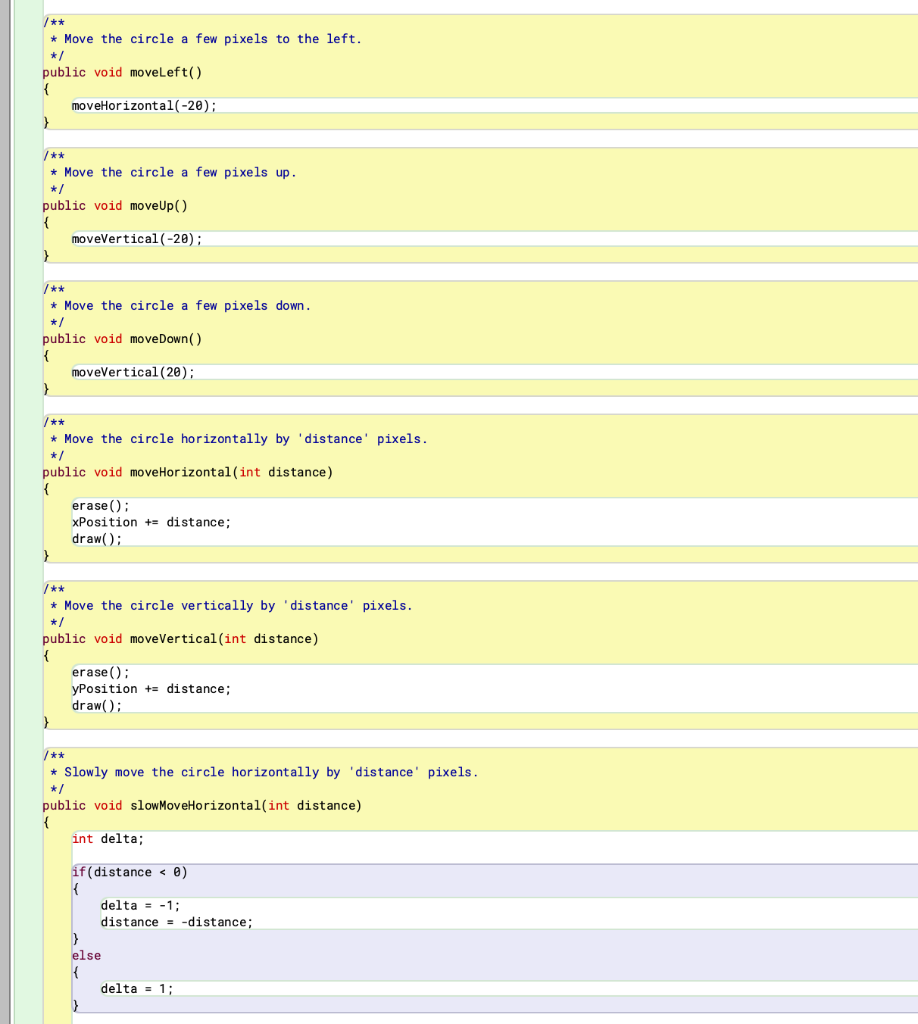
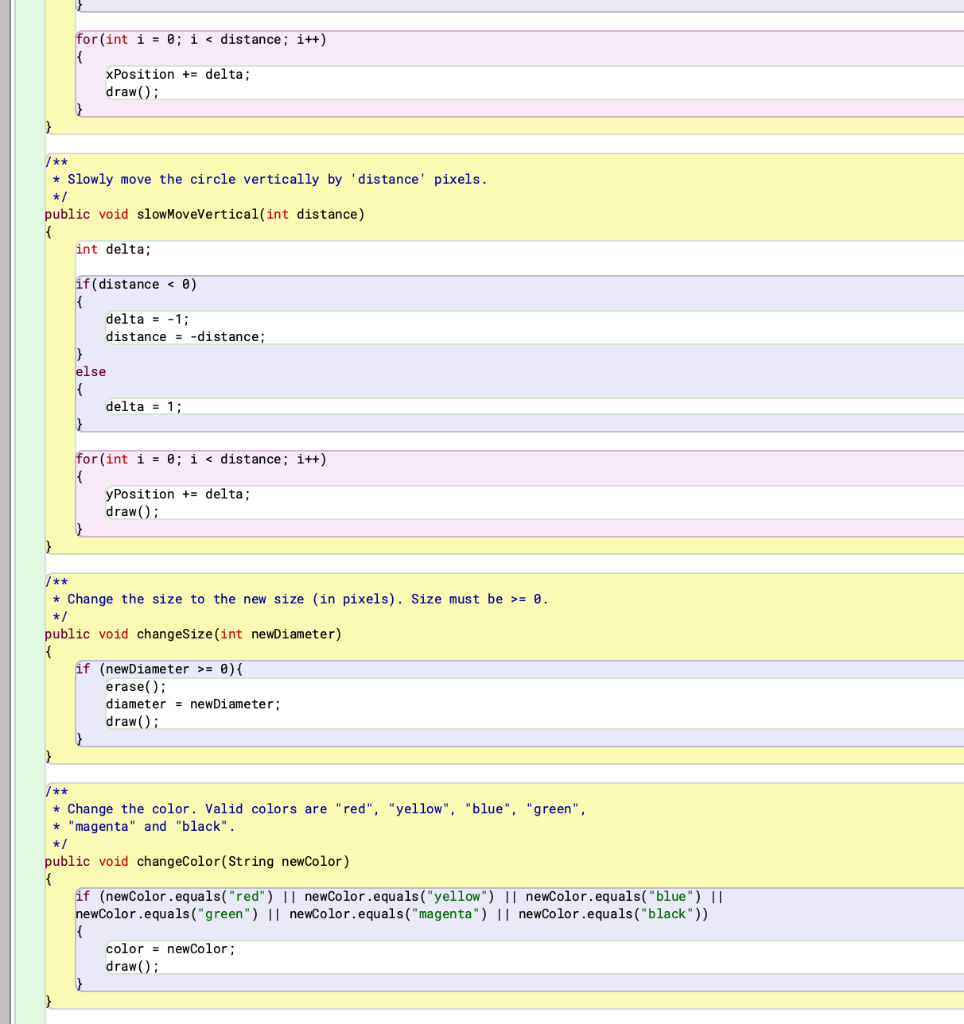
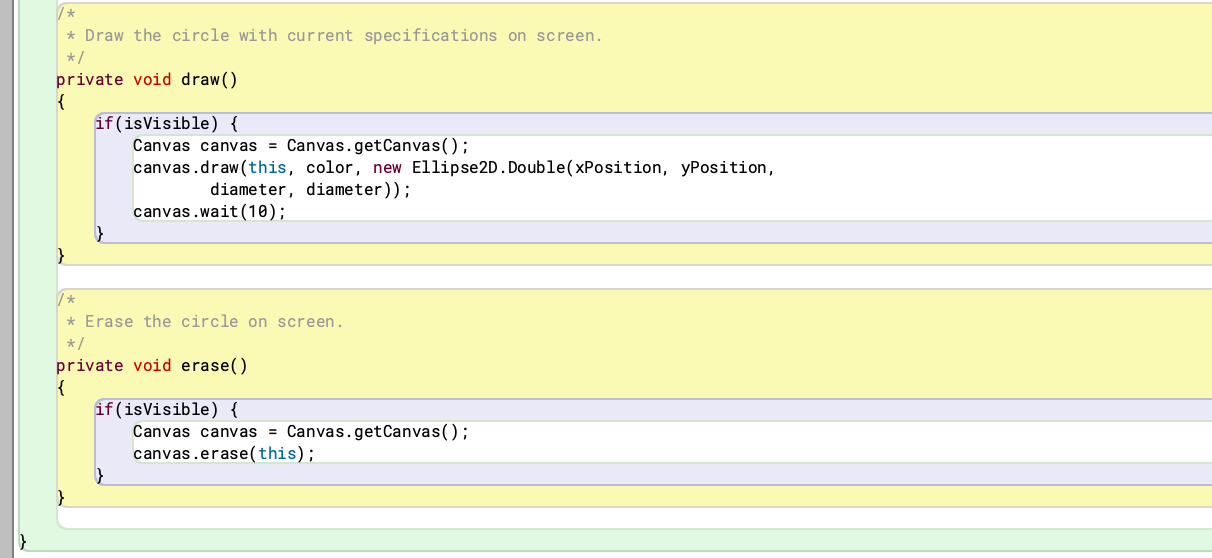
public class Circle { private int diameter; private int xPosition; private int yPosition; private String color: private boolean isVisible; ** * Create a new circle at default position with default color. */ public Circle(int newdiameter) diameter = newdiameter: xPosition = 20; yPosition = 60; color = "blue": isVisible = false; //** ************************************ // Your code goes here. You may also want to change the comment // immediately above the constructor to reflect your code changes. public void display Details { System.out.println("The " + xPosition + " xPosition"); } /** + Make this circle visible. If it was already visible, do nothing. public void makeVisible() { if (!isVisible) { isVisible = true; draw(); } /** * Make this circle invisible. If it was already invisible, do nothing. public void make Invisible() { if (isVisible) { erase(); isVisible = false; /** * Move the circle a few pixels to the right. */ public void moveRight() moveHorizontal(20): /** * Move the circle a few pixels to the left. */ public void moveLeft() { moveHorizontal(-20); } /** * Move the circle a few pixels up. */ public void moveUp moveVertical(-20); * Move the circle a few pixels down. public void moveDown() { moveVertical (20): * Move the circle horizontally by 'distance' pixels. */ public void move Horizontal(int distance) erase(): xPosition += distance; draw(); /** * Move the circle vertically by 'distance' pixels. */ public void moveVertical(int distance) { erase(): yPosition += distance; draw(); } * Slowly move the circle horizontally by 'distance' pixels. */ public void slowMoveHorizontal(int distance) { int delta; if(distance = 0. */ public void changeSize(int newDiameter) { if (newDiameter >= 0) { erase(); diameter = new Diameter; draw(); } } /** * Change the color. Valid colors are "red", "yellow", "blue", "green", * "magenta" and "black". */ public void changeColor(String newColor) { if (newColor.equals("red") || newColor.equals("yellow") || newColor.equals("blue") 11 newColor .equals("green") || newcolor.equals("magenta") || newColor .equals("black")) { color = newColor: draw(); * Draw the circle with current specifications on screen. */ private void draw() { if(isVisible) { Canvas canvas = Canvas.getCanvas(); canvas.draw(this, color, new Ellipse2D.Double(xPosition, yPosition, diameter, diameter)); canvas.wait(10); } * * Erase the circle on screen. */ private void erase() { if(isVisible) { Canvas canvas = Canvas.getCanvas(); canvas.erase(this)
Step by Step Solution
There are 3 Steps involved in it

Get step-by-step solutions from verified subject matter experts