







Question: CHAPTER 4 RELATIONAL DATABASES To calculate Invoice Total, type Invoice Total. in the first blank Field cell, righi-click in the cell, and select Build from
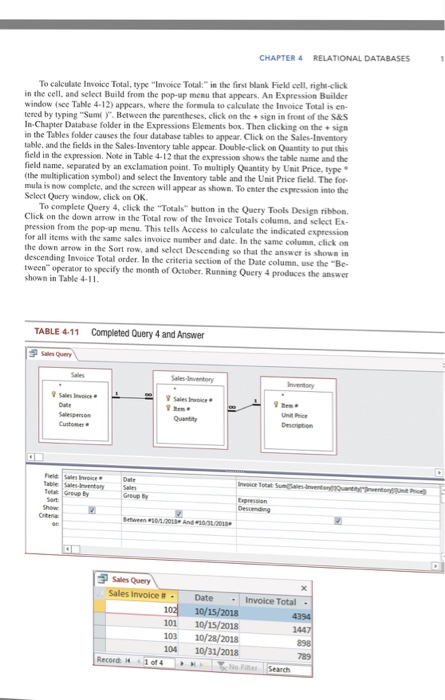
CHAPTER 4 RELATIONAL DATABASES To calculate Invoice Total, type "Invoice Total. in the first blank Field cell, righi-click in the cell, and select Build from the pop-up menu that appears. An Expression Builder window (sec Table 4-12) appears, where the formula to calculate the Invoice Total is en- tered by typing "Sum ). Betweem the parentheses, click on the +sign in front of the S&S In-Chapter Database folder in the Expeessions Elements box. Then clicking on the sign in the Tables folder causes the four database tables to appear. Click on the Sales-Inventory table, and the fields in the Sales-Inventory table appear. Double-click on Quantity to put this field in the expression. Note in Table 4-12 that the expression shows the table name and the field name, separated by an exclamation point. To multiply Quantity by Unit Price, type (the multiplication symbol) and select the Inventory table and the Unit Price field. The for- mula is now complete, and the screen will appear as shown. To enter the expression into the the Totals button in the Query Tools Design ribbon. To complete Query 4, click Click on the down arrow in the Total row of the Invoice Totals column, and pression from the pop-up menu. This tells Access to calculate the indicated e for all items with the same sales invoice number and date. In the same column, click on I select Ex the down arrow in the Sort row, and select Descending so that the answer is shown descending Invoice Total order. In the criteria section of the Date column, use the tween" operator to specify the month of October. Running Query 4 produces the answer shown in Table 4-11 TABLE 4-11 Completed Query 4 and Answer Field Sales Invoice nvoioe Total Desumding Sales Query Sales invoice #. Date Invoice Total 10/15/2018 01 10/15/2018 1447 No Fiter Search
Step by Step Solution
There are 3 Steps involved in it

Get step-by-step solutions from verified subject matter experts
 Study Help