







Question: Code: Default.aspx: Future Value Calculator 401K Future Value Calculator Monthly Investment: Annual interest rate: 3.0 Number of years: 10 Future Value: Default.aspx.cs using System; using
Code:
Default.aspx:
401K Future Value Calculator
Default.aspx.cs
using System; using System.Collections.Generic; using System.Linq; using System.Web; using System.Web.UI; using System.Web.UI.WebControls;
namespace XEx05FutureValue { public partial class Default : System.Web.UI.Page { protected void Page_Load(object sender, EventArgs e) { if (!IsPostBack) for (int i = 50; i
protected void btnCalculate_Click(object sender, EventArgs e) { if (IsValid) { int monthlyInvestment = Convert.ToInt32(ddlMonthlyInvestment.SelectedValue); decimal yearlyInterestRate = Convert.ToDecimal(txtInterestRate.Text); int years = Convert.ToInt32(txtYears.Text);
decimal futureValue = this.CalculateFutureValue(monthlyInvestment, yearlyInterestRate, years);
lblFutureValue.Text = futureValue.ToString("c"); } }
protected decimal CalculateFutureValue(int monthlyInvestment, decimal yearlyInterestRate, int years) { int months = years * 12; decimal monthlyInterestRate = yearlyInterestRate / 12 / 100; decimal futureValue = 0; for (int i = 0; i
protected void btnClear_Click(object sender, EventArgs e) { ddlMonthlyInvestment.SelectedIndex = 0; txtInterestRate.Text = ""; txtYears.Text = ""; lblFutureValue.Text = ""; } } }
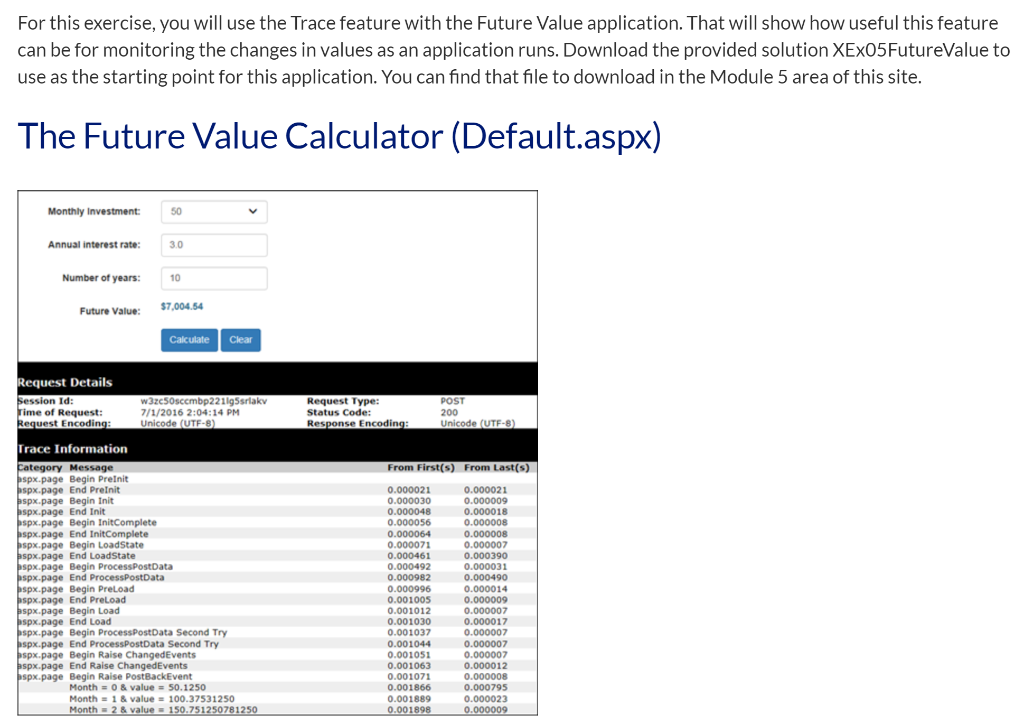
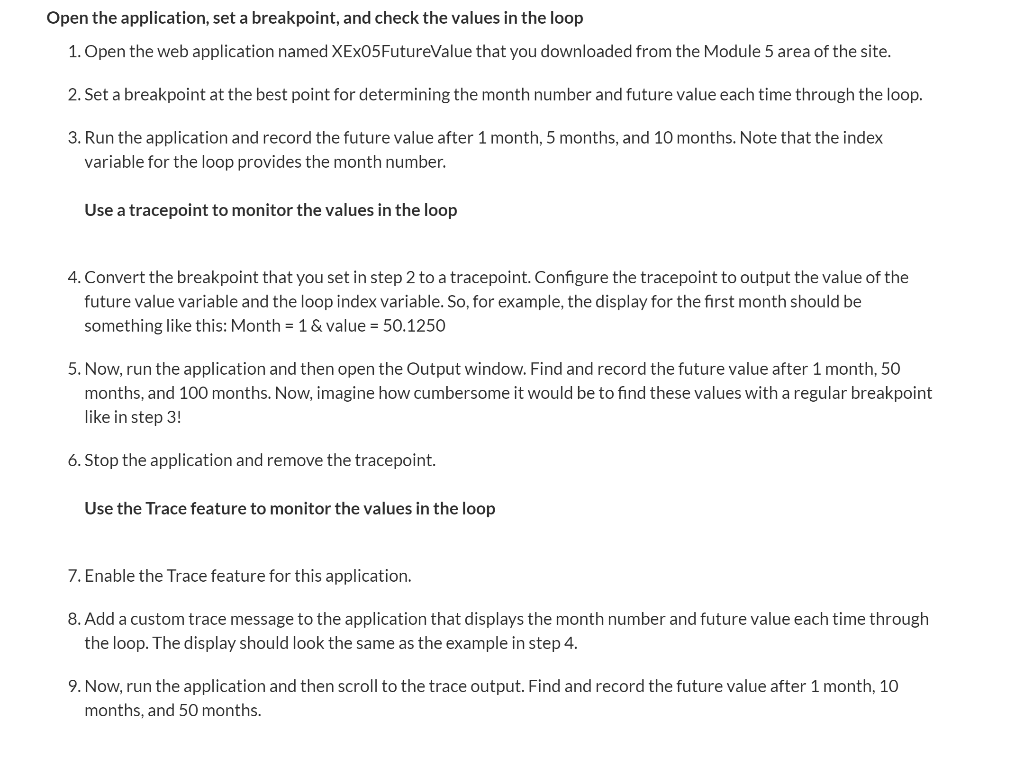
For this exercise, you will use the Trace feature with the Future Value application. That will show how useful this feature can be for monitoring the changes in values as an application runs. Download the provided solution XEX05FutureValue to use as the starting point for this application. You can find that file to download in the Module 5 area of this site. The Future Value Calculator (Default.aspx) Monthly Investment: 50 Annual interest rate: 3.0 Number of years: 10 Future Value: $7,004.54 Calculate Clear Request Details Session Id: Time of Request: Request Encoding: w3zc5Osccmbp2211g5srlaky 7/1/2016 2:04:14 PM Unicode (UTF-8) Request Type: Status Code: Response Encoding: POST 200 Unicode (UTF-8) From First(s) From Last(s) Trace Information Category Message spx.page Begin Preinit bspx.page End Preinit spx.page Begin Init bspx.page End Init bspx.page Begin InitComplete bspx.page End InitComplete pspx.page Begin LoadState bspx.page End LoadState pspx.page Begin Process PostData pspx.page End Process PostData spx.page Begin Preload spx.page End Preload bspx.page Begin Load bspx.page End Load bspx.page Begin Process PostData Second Try pspx.page End Process PostData Second Try bspx.page Begin Raise ChangedEvents bspx.page End Ralse ChangedEvents bspx.page Begin Raise PostBackEvent Month = 0 & value = 50.1250 Month = 1 & value = 100.37531250 Month = 2 & value = 150.751250781250 0.000021 0.000030 0.000048 0.000056 0.000064 0.000071 0.000461 0.000492 0.000982 0.000996 0.001005 0.001012 0.001030 0.001037 0.001044 0.001051 0.001063 0.001071 0.001866 0.001889 0.001898 0.000021 0.000009 0.000018 0.000008 0.000008 0.000007 0.000390 0.000031 0.000490 0.000014 0.000009 0.000007 0.000017 0.000007 0.000007 0.000007 0.000012 0.000008 0.000795 0.000023 0.000009 Open the application, set a breakpoint, and check the values in the loop 1. Open the web application named XEX05FutureValue that you downloaded from the Module 5 area of the site. 2. Set a breakpoint at the best point for determining the month number and future value each time through the loop. 3. Run the application and record the future value after 1 month, 5 months, and 10 months. Note that the index variable for the loop provides the month number. Use a tracepoint to monitor the values in the loop 4. Convert the breakpoint that you set in step 2 to a tracepoint. Configure the tracepoint to output the value of the future value variable and the loop index variable. So, for example, the display for the first month should be something like this: Month = 1 & value = 50.1250 5. Now, run the application and then open the Output window. Find and record the future value after 1 month, 50 months, and 100 months. Now, imagine how cumbersome it would be to find these values with a regular breakpoint like in step 3! 6. Stop the application and remove the tracepoint. Use the Trace feature to monitor the values in the loop 7. Enable the Trace feature for this application. 8. Add a custom trace message to the application that displays the month number and future value each time through the loop. The display should look the same as the example in step 4. 9. Now, run the application and then scroll to the trace output. Find and record the future value after 1 month, 10 months, and 50 monthsStep by Step Solution
There are 3 Steps involved in it

Get step-by-step solutions from verified subject matter experts
 Study Help