







Question: Collection worksheet A1:E357 Project Description: cProject Description> Instructions: For the purpose of grading the project you are required to perform the following tasks: Step Instructions
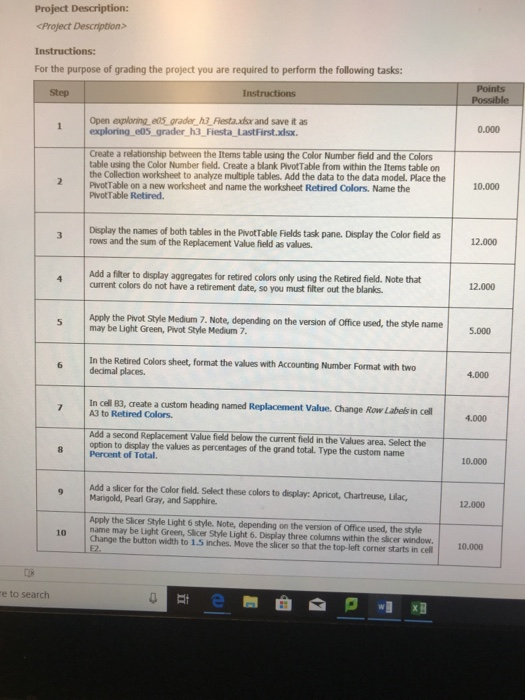
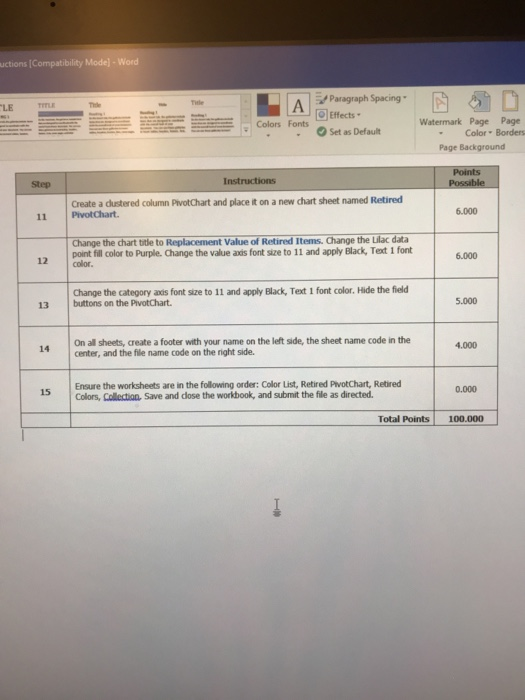
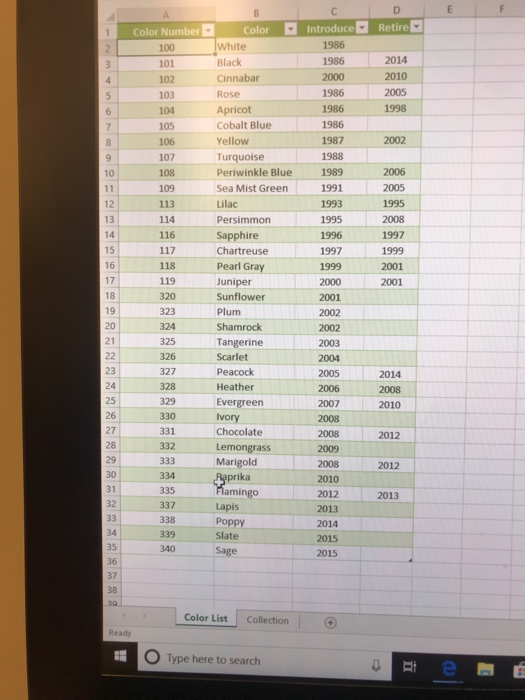
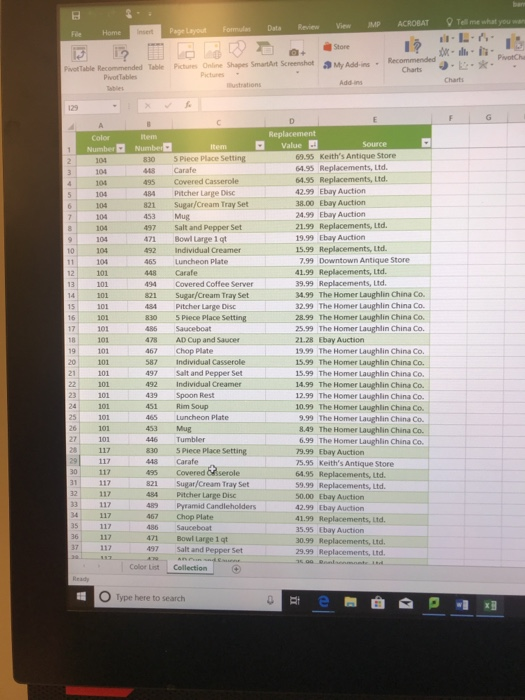
Project Description: cProject Description> Instructions: For the purpose of grading the project you are required to perform the following tasks: Step Instructions Open exploring e05 grader h3 Flestausx and save it as 0.000 exploring e05_grader h3 Fiesta LastFirst.xdsx. Create a relationship between the Items table using the Color Number field and the Colors table using the Color Number field. Create a blank PivotTable from within the Items table on the Collection worksheet to analyze multiple tables. Add the data to the data model. Place the PivotTable on a new worksheet and name the worksheet Retired Colors. Name the PivotTable Retired. 10.000 Display the names of both tables in the PiwotTable Fields task pane. Display the Color field as 12.000 rows and the sum of the Replacement Value field as values. Add a filter to display aggregates for retired colors only using the Retired field. Note that current colors do not have a retirement date, so you must filter out the blanks. 12.000 Apply the Pivot Style Medium 7. Note, depending on the version of Office used, the style name 5000 may be Light Green, Piwot Style Medium 7, In the Retired Colors sheet, format the values with Accounting Number Format with two 6 decimal places 4.000 In cell B3, create a custom heading named Replacement Value. Change Row Labels in cell 4.000 3 to Retired Colors. Add a second Replacement Value field below the current field in the Values area. Select the option to display the values as percentages of the grand total. Type the custom name 8 Percent of Total. 10.000 Add a slicer for the Color field. Select these colors to dieplay: Apricot, Chartreuse, Lilac, 9Marigold, Pearl Gray, and Sapphire 12.000 Apply the Slicer Style Light 6 style. Note, depending on the version of Office used, the style name may be Light Green, Slicer Style Light 6. Display three columns within the slicer windowo0 10 Change Change the button width to 1.5 inches. Move the slicer so that the top-left corner starts in cell 10.000 e to search uctions ICompatibility Modej- Word i-Paragraph Spacing LE TITLE Effects Colors Fonts Watermark Page Page Set as Default Color Borders Page Background Instructions Step Create a dustered column PivotChart and place it on a new chart sheet named Retired 6.000 11 PivotChart. Change the chart title to Replacement Value of Retired Items. Change the Lilac data point fill color to Purple. Change the value axis font size to 11 and apply Black, Text 1 font 6.000 12 color Change the category axds font size to 11 and apply Black, Text 1 font color. Hide the field 5.000 13 buttons on the PivotChart. 14 On all sheetscrete a footer with your name on the left side, the sheet name code in the 4.000 center, and the file name code on the right side. Ensure the worksheets are in the following order: Clor List, Retired PlvotChart, Retired 15 0.000 Colors, Collection, Save and cdose the workbook, and submit the file as directed. Total Points 100.000 Color Number 100 101 Color Introduce Retire White Black Cinnabar Rose Apricot Cobalt Blue Yellow Turquoise Periwinkle Blue Sea Mist Green Lilac Persimmon Sapphire Chartreuse Pearl Gray Juniper Sunflower Plum Shamrock Tangerine Scarlet Peacock Heather Evergreen Ivory Chocolate Lemongrass Marigold 1986 2010 1986 1986 103 104 105 106 107 108 109 113 114 116 1989 1991 1993 12 13 14 15 16 1997 0 1997 118 119 320 323 2001 2001 18 2001 2005 2014 2010 331 332 2012 334 335 337 prika min Lapis Poppy Slate sage 2010 2012 2013 2014 2015 2015 2013 Color List Collection Type here to search Tell me what you wan Page Layout Formulas Data Review View IMP ACROBAT Fle Home store ed Tble pictures Oine Shapes Smaart Screenshot :Mye -uns , Recommended "th . Charts + Pivot Table Recommended Table Pictures Online Shapes SmartArt Screenshot My Add in .*. e 129 Replacement Number Number 69.95 Keith's Antique Store 64.95 Replacements, Ltd 830 5 Piece Place Setting 448 Carafe 495 Covered Casserole 484 Pitcher Large Disc 821 Sugar/Cream Tray Set 453 Mug 497 Salt and Pepper Set 471 Bowl Large 1 qt 492 Individual Creamer 465 Luncheon Plate 448 Carafe 494 Covered Coffee Server 821 Sugar/Cream Tray Set 434 Pitcher Large Disc 42.99 Ebay Auction 38.00 Ebay Auction 24.99 Ebay Auction 21.99 Replacements, Ltd. 19.99 Ebay Auction 15.99 Replacements, Ltd 7.99 Downtown Antique Store 41.99 Replacements, Ltd 39.99 Replacements, Ltd 34.99 The Homer Laughlin China Co. 2.99 The Homer Laughlin China Co. 28.99 The Homer Laughlin China 25.99 The Homer Laughlin China Co. 21.28 Ebay Auction 19.99 The Homer Laughlin China Co. 15.99 The Homer Laughlin China Co. 15.99 The Homer Laughlin China Co 14.99 The Homer Laughlin China Co. 12.99 The Homer Laughlin China Co. 10.99 The Homer Laughlin China 9.99 The Homer Laughlin China Co. 8.49 The Homer Laughlin China 6.99 The Homer Laughlin China Co. 79.99 Ebay Auction 75.95 Keith's Antique Store 64.95 Replacements, Ltd. 59.99 Replacements, Ltd. 50.00 Ebay Auction 42.99 Ebay Auction 41.99 Replacements, Ltd 35.95 Ebay Auction 30.99 Replacements, Ltd 29.99 Replacements, Ltd. 5 Piece Place Setting 478 467 587 AD Cup and Saucer Chop Plate Individual Casserole 497 Salt and Pepper Set 492 Individual Creamer 439 Spoon Rest 451 Rim Soup 465 Luncheon Plate 453 Mug 446 Tumbler 830 5Piece Place Setting 448 Carafe 117 4 Covered &srole 821 Sugar/Cream Tray Set 484 Pitcher Large Disc 48) Pytamid Candleholders 467 Chop Plate 486 Sauceboat 471 Bowl Large 1 qt 497 Salt and Pepper Set 36 117 Color List Collection O Type here to search
Step by Step Solution
There are 3 Steps involved in it

Get step-by-step solutions from verified subject matter experts
 Study Help