







Question: COMP 1 0 0 5 / 5 0 0 5 - Practical Test 2 Within your work area, create a PracTest 2 directory to work
COMP Practical Test
Within your work area, create a PracTest directory to work in
Run a web browser in the Virtual Machine and download the code file from BlackboardAssessments and put it in the PracTest directory.
Edit as needed to get it running drawing a big green dot
Then complete the four tasks below one mark for each task
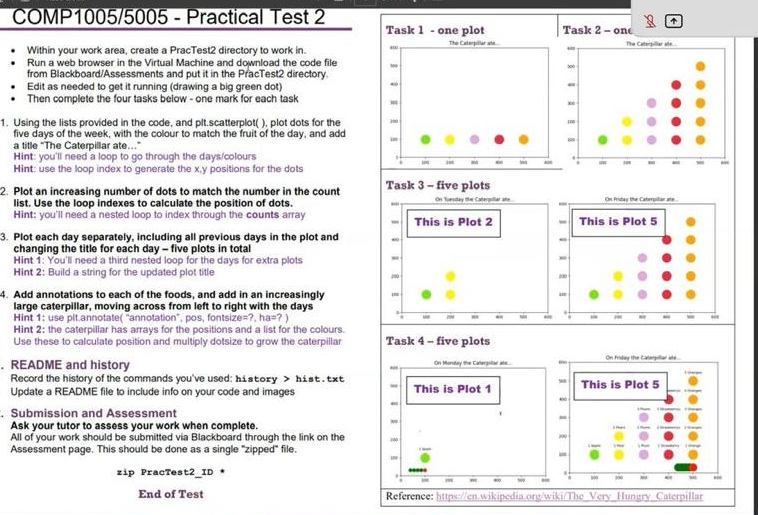
Using the lists provided in the code, and pltscatterplot plot dots for the five days of the week, with the colour to match the fruit of the day, and add a title "The Caterpillar ate..."
Hint: you'll need a loop to go through the dayscolours
Hint: use the loop index to generate the positions for the dots
Plot an increasing number of dots to match the number in the count list. Use the loop indexes to calculate the position of dots.
Hint: you'll need a nested loop to index through the counts array
Plot each day separately, including all previous days in the plot and changing the title for each day five plots in total
Hint : You'll need a third nested loop for the days for extra plots
Hint : Build a string for the updated plot title
Add annotations to each of the foods, and add in an increasingly large caterpillar, moving across from left to right with the days
Hint : use pltannotateannotation pos, fontsize ha
Hint : the caterpiliar has arrays for the positions and a list for the colours.
Use these to calculate position and multiply dotsize to grow the caterpillar
README and history
Record the history of the commands you've used: history hist. txt Update a README file to include info on your code and images
Submission and Assessment
Ask your tutor to assess your work when complete.
All of your work should be submitted via Blackboard through the link on the Assessment page. This should be done as a single "zipped" file.
zip PractestID
End of Test
Step by Step Solution
There are 3 Steps involved in it
1 Expert Approved Answer
Step: 1 Unlock

Question Has Been Solved by an Expert!
Get step-by-step solutions from verified subject matter experts
Step: 2 Unlock
Step: 3 Unlock
 Study Help