







Question: complet all the requirements 2. Creat following user input cells: a. Cell B 1. Have the user input how many computers that they wish to
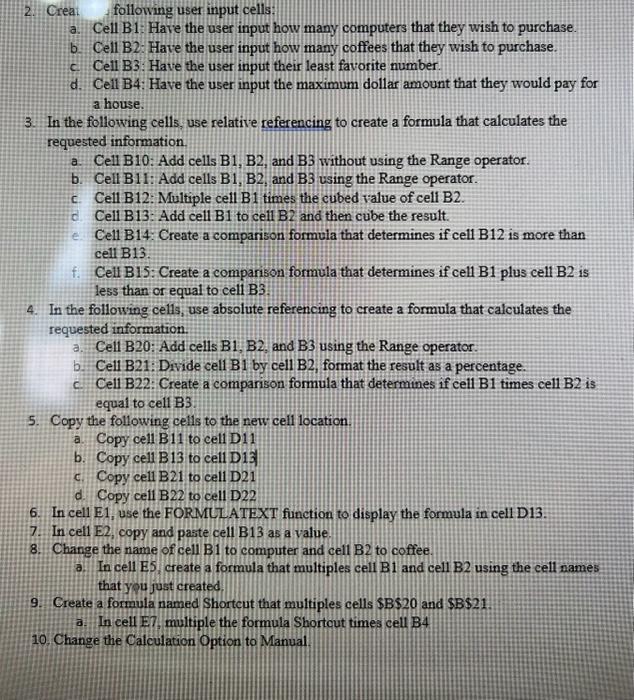
2. Creat following user input cells: a. Cell B 1. Have the user input how many computers that they wish to purchase. b. Cell B2. Have the user input how many coffees that they wish to purchase. c. Cell B3: Have the user input their least favorite number d. Cell B4: Have the user input the maximum dollar amount that they would pay for a house. 3. In the following cells, use relative referencing to create a formula that calculates the requested information. a. Cell B10: Add cells B1, B2, and B3 without using the Range operator. b. Cell B11: Add cells B1, B2, and B3 using the Range operator. c. Cell B12: Multiple cell B1 times the cubed value of cell B2. c. Cell B13: Add cell B1 to cell B2 and then cube the result. e. Cell B14: Create a comparison formula that determines if cell B12 is more than cell B13. f. Cell B15: Create a comparison formula that determines if cell B1 plus cell B2 is less than or equal to cell B3. 4. In the following cells, use absolute referencing to create a formula that calculates the requested information. a. Cell B20: Add cells B1, B2, and B3 using the Range operator. b. Cell B21: Divide cell B1 by cell B2, format the result as a percentage. c. Cell B22: Create a comparison formula that determines if cell B1 times cell B2 is equal to cell B3 5. Copy the following cells to the new cell location a. Copy cell B 11 to cell D11 b. Copy cell B13 to cell D13 c. Copy cell 321 to cell D21 d. Copy cell B22 to cell D22 6. In cell E1, use the FORMLIATEXT function to display the formula in cell D13. 7. In cell E2, copy and paste cell B13 as a value. 8. Change the name of cell B1 to computer and cell B2 to coffee. a. In cell ES. create a formula that multiples cell B1 and cell B2 using the cell names that you just created 2. Creat following user input cells: a. Cell B 1. Have the user input how many computers that they wish to purchase. b. Cell B2. Have the user input how many coffees that they wish to purchase. c. Cell B3: Have the user input their least favorite number d. Cell B4: Have the user input the maximum dollar amount that they would pay for a house. 3. In the following cells, use relative referencing to create a formula that calculates the requested information. a. Cell B10: Add cells B1, B2, and B3 without using the Range operator. b. Cell B11: Add cells B1, B2, and B3 using the Range operator. c. Cell B12: Multiple cell B1 times the cubed value of cell B2. c. Cell B13: Add cell B1 to cell B2 and then cube the result. e. Cell B14: Create a comparison formula that determines if cell B12 is more than cell B13. f. Cell B15: Create a comparison formula that determines if cell B1 plus cell B2 is less than or equal to cell B3. 4. In the following cells, use absolute referencing to create a formula that calculates the requested information. a. Cell B20: Add cells B1, B2, and B3 using the Range operator. b. Cell B21: Divide cell B1 by cell B2, format the result as a percentage. c. Cell B22: Create a comparison formula that determines if cell B1 times cell B2 is equal to cell B3 5. Copy the following cells to the new cell location a. Copy cell B 11 to cell D11 b. Copy cell B13 to cell D13 c. Copy cell 321 to cell D21 d. Copy cell B22 to cell D22 6. In cell E1, use the FORMLIATEXT function to display the formula in cell D13. 7. In cell E2, copy and paste cell B13 as a value. 8. Change the name of cell B1 to computer and cell B2 to coffee. a. In cell ES. create a formula that multiples cell B1 and cell B2 using the cell names that you just created
Step by Step Solution
There are 3 Steps involved in it

Get step-by-step solutions from verified subject matter experts
 Study Help