





Question: Complete exercises 17-20 before comparing your answer to the Check Figures document. 17. Creating Pivot Tables a. Use the Sales worksheet data to create a
Complete exercises 17-20 before comparing your
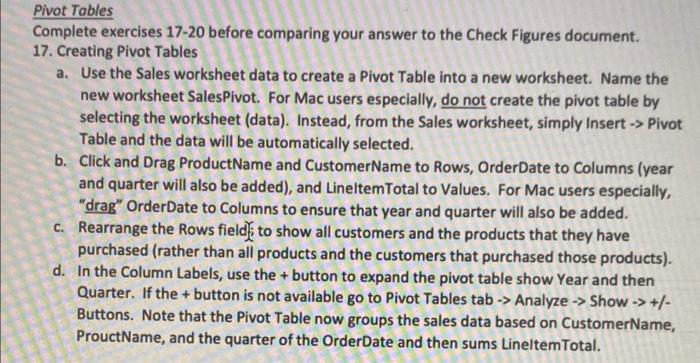
Complete exercises 17-20 before comparing your answer to the Check Figures document. 17. Creating Pivot Tables a. Use the Sales worksheet data to create a Pivot Table into a new worksheet. Name the new worksheet SalesPivot. For Mac users especially, do not create the pivot table by selecting the worksheet (data). Instead, from the Sales worksheet, simply Insert Pivot Table and the data will be automatically selected. b. Click and Drag ProductName and CustomerName to Rows, OrderDate to Columns (year and quarter will also be added), and LineltemTotal to Values. For Mac users especially, "dras" OrderDate to Columns to ensure that year and quarter will also be added. c. Rearrange the Rows fieldi)i to show all customers and the products that they have purchased (rather than all products and the customers that purchased those products). d. In the Column Labels, use the + button to expand the pivot table show Year and then Quarter. If the + button is not available go to Pivot Tables tab Analyze Show +/ Buttons. Note that the Pivot Table now groups the sales data based on CustomerName, ProuctName, and the quarter of the OrderDate and then sums LineltemTotal

Step by Step Solution

There are 3 Steps involved in it

1 Expert Approved Answer
Step: 1 Unlock blur-text-image

Question Has Been Solved by an Expert!

Get step-by-step solutions from verified subject matter experts

Step: 2 Unlock
Step: 3 Unlock

Students Have Also Explored These Related General Management Questions!