







Question: complete HTML code 12:56 X 02 - Introduction to CSS Create a folder named Assets in your web site and add a style sheet file
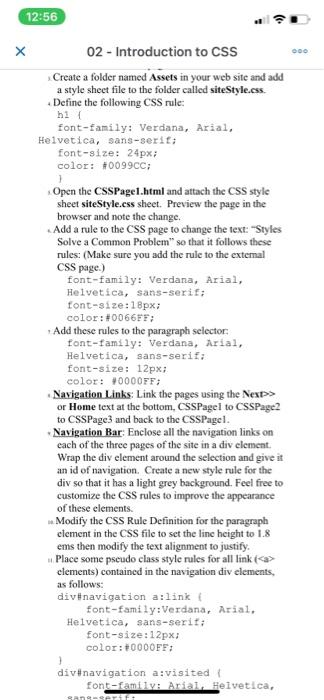
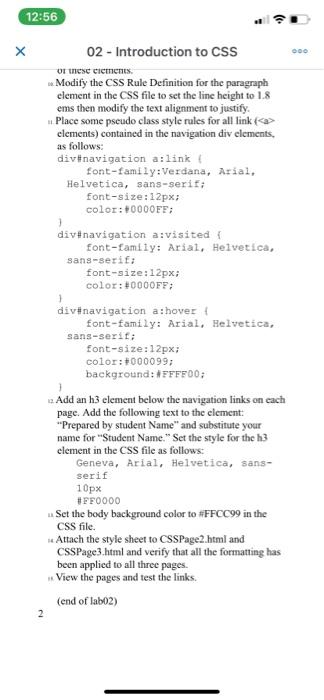
12:56 X 02 - Introduction to CSS Create a folder named Assets in your web site and add a style sheet file to the folder called siteStyle.css Define the following CSS rule: hi font-family: Verdana, Arial, Helvetica, sans-serit; font-size: 24px; color: #0099CC; 1 Open the CSS Page1.html and attach the CSS style sheet siteStyle.css sheet. Preview the page in the browser and note the change. Add a rule to the CSS page to change the text: "Styles Solve a Common Problem" so that it follows these rules: (Make sure you add the rule to the external CSS page) font-family: Verdana, Arial, Helvetica,sans-serif; font-size:18px; color: #0066FF; Add these rules to the paragraph selector: font-family: Verdana, Arial, Helvetica, sans-serif; font-size: 12px; color: #0000FF; Navigation Links Link the pages using the Next>> or Home text at the bottom, CSSPagel to CSS Page 2 to CSSPage 3 and back to the CSSPagel. Navigation Bar: Enclose all the navigation links on each of the three pages of the site in a div clement. Wrap the div element around the selection and give it an id of navigation. Create a new style rule for the div so that it has a light grey background. Feel free to customize the CSS rules to improve the appearance of these elements. Modify the CSS Rule Definition for the paragraph clement in the CSS file to set the line height to 1.8 ems then modify the text alignment to justify. Place some pseudo class style rules for all link> clements) contained in the navigation div elements, as follows: div#navigation a:link font-family:Verdana, Arial, Helvetica,sans-serif; font-size:12px; color:#0000FF: div#navigation a:visited font-family: Arial, Helvetica, San 12:56 02 - Introduction to CSS or these elements Modify the CSS Rule Definition for the paragraph element in the CSS file to set the line height to 1.8 ems then modify the text alignment to justify. Place some pseudo class style rules for all link >> elements) contained in the navigation div elements, as follows: div#navigation a:link font-family:Verdana, Arial, Helvetica, sans-serif; font-size:12px; color:#0000FF; div#navigation a:visited font-family: Arial, Helvetica, sans-serif; font-size:12px; color:#0000FF; 1 div#navigation a:hover { font-family: Arial, Helvetica, sans-serif; font-size:12px; color:#000099; background: #FFFF00; 1 Add an h3 element below the navigation links on each page. Add the following text to the element: "Prepared by student Name" and substitute your name for "Student Name." Set the style for the element in the CSS file as follows: Geneva, Arial, Helvetica, sans- serif 10px #FF0000 Set the body background color to #FFCC99 in the CSS file. Attach the style sheet to CSS Page2.html and CSSPage3.html and verify that all the formatting has been applied to all three pages. View the pages and test the links (end of labo2) 2 12:56 X 02 - Introduction to CSS Create a folder named Assets in your web site and add a style sheet file to the folder called siteStyle.css Define the following CSS rule: hi font-family: Verdana, Arial, Helvetica, sans-serit; font-size: 24px; color: #0099CC; 1 Open the CSS Page1.html and attach the CSS style sheet siteStyle.css sheet. Preview the page in the browser and note the change. Add a rule to the CSS page to change the text: "Styles Solve a Common Problem" so that it follows these rules: (Make sure you add the rule to the external CSS page) font-family: Verdana, Arial, Helvetica,sans-serif; font-size:18px; color: #0066FF; Add these rules to the paragraph selector: font-family: Verdana, Arial, Helvetica, sans-serif; font-size: 12px; color: #0000FF; Navigation Links Link the pages using the Next>> or Home text at the bottom, CSSPagel to CSS Page 2 to CSSPage 3 and back to the CSSPagel. Navigation Bar: Enclose all the navigation links on each of the three pages of the site in a div clement. Wrap the div element around the selection and give it an id of navigation. Create a new style rule for the div so that it has a light grey background. Feel free to customize the CSS rules to improve the appearance of these elements. Modify the CSS Rule Definition for the paragraph clement in the CSS file to set the line height to 1.8 ems then modify the text alignment to justify. Place some pseudo class style rules for all link> clements) contained in the navigation div elements, as follows: div#navigation a:link font-family:Verdana, Arial, Helvetica,sans-serif; font-size:12px; color:#0000FF: div#navigation a:visited font-family: Arial, Helvetica, San 12:56 02 - Introduction to CSS or these elements Modify the CSS Rule Definition for the paragraph element in the CSS file to set the line height to 1.8 ems then modify the text alignment to justify. Place some pseudo class style rules for all link >> elements) contained in the navigation div elements, as follows: div#navigation a:link font-family:Verdana, Arial, Helvetica, sans-serif; font-size:12px; color:#0000FF; div#navigation a:visited font-family: Arial, Helvetica, sans-serif; font-size:12px; color:#0000FF; 1 div#navigation a:hover { font-family: Arial, Helvetica, sans-serif; font-size:12px; color:#000099; background: #FFFF00; 1 Add an h3 element below the navigation links on each page. Add the following text to the element: "Prepared by student Name" and substitute your name for "Student Name." Set the style for the element in the CSS file as follows: Geneva, Arial, Helvetica, sans- serif 10px #FF0000 Set the body background color to #FFCC99 in the CSS file. Attach the style sheet to CSS Page2.html and CSSPage3.html and verify that all the formatting has been applied to all three pages. View the pages and test the links (end of labo2) 2
Step by Step Solution
There are 3 Steps involved in it

Get step-by-step solutions from verified subject matter experts
 Study Help