







Question: configure following code and creat mirgration file, need javascript In this exercise, you'll review domain model and configuration code as well as the migration file
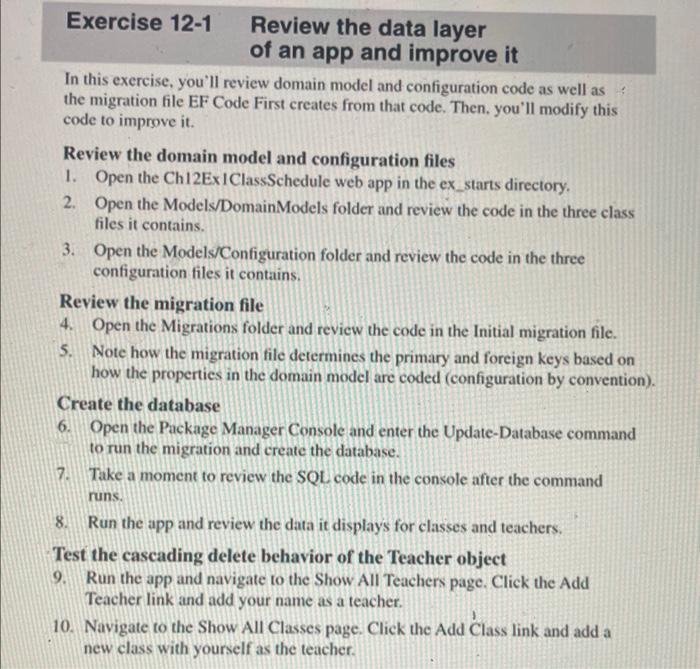
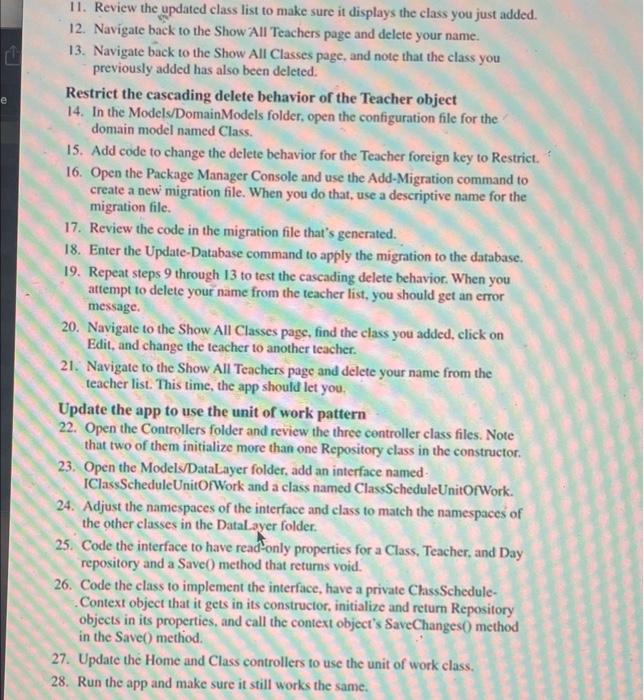
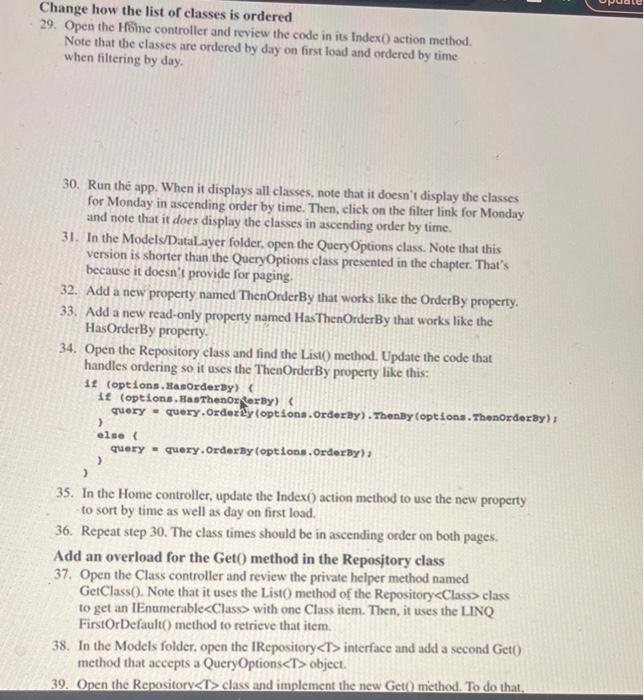
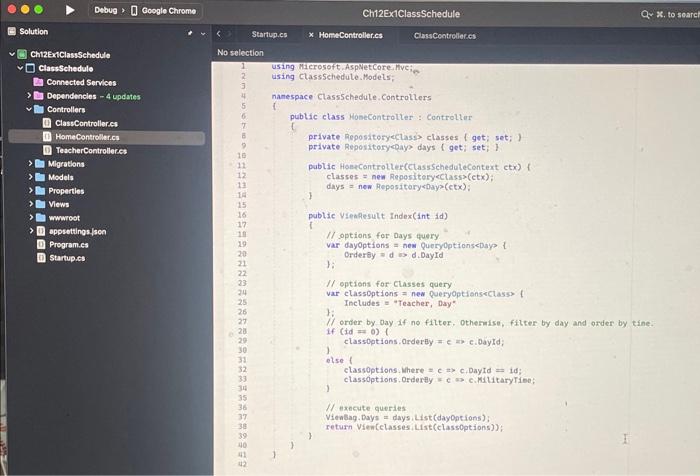
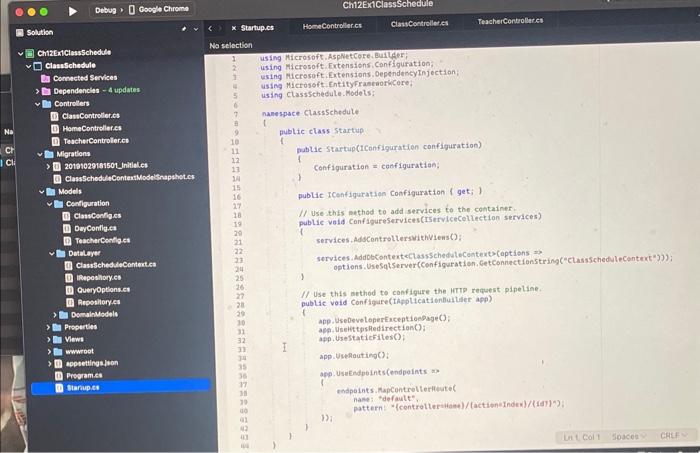
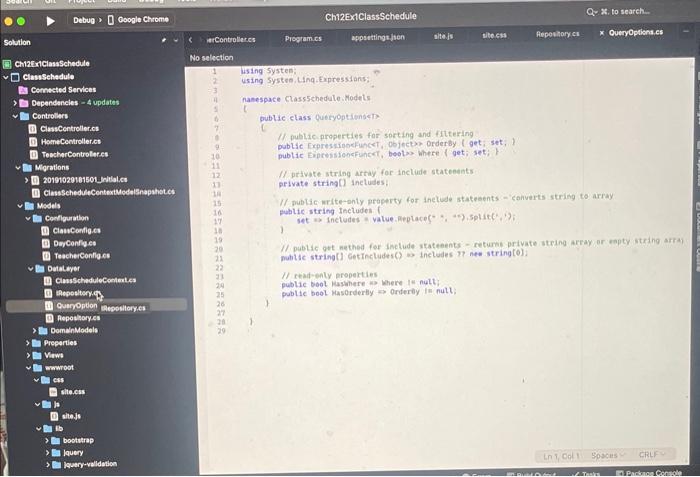
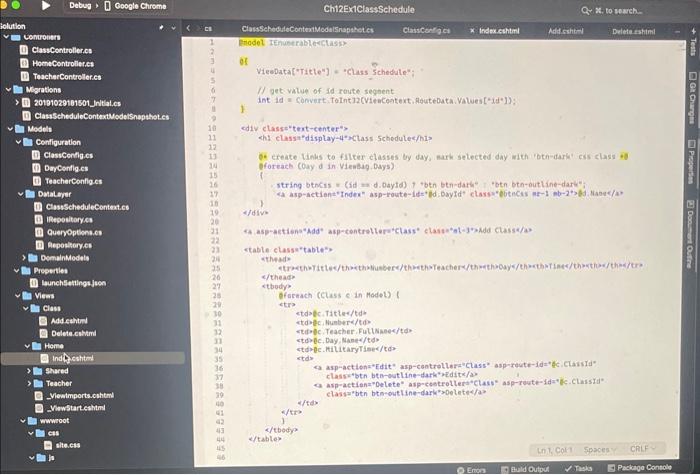
In this exercise, you'll review domain model and configuration code as well as the migration file EF Code First creates from that code. Then, you'll modify this code to improve it. Review the domain model and configuration files 1. Open the Ch12Ex IClassSchedule web app in the ex_starts directory. 2. Open the Models/DomainModels folder and review the code in the three class files it contains. 3. Open the Models/Configuration folder and review the code in the three configuration files it contains. Review the migration file 4. Open the Migrations folder and review the code in the Initial migration file. 5. Note how the migration file determines the primary and foreign keys based on how the properties in the domain model are coded (configuration by convention). Create the database 6. Open the Package Manager Console and enter the Update-Database command to run the migration and create the database. 7. Take a moment to review the SQL code in the console after the command runs. 8. Run the app and review the data it displays for classes and teachers. Test the cascading delete behavior of the Teacher object 9. Run the app and navigate to the Show All Teachers page. Click the Add Teacher link and add your name as a teacher. 10. Navigate to the Show All Classes page. Click the Add Class link and add a new class with yourself as the teacher. 11. Review the updated class list to make sure it displays the class you just added. 12. Navigate back to the Show All Teachers page and delete your name. 13. Navigate back to the Show All Classes page, and note that the class you previously added has also been deleted. Restrict the cascading delete behavior of the Teacher object 14. In the Models/DomainModels folder, open the configuration file for the domain model named Class. 15. Add code to change the delete behavior for the Teacher foreign key to Restrict. 16. Open the Package Manager Console and use the Add-Migration command to create a new migration file. When you do that, use a descriptive name for the migration file. 17. Review the code in the migration file that's generated. 18. Enter the Update-Database command to apply the migration to the database. 19. Repeat steps 9 through 13 to test the cascading delete behavior. When you attempt to delete your name from the teacher list, you should get an emor message, 20. Navigate to the Show All Classes page, find the class you added, click on Edit, and change the teacher to another teacher. 21. Navigate to the Show All Teachers page and delete your name from the teacher list. This time, the app should let you. Update the app to use the unit of work pattern 22. Open the Controllers folder and review the three controller class files. Note that two of them initialize more than one Repository class in the constructor. 23. Open the Modely-DataLayer folder, add an interface named. IClassScheduleUnitOfWork and a class named ClassScheduleUnitOrWork. 24. Adjust the namespaces of the interface and class to match the namespaces of the other classes in the Datalayer folder. 25. Code the interface to have read-only properties for a Class, Teacher, and Day repository and a Save() method that returns void. 26. Code the class to implement the interface, have a private ChassScheduleContext object that it gets in its constructor, initialize and return Repository objects in its propertics, and call the context object's SaveChanges() method in the Save() method. 27. Update the Home and Class controllers to use the unit of work class. 28. Run the app and make sure it still works the same. Change how the list of classes is ordered 29. Open the Hoine controller and review the code in its Indexi) action method. Note that the classes are ordered by day on first load and ordered by time when filtering by day. 30. Run th app. When it displays all classes, note that it doesn't display the classes for Monday in ascending order by time. Then, click on the filter link for Monday and note that it does display the classes in ascending order by time. 31. In the Modelsidatal ayer folder, open the QueryOptions class. Note that this version is shorter than the QueryOptions class presented in the chapter. That's because it doesn't provide for paging. 32. Add a new property named ThenOrderBy that works like the OrderBy property. 33. Add a new read-only property named HasThenOrderBy that works like the HasOrderBy property. 34. Open the Repository class and find the Listo method. Update the code that handles ordering so it uses the ThenOrderBy property like this: 35. In the Home controller, update the Index0 action method to use the new property to sort by time as well as day on first load. 36. Repeat step 30 . The class times should be in ascending order on both pages. Add an overload for the GetO method in the Repository class 37. Open the Class controller and review the private helper method named GetClass(). Note that it uses the List O method of the Repository class to get an IEnumerable with one Class item. Then, it uses the LINQ FirstOrDefault() method to retrieve that item. 38. In the Models folder, open the IRepository T interface and add a second Get0) method that accepts a QueryOptions object. 39. Open the Repository T> class and implement the new Get) micthod. To do that. using Miterosoft aspNetcore hyc? using class5ehedule. Models. namespace Class5 chedule , ControlLers f 1 using Microsoft, AsplietCore. Bualder; using Microsoft, Extensions Configuration; using ilierosoft, Exterisions; DependencyTnjection; using Microsoft, EntityFraselethicore using Classschedute. Modets: nanespace Class5chedute pubtic class startus. public Startup(1Configuratien configuration) 1 Configuration = configuratian: public ICenfiguratiga Configuration {gi) 1/ use this nethod to add services to the container. public vaid Configureservices(IServicecotlection services) services, AdscontrolterswithViens(7) services. AddobcontenteCtass cheduteCentext)(options 1 II Use this sethod to configure the Mrp request pipeline. public void Configure(tasplicationtlustider app) app. UsedeveleperEnceptionosge(?): apai Uselittoshedirection(); app. Usestatiefites C; app. Userlouting(); app. UseEndpelnts(endpelats m codpoints . Fapcontrolterieute. nane: +defautt", 1) 1 1 Lat coll Soaced using: Systep: using Systed, Linq-Expressians; nanespace Class5chedule. Hodets publie elass quetyoptiendet? 1 pubtic properties far sorting and fittering pubtic Expreskigoekuncet, object orderby ( get; set, ) public Eipressionefuncet, beotso where \& get; set; 1/ private string artay for include statenents pelvate string() inctudes, If public mitte-anty peoperty for inetwe statedents - converts string to array public string tactudel f 1 11 public ott nethed for inctude stateeents - returne private steing array or enpty itring arp mulide string(l Getfinctudes() as includes 17 nee string(0). (1) readeenty properties public bool kaskare wo where fo nutt; public bool masorderliy Oriferly in nult; Erodel IEnustrabledCCass? at Viedata["Titte"] a "Class 5 chedute": (1) get vatue of 1 d reute seghent 1 int 1d = Convert. Totnt 12( VisaCentext, Houtedata. Values [1d1); ediy classe*test-center"> 0. ereate tinlis to filter elasses by day, kark selected day with toth-darki cis class of Boreach (Cay d in Vienkag, Days) string bencis = (int as d.baytd) 1 tbtn btn-dath" "btn btin-outline-darke; In this exercise, you'll review domain model and configuration code as well as the migration file EF Code First creates from that code. Then, you'll modify this code to improve it. Review the domain model and configuration files 1. Open the Ch12Ex IClassSchedule web app in the ex_starts directory. 2. Open the Models/DomainModels folder and review the code in the three class files it contains. 3. Open the Models/Configuration folder and review the code in the three configuration files it contains. Review the migration file 4. Open the Migrations folder and review the code in the Initial migration file. 5. Note how the migration file determines the primary and foreign keys based on how the properties in the domain model are coded (configuration by convention). Create the database 6. Open the Package Manager Console and enter the Update-Database command to run the migration and create the database. 7. Take a moment to review the SQL code in the console after the command runs. 8. Run the app and review the data it displays for classes and teachers. Test the cascading delete behavior of the Teacher object 9. Run the app and navigate to the Show All Teachers page. Click the Add Teacher link and add your name as a teacher. 10. Navigate to the Show All Classes page. Click the Add Class link and add a new class with yourself as the teacher. 11. Review the updated class list to make sure it displays the class you just added. 12. Navigate back to the Show All Teachers page and delete your name. 13. Navigate back to the Show All Classes page, and note that the class you previously added has also been deleted. Restrict the cascading delete behavior of the Teacher object 14. In the Models/DomainModels folder, open the configuration file for the domain model named Class. 15. Add code to change the delete behavior for the Teacher foreign key to Restrict. 16. Open the Package Manager Console and use the Add-Migration command to create a new migration file. When you do that, use a descriptive name for the migration file. 17. Review the code in the migration file that's generated. 18. Enter the Update-Database command to apply the migration to the database. 19. Repeat steps 9 through 13 to test the cascading delete behavior. When you attempt to delete your name from the teacher list, you should get an emor message, 20. Navigate to the Show All Classes page, find the class you added, click on Edit, and change the teacher to another teacher. 21. Navigate to the Show All Teachers page and delete your name from the teacher list. This time, the app should let you. Update the app to use the unit of work pattern 22. Open the Controllers folder and review the three controller class files. Note that two of them initialize more than one Repository class in the constructor. 23. Open the Modely-DataLayer folder, add an interface named. IClassScheduleUnitOfWork and a class named ClassScheduleUnitOrWork. 24. Adjust the namespaces of the interface and class to match the namespaces of the other classes in the Datalayer folder. 25. Code the interface to have read-only properties for a Class, Teacher, and Day repository and a Save() method that returns void. 26. Code the class to implement the interface, have a private ChassScheduleContext object that it gets in its constructor, initialize and return Repository objects in its propertics, and call the context object's SaveChanges() method in the Save() method. 27. Update the Home and Class controllers to use the unit of work class. 28. Run the app and make sure it still works the same. Change how the list of classes is ordered 29. Open the Hoine controller and review the code in its Indexi) action method. Note that the classes are ordered by day on first load and ordered by time when filtering by day. 30. Run th app. When it displays all classes, note that it doesn't display the classes for Monday in ascending order by time. Then, click on the filter link for Monday and note that it does display the classes in ascending order by time. 31. In the Modelsidatal ayer folder, open the QueryOptions class. Note that this version is shorter than the QueryOptions class presented in the chapter. That's because it doesn't provide for paging. 32. Add a new property named ThenOrderBy that works like the OrderBy property. 33. Add a new read-only property named HasThenOrderBy that works like the HasOrderBy property. 34. Open the Repository class and find the Listo method. Update the code that handles ordering so it uses the ThenOrderBy property like this: 35. In the Home controller, update the Index0 action method to use the new property to sort by time as well as day on first load. 36. Repeat step 30 . The class times should be in ascending order on both pages. Add an overload for the GetO method in the Repository class 37. Open the Class controller and review the private helper method named GetClass(). Note that it uses the List O method of the Repository class to get an IEnumerable with one Class item. Then, it uses the LINQ FirstOrDefault() method to retrieve that item. 38. In the Models folder, open the IRepository T interface and add a second Get0) method that accepts a QueryOptions object. 39. Open the Repository T> class and implement the new Get) micthod. To do that. using Miterosoft aspNetcore hyc? using class5ehedule. Models. namespace Class5 chedule , ControlLers f 1 using Microsoft, AsplietCore. Bualder; using Microsoft, Extensions Configuration; using ilierosoft, Exterisions; DependencyTnjection; using Microsoft, EntityFraselethicore using Classschedute. Modets: nanespace Class5chedute pubtic class startus. public Startup(1Configuratien configuration) 1 Configuration = configuratian: public ICenfiguratiga Configuration {gi) 1/ use this nethod to add services to the container. public vaid Configureservices(IServicecotlection services) services, AdscontrolterswithViens(7) services. AddobcontenteCtass cheduteCentext)(options 1 II Use this sethod to configure the Mrp request pipeline. public void Configure(tasplicationtlustider app) app. UsedeveleperEnceptionosge(?): apai Uselittoshedirection(); app. Usestatiefites C; app. Userlouting(); app. UseEndpelnts(endpelats m codpoints . Fapcontrolterieute. nane: +defautt", 1) 1 1 Lat coll Soaced using: Systep: using Systed, Linq-Expressians; nanespace Class5chedule. Hodets publie elass quetyoptiendet? 1 pubtic properties far sorting and fittering pubtic Expreskigoekuncet, object orderby ( get; set, ) public Eipressionefuncet, beotso where \& get; set; 1/ private string artay for include statenents pelvate string() inctudes, If public mitte-anty peoperty for inetwe statedents - converts string to array public string tactudel f 1 11 public ott nethed for inctude stateeents - returne private steing array or enpty itring arp mulide string(l Getfinctudes() as includes 17 nee string(0). (1) readeenty properties public bool kaskare wo where fo nutt; public bool masorderliy Oriferly in nult; Erodel IEnustrabledCCass? at Viedata["Titte"] a "Class 5 chedute": (1) get vatue of 1 d reute seghent 1 int 1d = Convert. Totnt 12( VisaCentext, Houtedata. Values [1d1); ediy classe*test-center"> 0. ereate tinlis to filter elasses by day, kark selected day with toth-darki cis class of Boreach (Cay d in Vienkag, Days) string bencis = (int as d.baytd) 1 tbtn btn-dath" "btn btin-outline-darke
Step by Step Solution
There are 3 Steps involved in it

Get step-by-step solutions from verified subject matter experts
 Study Help