







Question: Contents The user will type in some data on the left panel. When the user clicks on the OK button, the the typed data will
Contents
The user will type in some data on the left panel. When the user clicks on the "OK" button, the the typed data will be transferred to the right panel. Then a student object will be created, the student's information will be displayed including an evaluation of the student's GPA.
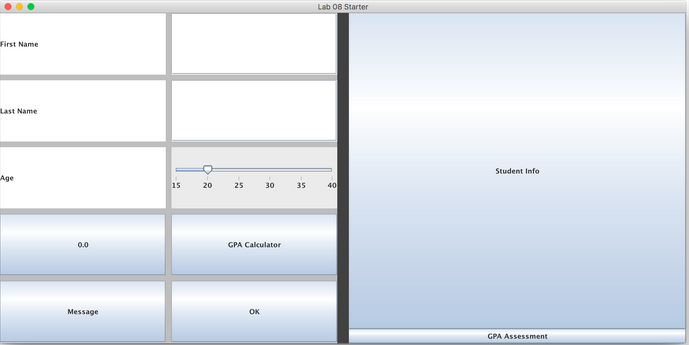
1- Layout
- The lab needs a layout in control panel with a panel on the left where the data will be typed in and a panel on the right where the data will be displayed.
- The layout of panel left and of panel right should be very similar to the picture above. Very little differences are expected due to the use of different operating systems.
2- Content of Panels
- Control Panel:
- has two panels (left and right) already created in the starter Netbeans package.
- Left panel:
- two labels with the description of what needs to be typed for first name and last name
- It has to ask for first name and last name using JTextFields
- a label asking for the age
- It asks for the students age using a JSlider
- A button to display the student's GPA
- A button to generate a random GPA
- a message button
- a OK button
- Right panel
- it has a button that will display the students' information
- it has a button to display the student GPA's assessment
3- Listening requirements
- the OK button has to be listened in the right panel. This means that the right panel will implement the ActionListener that will be used when OK is pressed.
- The listener for the GPA button has to be implemented in the left panel. This means that the left panel will implement the ActionListener that will be used when the "calculate GPA" button is pressed.
4- Scenarios
- All the information is correct
- the user types the first name
- the user types the last name
- the user chooses an age
- the user presses the "calculate GPA" button
- the GPA is displayed on the GPA button
- the OK button is pressed
- the student information is displayed on the big button on the right panel
- the GPA assessed and a message is displayed in the small button on the right panel
- All the information is correct
- the calculated GPA is
- between 0 and 1.00
- the GPA assessment button on the right panel becomes red
- between 1.01 and 2.00
- the GPA assessment button on the right panel becomes pink
- between 2.00 and 3.00
- the GPA assessment button on the right panel becomes orange
- between 0 and 1.00
- between 3.00 and 3.50
- the GPA assessment button on the right panel becomes green
- greater than 3.50
- the GPA assessment button on the right panel becomes green
- the message "You made the Dean's List !!!!!" is displayed on the GPA assessment button
- the calculated GPA is
- Some information is missing
- the user does not type the first name or the last name
- the OK button is pressed
- a message saying "Student name cannot be blank" is displayed on the message button
- "Error" is displayed on both buttons in the right panel
- Some information is missing
- the user does not asks the GPA to be calculated (GPA value is still zero)
- the OK button is pressed
- a message saying "Calculate the GPA before submitting" is displayed on the message button
- "Error" is displayed on both buttons in the right panel
Lab 08 Starter First Name Last Name Student Info Age 15 20 25 30 35 0.0 GPA Calculator Message GPA Assessment
Step by Step Solution
There are 3 Steps involved in it
1 Expert Approved Answer
Step: 1 Unlock

Question Has Been Solved by an Expert!
Get step-by-step solutions from verified subject matter experts
Step: 2 Unlock
Step: 3 Unlock
 Study Help