







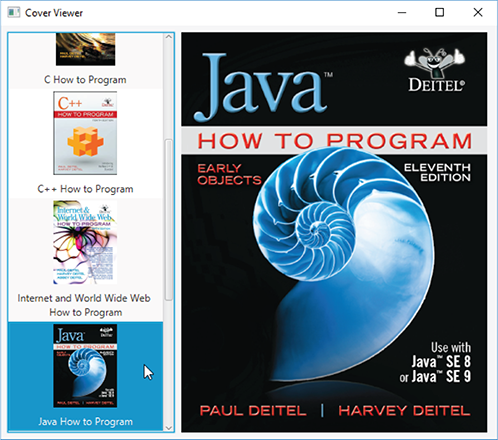
Question: Create a Contacts app modeled after the Cover Viewer app (Shown Below). Store the contact information in an ObservableList of Contact objects. A Contact should
Create a Contacts app modeled after the Cover Viewer app (Shown Below). Store the contact information in an ObservableList of Contact objects. A Contact should contain first name, last name, email and phone number properties. When the user selects a contact from the contacts list, its information should display in a Grid of TextFields. As the information is modified (a Contacts data is updated, a new Contact is added or an existing Contact is deleted), the contacts ListView should display the updates. The ListView should display the Contacts last names. Important: Use JavaFX
// Book.java public class Book { private String title; // book title private String thumbImage; // source of book cover's thumbnail image private String largeImage; // source of book cover's full-size image
public Book(String title, String thumbImage, String largeImage) { this.title = title; this.thumbImage = thumbImage; this.largeImage = largeImage; } public String getTitle() {return title;}
public void setTitle(String title) {this.title = title;} public String getThumbImage() {return thumbImage;}
public void setThumbImage(String thumbImage) {this.thumbImage = thumbImage;}
public String getLargeImage() {return largeImage;}
public void setLargeImage(String largeImage) {this.largeImage = largeImage;} @Override public String toString() {return getTitle();} }
//ImageTextCell.java // Custom ListView cell factory that displays an Image and text import javafx.geometry.Pos; import javafx.scene.control.Label; import javafx.scene.control.ListCell; import javafx.scene.image.Image; import javafx.scene.image.ImageView; import javafx.scene.layout.VBox; import javafx.scene.text.TextAlignment;
public class ImageTextCell extends ListCell
// constructor configures VBox, ImageView and Label public ImageTextCell() { vbox.setAlignment(Pos.CENTER); // center VBox contents horizontally
thumbImageView.setPreserveRatio(true); thumbImageView.setFitHeight(100.0); // thumbnail 100 points tall vbox.getChildren().add(thumbImageView); // attach to Vbox
label.setWrapText(true); // wrap if text too wide to fit in label label.setTextAlignment(TextAlignment.CENTER); // center text vbox.getChildren().add(label); // attach to VBox
setPrefWidth(USE_PREF_SIZE); // use preferred size for cell width }
// called to configure each custom ListView cell @Override protected void updateItem(Book item, boolean empty) { // required to ensure that cell displays properly super.updateItem(item, empty);
if (empty || item == null) { setGraphic(null); // don't display anything } else { // set ImageView's thumbnail image thumbImageView.setImage(new Image(item.getThumbImage())); label.setText(item.getTitle()); // configure Label's text setGraphic(vbox); // attach custom layout to ListView cell } } }
// CoverViewerController.java // Controller for Cover Viewer application import javafx.beans.value.ChangeListener; import javafx.beans.value.ObservableValue; import javafx.collections.FXCollections; import javafx.collections.ObservableList; import javafx.fxml.FXML; import javafx.scene.control.ListCell; import javafx.scene.control.ListView; import javafx.scene.image.Image; import javafx.scene.image.ImageView; import javafx.util.Callback;
public class CoverViewerController { // instance variables for interacting with GUI @FXML private ListView
// stores the list of Book Objects private final ObservableList
public void initialize() { // populate the ObservableList
// when ListView selection changes, show large cover in ImageView booksListView.getSelectionModel().selectedItemProperty(). addListener( new ChangeListener
// CoverViewer.java // Main application class that loads and displays the CoverViewer's GUI. import javafx.application.Application; import javafx.fxml.FXMLLoader; import javafx.scene.Parent; import javafx.scene.Scene; import javafx.stage.Stage;
public class CoverViewer extends Application { @Override public void start(Stage stage) throws Exception { Parent root = FXMLLoader.load(getClass().getResource("CoverViewer.fxml")); Scene scene = new Scene(root); stage.setTitle("Cover Viewer"); stage.setScene(scene); stage.show(); }
public static void main(String[] args) { launch(args); } }
Cover Viewer |-Java Dalr C How to Program DEITEL HOW TO PROGRAM EARLY OBJECTS ELEVENTH EDITION CHow to Program Internet and World Wide Web How to Program ava- Use with Java" SE 8 or Java" SE 9 PAUL DE|TEL | HARVEY DEITEL Java How to Program Cover Viewer |-Java Dalr C How to Program DEITEL HOW TO PROGRAM EARLY OBJECTS ELEVENTH EDITION CHow to Program Internet and World Wide Web How to Program ava- Use with Java" SE 8 or Java" SE 9 PAUL DE|TEL | HARVEY DEITEL Java How to Program
Step by Step Solution
There are 3 Steps involved in it

Get step-by-step solutions from verified subject matter experts
 Study Help