







Question: Create a graphical user interface (GUI), in a Python class , for a user to input their personal information (name and phone) and select different
Create a graphical user interface (GUI), in a Python class, for a user to input their personal information (name and phone) and select different items for car repairs. The interface should contain the following elements:
Checkboxes for the user to select services
Radio buttons to allow the user to select the type of service fee
Listbox to select a payment method
Message box to display output after the user clicks a button to calculate the cost
Section frames dividing form elements for Customer Information (e.g., name, phone number, and payment type); format each frame and its content as shown the in Figure 1 below.
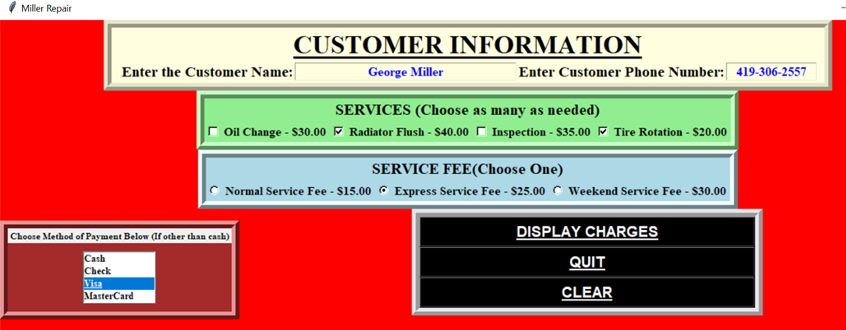
Note: Your GUI does not need to look exactly like the above figure as long as you follow the directions for what is outlined for the "GUI Content."
GUI Content
Window
Have appropriate window title
Format the background of the Window with an appropriate color
Set the size of the window to have space around the frames
Frames
Label for title
Customer Name entry (set the focus on this when the GUI opens)
Phone entry
Format the frame and content as needed (4 types of formats minimum)
Frame (Checkboxes)
Oil Change - $30.00
Radiator Flush - $40.00
Inspection - $35.00
Tire Rotation - $20.00
Format the frame and content as needed (4 types of formats minimum)
Frame (Radio Buttons)
Normal Service Fee- $15.00
Express Service Fee - $25.00
Weekend Service Fee - $30.00
Format the frame and content as needed (4 types of formats minimum)
Frame (Listbox)
Cash (set the focus to this when the GUI opens)
Check
Visa
MasterCard
Format the frame and content as needed (4 types of formats minimum)
Frame (Buttons)
Calculate This button will calculate their total and show as output in a messagebox
The "command" for this button will call a method to perform the calculations and output
Quit (this button will quit the program)
The "command" for this button will destroy the window. If you want to get creative, you can create a messagebox to validate that the user wants to quit the program, but this is not mandatory.
Clear (this button will clear GUI widgets)
The "command" for this button will call a method to clear the information from the customer inputs, checkboxes, radio buttons, reset the focus on "Cash" in the listbox and set the focus back into the name entry.
Format the frame and content as needed (4 types of formats minimum)
Output
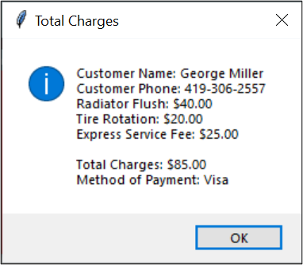
You will use a message box for this, with a title and output (see Figure 2 below). The output should repeat the customer information, show their choices of the checkboxes, radio button, their total and what they choose as the method of payment.
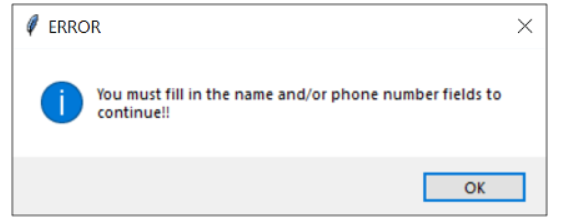
If the user does not enter a name and/or phone number, and clicks on the "Display Charges" button, the user should get a messagebox with a title and message telling them this is required information. See Figure 3 for an example warning (error) message.
Miller Repair CUSTOMER INFORMATION Enter the Customer Name: George Miller Enter Customer Phone Number: 4193062557 SERVICES (Choose as many as needed) Oil Change - \$30.00 Radiator Flush - \$40.00 Inspection - \$35.00 / Tire Rotation - \$20.00 SERVICE FEE(Choose One) C Normal Service Fee - \$15.00 Express Service Fee - \$25.00 C Weekend Service Fee - \$30.00 Choose Method of Payment Below (If other than cash) DISPLAY CHARGES \begin{tabular}{|l|} \hline Cash \\ Check \\ \hline Yisa \\ \hline MasterCard \\ \hline \end{tabular} QUIT CLEAR Customer Name: George Miller Customer Phone: 419-306-2557 Radiator Flush: $40.00 Tire Rotation: $20.00 Express Service Fee: $25.00 Total Charges: $85.00 Method of Payment: Visa ERROR You must fill in the name and/or phone number fields to continue
Step by Step Solution
There are 3 Steps involved in it

Get step-by-step solutions from verified subject matter experts
 Study Help