







Question: Create a text file in Java with given GUI. The user must have the ability to determine the name of each report file. Each file
Create a text file in Java with given GUI.
The user must have the ability to determine the name of each report file.
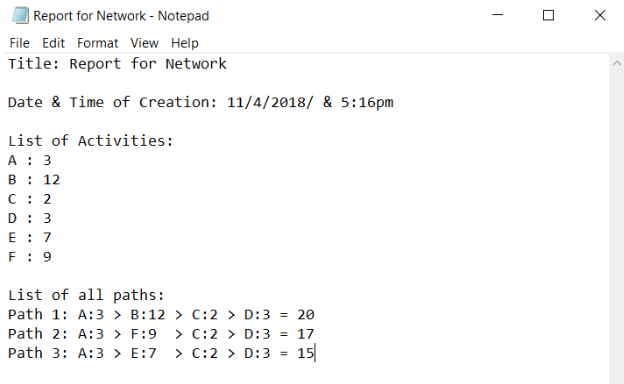
Each file must contain the following information with appropriate and readable labels:
a) Title for the report which will come from 'Project Title label' as displayed in the screenshot below.
b) Date and time of creation
c) All the text that is displayed on the text area after the user presses Calculate button.
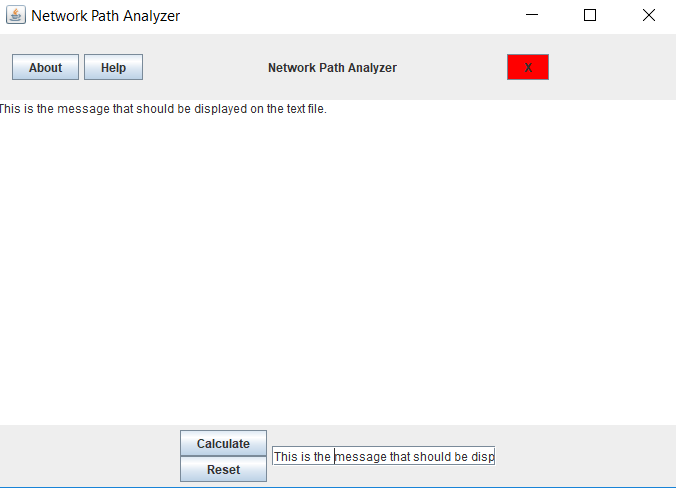
This is the Screenshot of the GUI for which the code is given below:
This is the template of the report:
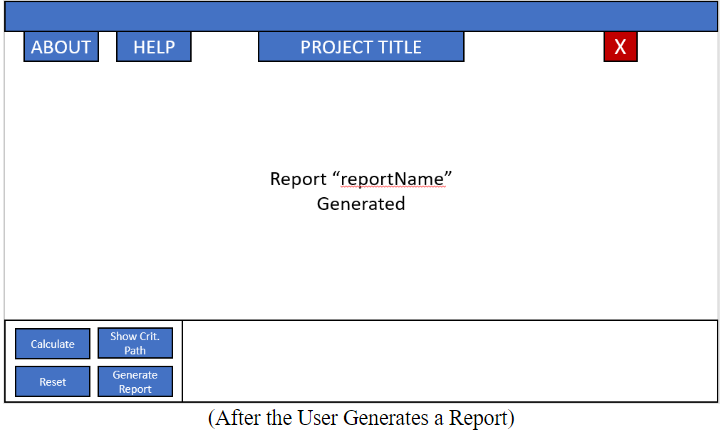
After the report is generated, this message should be displayed and this is the new desired GUI template that you should make:
The following is the partially completed GUI code where you have to implement the Generate a text file (report) according to the instructions given above.
//importing required classes
import java.awt.BorderLayout;
import java.awt.Color;
import java.awt.FlowLayout;
import java.awt.GridLayout;
import java.awt.event.ActionEvent;
import java.awt.event.ActionListener;
import java.util.Set;
import javax.swing.JButton;
import javax.swing.JFrame;
import javax.swing.JOptionPane;
import javax.swing.JPanel;
import javax.swing.JTextArea;
import javax.swing.JTextField;
import javax.swing.JLabel;;
//defining class, implementing listener to specify action for button
public class DisplayGUI extends JFrame implements ActionListener{
//Declaring required component
JTextField tf;
JButton bt1,bt2,bt3,bt4,bt5,bt6;
JTextArea ta1;
JPanel pl1,pl2,pl3,pl4,pl5;
JLabel lb1;
//defining the constructor
public DisplayGUI(){
//initializing the component
tf=new JTextField(20);
ta1=new JTextArea(25,20);
bt1=new JButton("About");
bt2=new JButton("Help");
lb1 = new JLabel("Network Path Analyzer");
bt4=new JButton("X");
bt5=new JButton("Calculate");
bt6=new JButton("Reset");
bt4.setBackground(Color.red);
pl1=new JPanel();
pl4 = new JPanel();
pl5 = new JPanel();
pl1.setLayout(new FlowLayout(FlowLayout.LEFT, 10, 10));
pl5.setLayout(new FlowLayout(FlowLayout.LEFT, 110, 10));
pl2=new JPanel();
pl3=new JPanel();
//adding the component to panel
pl4.add(bt1);
pl4.add(bt2);
pl1.add(pl4);
pl5.add(lb1);
pl5.add(bt4);
pl1.add(pl5);
pl2.setLayout(new GridLayout(2,1));
pl2.add(bt5);
pl2.add(bt6);
pl2.add(tf);
pl3.add(pl2);
pl3.add(tf);
//setting the GUI layout and adding the component
setLayout(new BorderLayout());
add(pl1,BorderLayout.NORTH);
add(pl3,BorderLayout.SOUTH);
add(ta1,BorderLayout.CENTER);
//adding the listener to the button
bt1.addActionListener(this);
bt2.addActionListener(this);
bt4.addActionListener(this);
bt5.addActionListener(this);
bt6.addActionListener(this);
}
//defining the main function
public static void main(String[] args) {
//Creating an object of the class
DisplayGUI ob=new DisplayGUI();
//setting the size of the GUI
ob.setTitle("Network Path Analyzer");
ob.setSize(700,500);
//making it visible
ob.setVisible(true);
//adding the exit function for closing the GUI
ob.setDefaultCloseOperation(JFrame.EXIT_ON_CLOSE);
}
//function to perform action according to the buttons
@Override
public void actionPerformed(ActionEvent ae) {
//getting the component who created the action
String str=ae.getActionCommand();
//if about button is clicked
if(str.equals("About")){
//showing the message to the user
JOptionPane.showMessageDialog(bt1, "About info");
}
//if the help button is clicked
else if(str.equals("Help")){
//showing message to the user
JOptionPane.showMessageDialog(bt1, "Help info "
+ " and enter again. To close the screen, click on X on top right corner.");
if(str.equals("integer")){
JOptionPane.showMessageDialog(ta1, "Error: Duration is an integer");
}
}
//if calculate button is clicked add the text to the text area
else if(str.equals("Calculate")){
ta1.setText(tf.getText());
}
//if user want to exit
else if(str.equals("X")){
System.exit(1);
}
//resetting the text area
else{
ta1.setText("");
tf.setText("");
}
}
}
Network Path Analyzer Help Network Path Analyzer This is the message that should be displayed on the text file. Calculate This is the message that should be disp Reset
Step by Step Solution
There are 3 Steps involved in it

Get step-by-step solutions from verified subject matter experts
 Study Help