







Question: Create Driver for DataElement(4).docx - Protected View - Saved to this PC O Search References Mailings Review View Help contain viruses. Unless you need to
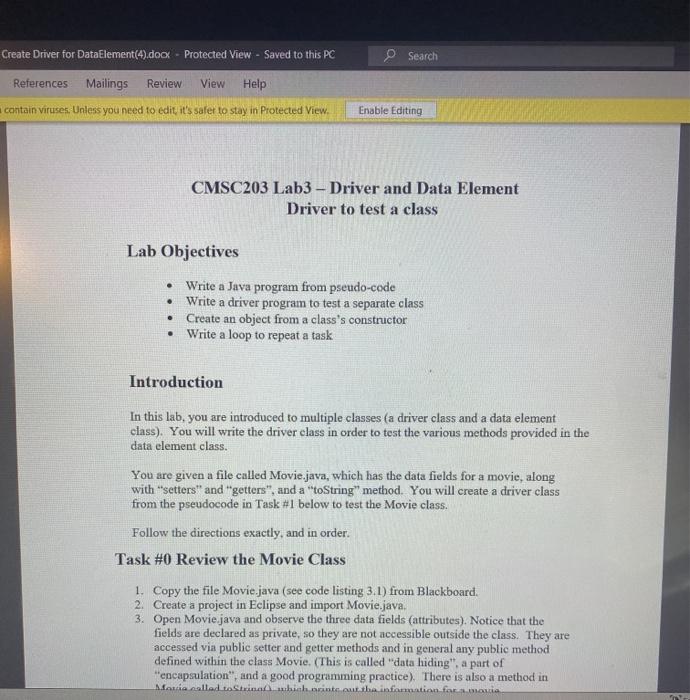
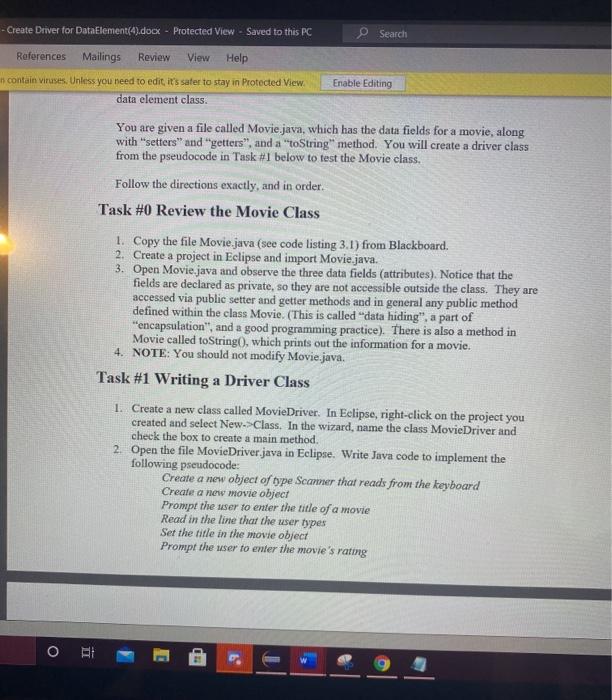
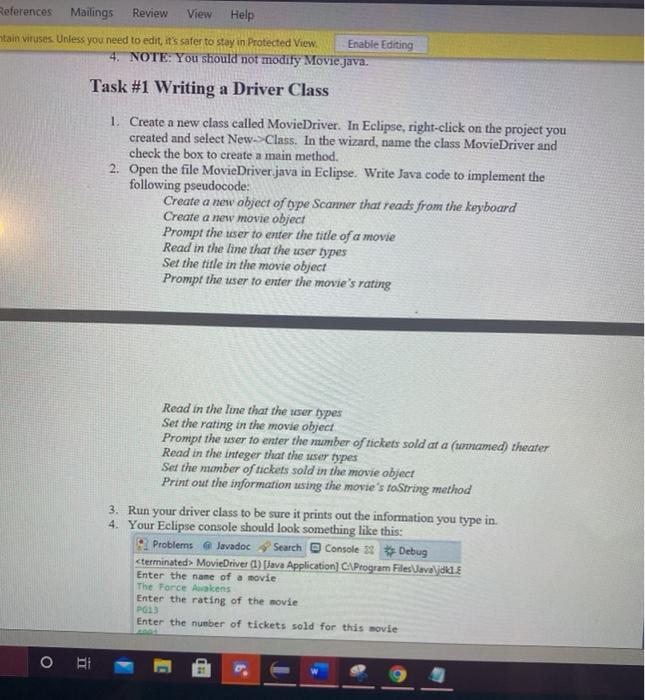
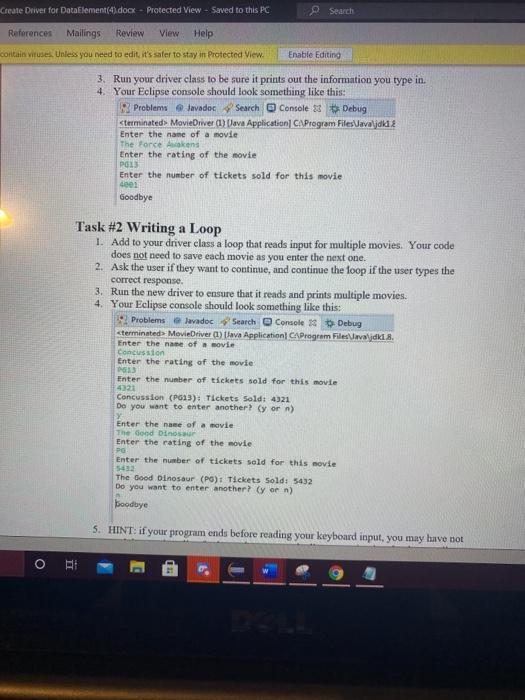
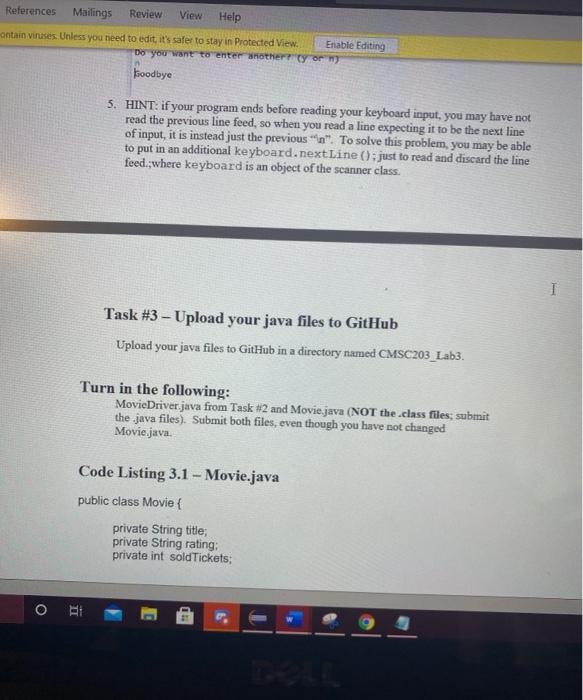
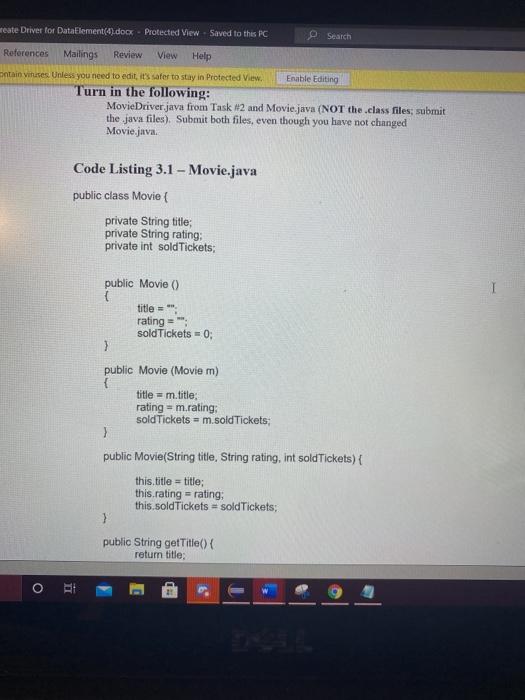
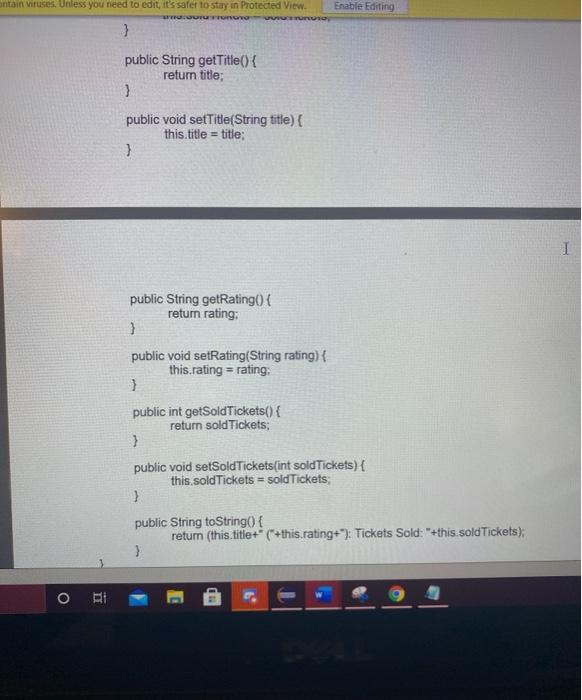
Create Driver for DataElement(4).docx - Protected View - Saved to this PC O Search References Mailings Review View Help contain viruses. Unless you need to edit, it's safer to stay in Protected View, Enable Editing CMSC203 Lab3 - Driver and Data Element Driver to test a class Lab Objectives . Write a Java program from pseudo-code Write a driver program to test a separate class Create an object from a class's constructor Write a loop to repeat a task Introduction In this lab, you are introduced to multiple classes (a driver class and a data element class). You will write the driver class in order to test the various methods provided in the data element class. You are given a file called Movie.java, which has the data fields for a movie, along with "setters" and "getters", and a "toString" method. You will create a driver class from the pseudocode in Task #1 below to test the Movie class. Follow the directions exactly, and in order Task #0 Review the Movie Class 1. Copy the file Movie.java (see code listing 3.1) from Blackboard, 2. Create a project in Eclipse and import Movie.java. 3. Open Movie java and observe the three data fields (attributes). Notice that the fields are declared as private, so they are not accessible outside the class. They are accessed via public setter and getter methods and in general any public method defined within the class Movie. (This is called "data hiding", a part of encapsulation", and a good programming practice). There is also a method in Movie called Strin which arints out the information for at -Create Driver for DataElement(4).docx - Protected View - Saved to this PC Search References Mailings Review View Help contain viruses. Unless you need to edit, it's safer to stay in Protected View Enable Editing data element class You are given a file called Movie.java, which has the data fields for a movie, along with "setters" and "getters", and a "toString" method. You will create a driver class from the pseudocode in Task #1 below to test the Movie class. Follow the directions exactly, and in order Task #0 Review the Movie Class 1. Copy the file Movie java (see code listing 3.1) from Blackboard. 2. Create a project in Eclipse and import Movie.java. 3. Open Movie.java and observe the three data fields (attributes). Notice that the fields are declared as private, so they are not accessible outside the class. They are accessed via public setter and getter methods and in general any public method defined within the class Movie. (This is called "data hiding", a part of "encapsulation", and a good programming practice). There is also a method in Movie called toString(), which prints out the information for a movie. 4. NOTE: You should not modify Movie.java. Task #1 Writing a Driver Class 1. Create a new class called MovieDriver. In Eclipse, right-click on the project you created and select New->Class. In the wizard, name the class MovieDriver and check the box to create a main method. 2. Open the file MovieDriver.java in Eclipse. Write Java code to implement the following pseudocode: Create a new object of type Scanner that reads from the keyboard Create a new movie object Prompt the user to enter the title of a movie Read in the line that the user types Set the title in the movie object Prompt the user to enter the movie's rating References Mailings Review View Help tain viruses. Unless you need to edit, it's safer to stay in Protected View Enable Editing 4. NOTE: You should not modify Movie.java. Task #1 Writing a Driver Class 1. Create a new class called MovieDriver. In Eclipse, right-click on the project you created and select New Class. In the wizard, name the class MovieDriver and check the box to create a main method. 2. Open the file MovieDriver.java in Eclipse. Write Java code to implement the following pseudocode: Create a new object of type Scanner that reads from the keyboard Create a new movie object Prompt the user to enter the title of a movie Read in the line that the user types Set the title in the movie object Prompt the user to enter the movie's rating Read in the line that the user types Set the rating in the movie object Prompt the user to enter the number of tickets sold at a (urmamed) theater Read in the integer that the user types Set the number of tickets sold in the movie object Print out the information using the movie's toString method 3. Run your driver class to be sure it prints out the information you type in. 4. Your Eclipse console should look something like this: 2 Problems Javadoc Search Console 2 Debug
Step by Step Solution
There are 3 Steps involved in it

Get step-by-step solutions from verified subject matter experts
 Study Help