







Question: Creating a project in Excel with Power Query, Pivot Tables, and multiple sheets is a great way to teach them various Excel skills. Project Overview:
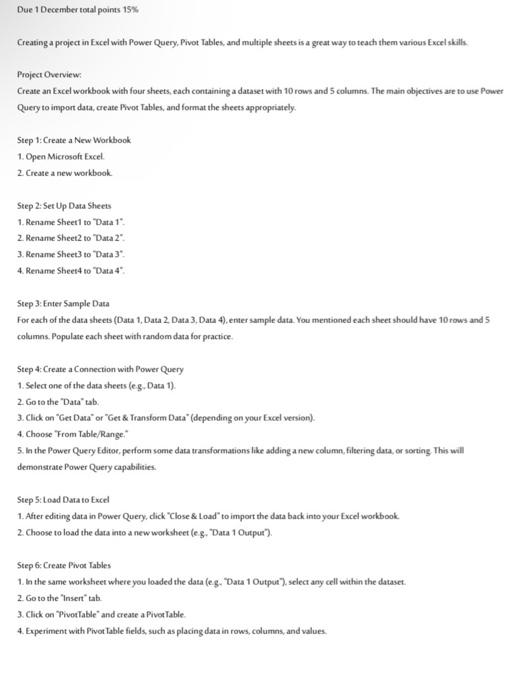

Creating a project in Excel with Power Query, Pivot Tables, and multiple sheets is a great way to teach them various Excel skills. Project Overview: Create an Excel workbook with four sheets, each containing a dataset with 10 rows and 5 columns. The main objectives are to use Power Query to import data, crease Prot Tables, and format the sheets appropriately. Step 1: Create a New Workbook 1. Open Micrasoft Excel. 2 Create a new workbook. Step 2: Set Up Data Sheets 1. Rename Sheet to Data 1 ". 2. Rename Sheet2 to "Data 2 ". 3. Rename Sheet 3 to Data 3. 4. Rename Sheet 4 to "Data 4". Step 3: Enter Sample Data For each of the data sheets (Data 1, Data 2, Data 3, Data 4), enter sample data. You mentioned each sheet should have 10 rows and 5 columns. Populate each sheet with random data for practice. Step 4: Create a Connection with Power Query 1. Select one of the data sheets (e.g., Data 1). 2. Go to the "Data" tab. 3. Click on "Get Dasa" or "Get \& Transform Data" (depending on your Excel version). 4. Choose From Table/Range," 5. In the Power Query Editor, perform some data transformations like adding a new column, filtering data, or sorting This will demonstate Power Query capabilities. Step 5: Load Dasa to Excel 1. After editing data in Power Query, click "Close \& Load" to import the data back into your Excel workbook. 2. Choose to load the data into a new workheet (eg. "Data 1 Outpur'). Step 6: Create Prioe Tables 1. In the same workheet where you loaded the data (e.g. "Data 1 Output"), select any cell within the dataset. 2. Go to the "Insert" tab. 3. Click on 'Pivot Table" and create a Pivot Table. 4. Experiment with Pivot table fields, such as placing data in rows, columns, and values. Step 7: Repeat Steps 4-6 for the Other Sheets Repeat Steps 4.6 for each of the remaining data sheets (Data 2, Data 3, Data 4). Step 8: Format the Sheets 1. Format the sheets as necessary to make the data and Pivot Tables presentable. 2. You can add titles, bold headers, and apply cell formatting. 3. Apply different functions such as average, maximum, filter, trim, subtotal Step 9: Save the Workbook Save the Excel workbook with an appropriate name (e.g., "ExcelProject.xlsx"). Step 10: Evaluation Have your student perform the following tasks: - Open the workbook. - Navigate through the sheets. - Observe the Power Query transformations. -Interact with the Pivot Tables (e.g, change row/column fields). - Present their findings from Pivot Tables. - prepare report include challenge and recommendation This project should provide your student with practical experience in data import, transformation, and analysis using Power Query and PivotTables in Excel
Step by Step Solution
There are 3 Steps involved in it

Get step-by-step solutions from verified subject matter experts
 Study Help