







Question: Creating the company file The following list sets out basic information about Tech Head's business that is required to create the company file in MYOB
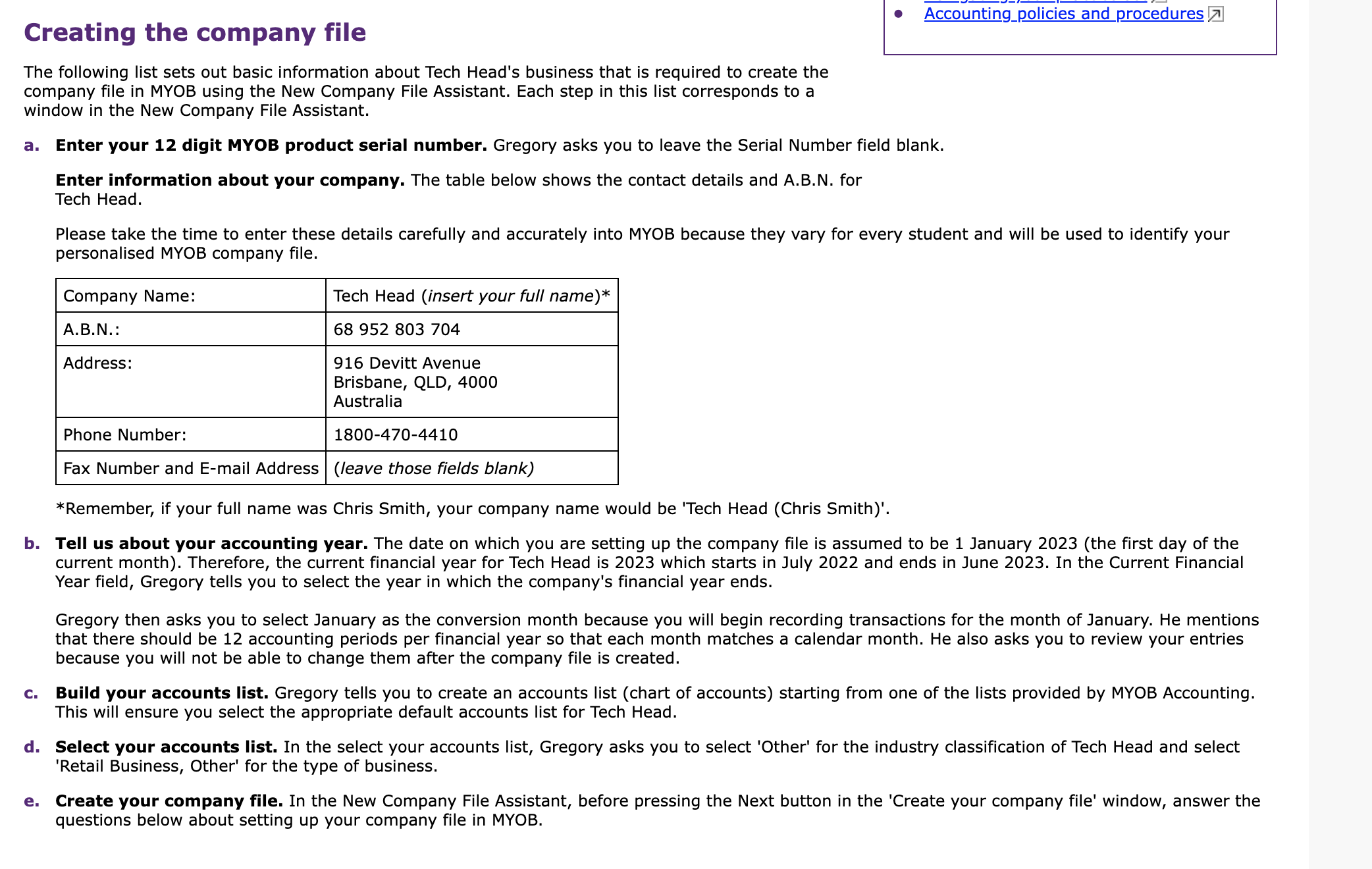
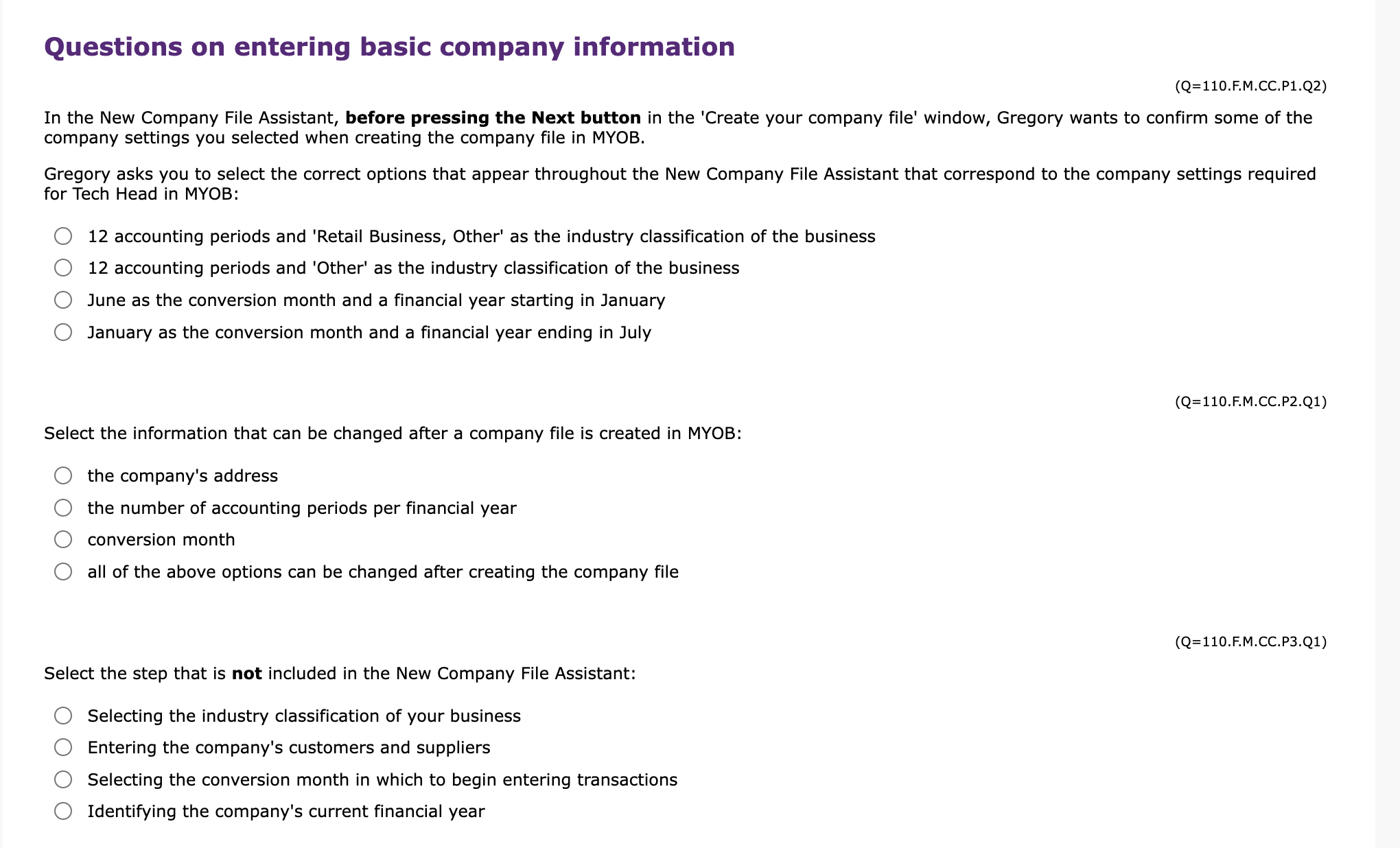
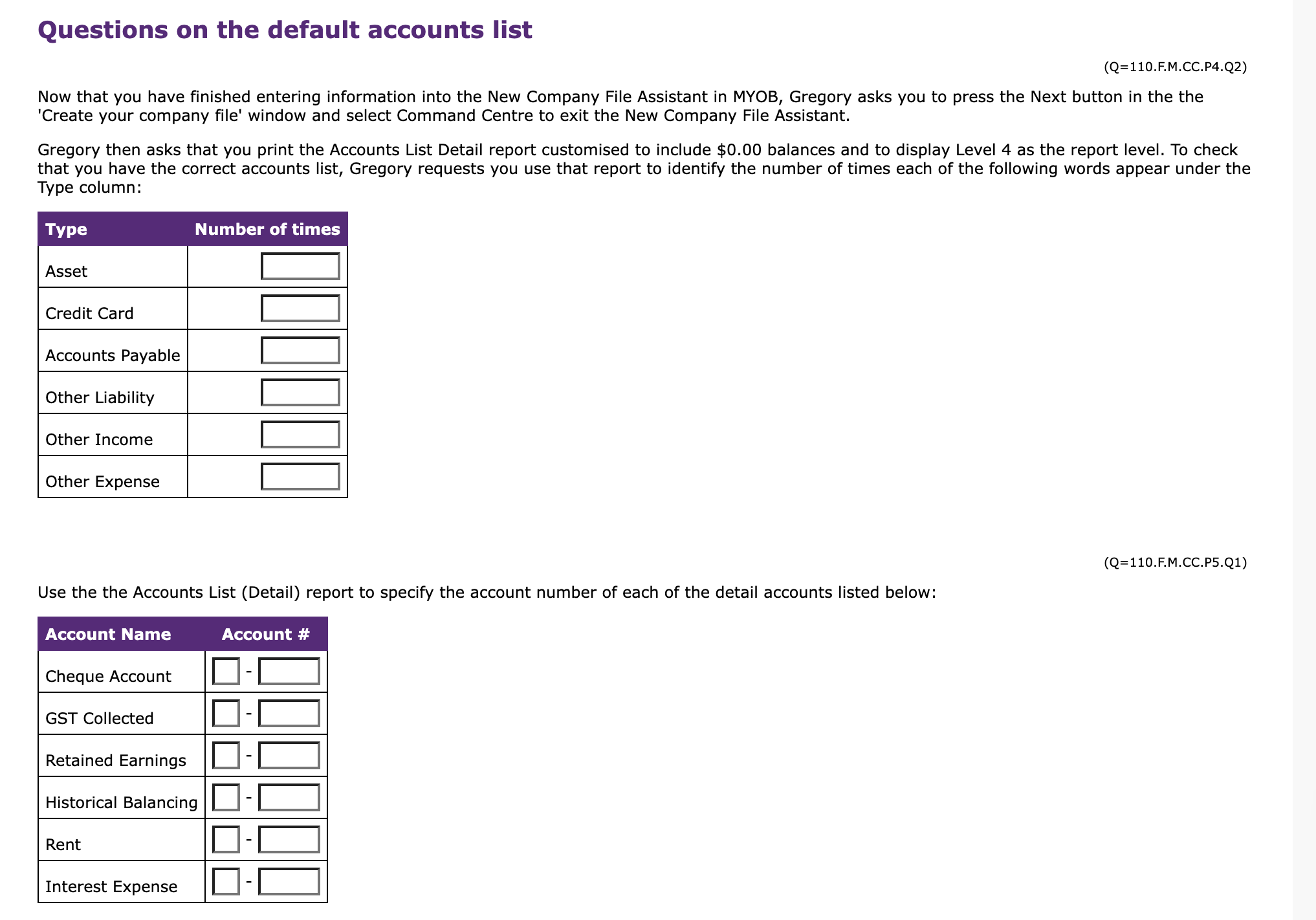
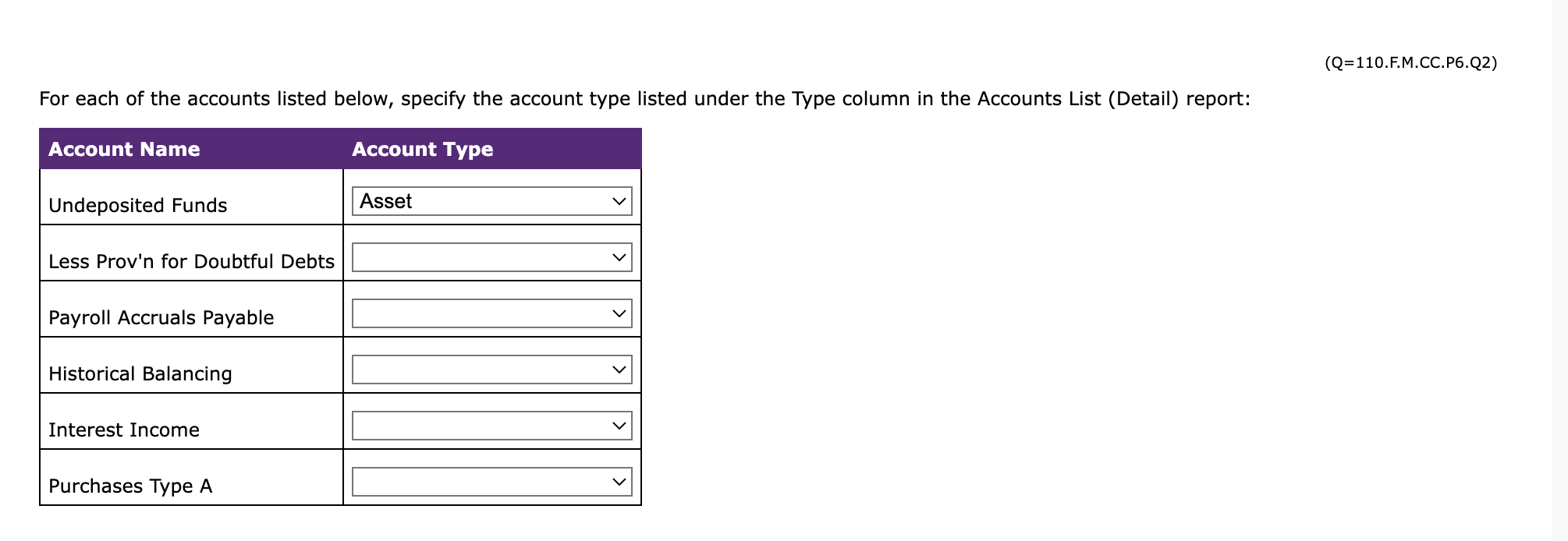
Creating the company file The following list sets out basic information about Tech Head's business that is required to create the company file in MYOB using the New Company File Assistant. Each step in this list corresponds to a window in the New Company File Assistant. a. Enter your 12 digit MYOB product serial number. Gregory asks you to leave the Serial Number field blank. Enter information about your company. The table below shows the contact details and A.B.N. for Tech Head. Please take the time to enter these details carefully and accurately into MYOB because they vary for every student and will be used to identify your personalised MYOB company file. *Remember, if your full name was Chris Smith, your company name would be 'Tech Head (Chris Smith)'. b. Tell us about your accounting year. The date on which you are setting up the company file is assumed to be 1 January 2023 (the first day of the current month). Therefore, the current financial year for Tech Head is 2023 which starts in July 2022 and ends in June 2023 . In the Current Financial Year field, Gregory tells you to select the year in which the company's financial year ends. Gregory then asks you to select January as the conversion month because you will begin recording transactions for the month of January. He mentions that there should be 12 accounting periods per financial year so that each month matches a calendar month. He also asks you to review your entries because you will not be able to change them after the company file is created. C. Build your accounts list. Gregory tells you to create an accounts list (chart of accounts) starting from one of the lists provided by MYOB Accounting. This will ensure you select the appropriate default accounts list for Tech Head. d. Select your accounts list. In the select your accounts list, Gregory asks you to select 'Other' for the industry classification of Tech Head and select 'Retail Business, Other' for the type of business. e. Create your company file. In the New Company File Assistant, before pressing the Next button in the 'Create your company file' window, answer the questions below about setting up your company file in MYOB. Questions on entering basic company information (Q=110.F.M.CC.P1.Q2) In the New Company File Assistant, before pressing the Next button in the 'Create your company file' window, Gregory wants to confirm some of the company settings you selected when creating the company file in MYOB. Gregory asks you to select the correct options that appear throughout the New Company File Assistant that correspond to the comping red for Tech Head in MYOB: 12 accounting periods and 'Retail Business, Other' as the industry classification of the business 12 accounting periods and 'Other' as the industry classification of the business June as the conversion month and a financial year starting in January January as the conversion month and a financial year ending in July (Q=110.F.M.CCP2.Q1) Select the information that can be changed after a company file is created in MYOB: the company's address the number of accounting periods per financial year conversion month all of the above options can be changed after creating the company file (Q=110.F.M.CC.P3.Q1) Select the step that is not included in the New Company File Assistant: Selecting the industry classification of your business Entering the company's customers and suppliers Selecting the conversion month in which to begin entering transactions Identifying the company's current financial year Questions on the default accounts list (Q=110.M.CC.P4.Q2) Now that you have finished entering information into the New Company File Assistant in MYOB, Gregory asks you to press the Next button in the the 'Create your company file' window and select Command Centre to exit the New Company File Assistant. Gregory then asks that you print the Accounts List Detail report customised to include $0.00 balances and to display Level 4 as the report level. To check that you have the correct accounts list, Gregory requests you use that report to identify the number of times each of the following words appear under the Type column: (Q=110.M.M. CC.P5.Q1) Use the the Accounts List (Detail) report to specify the account number of each of the detail accounts listed below: (Q=110.F.M.CC.P6.Q2) For each of the accounts listed below, specify the account type listed under the Type column in the Accounts List (Detail) report: \begin{tabular}{|l|l|} \hline Account Name & Account Type \\ \hline Undeposited Funds & Asset \\ \hline Less Prov'n for Doubtful Debts & \\ \hline Payroll Accruals Payable & \\ \hline Historical Balancing & \\ \hline Interest Income & \\ \hline Purchases Type A & \\ \hline \end{tabular}
Step by Step Solution
There are 3 Steps involved in it

Get step-by-step solutions from verified subject matter experts
 Study Help