







Question: By completing this Lab, you will gain further experience using layout containers, GUI controls, formatting/styling, and Event-driven programming. Name your Eclipse project Lab4FirstNameLastName. GUI
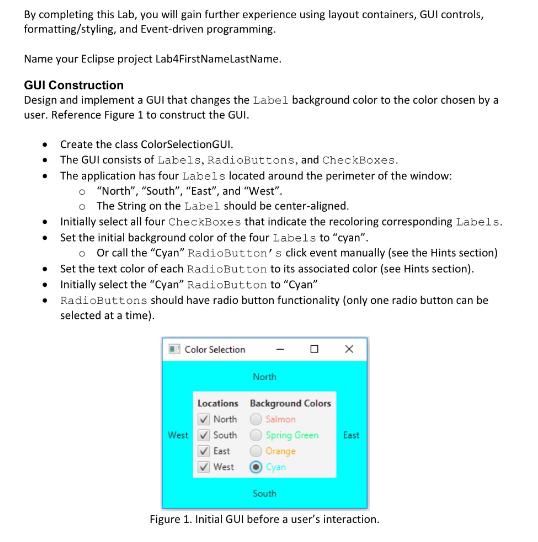
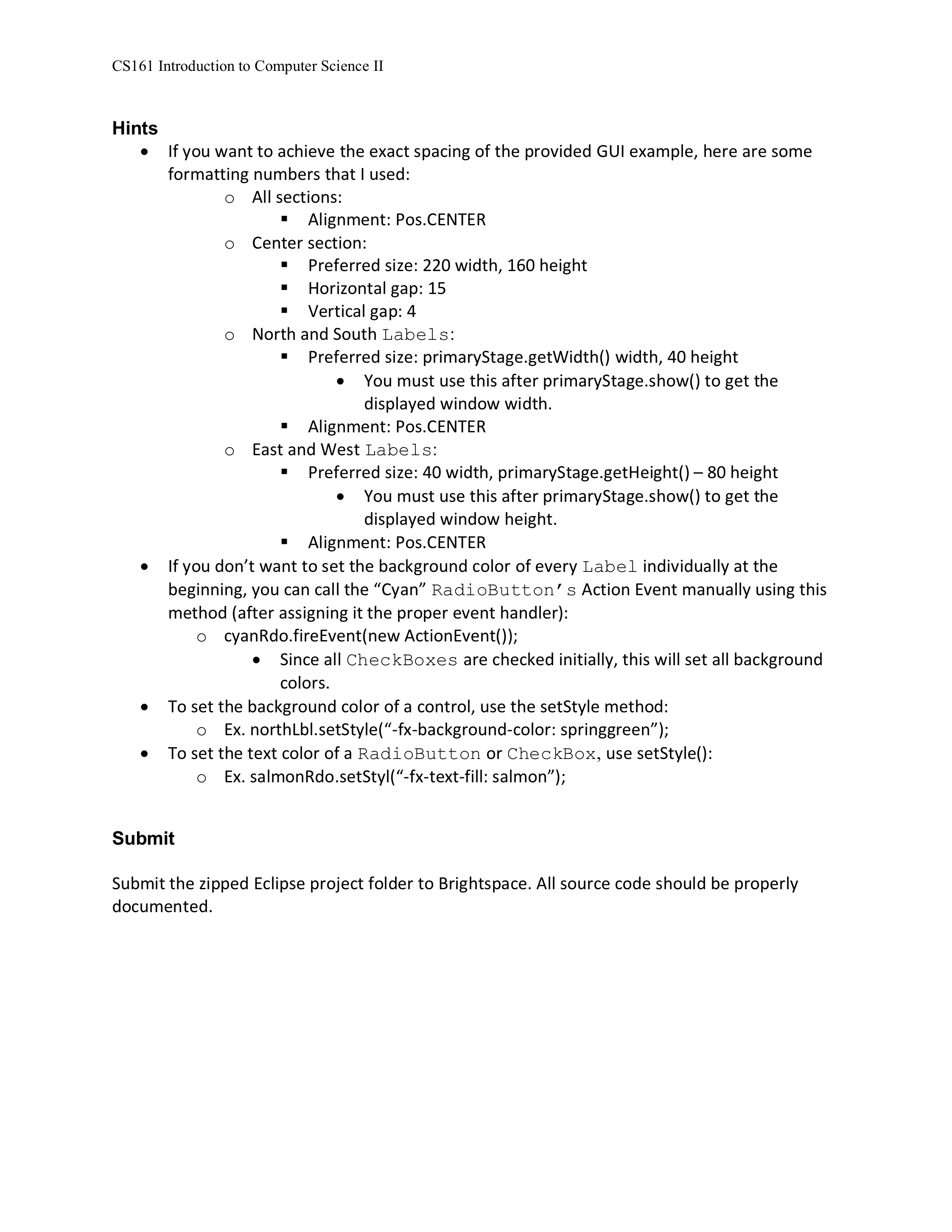
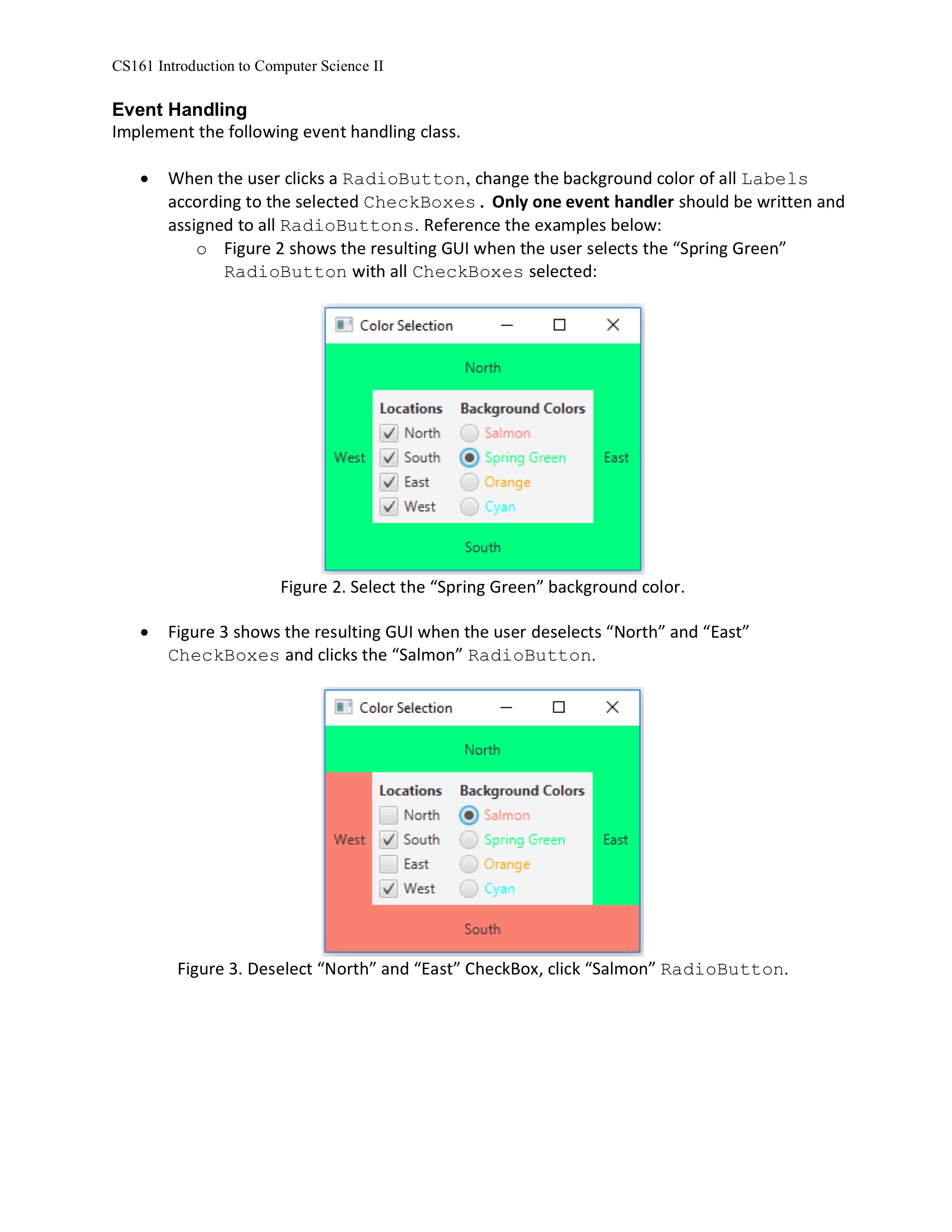
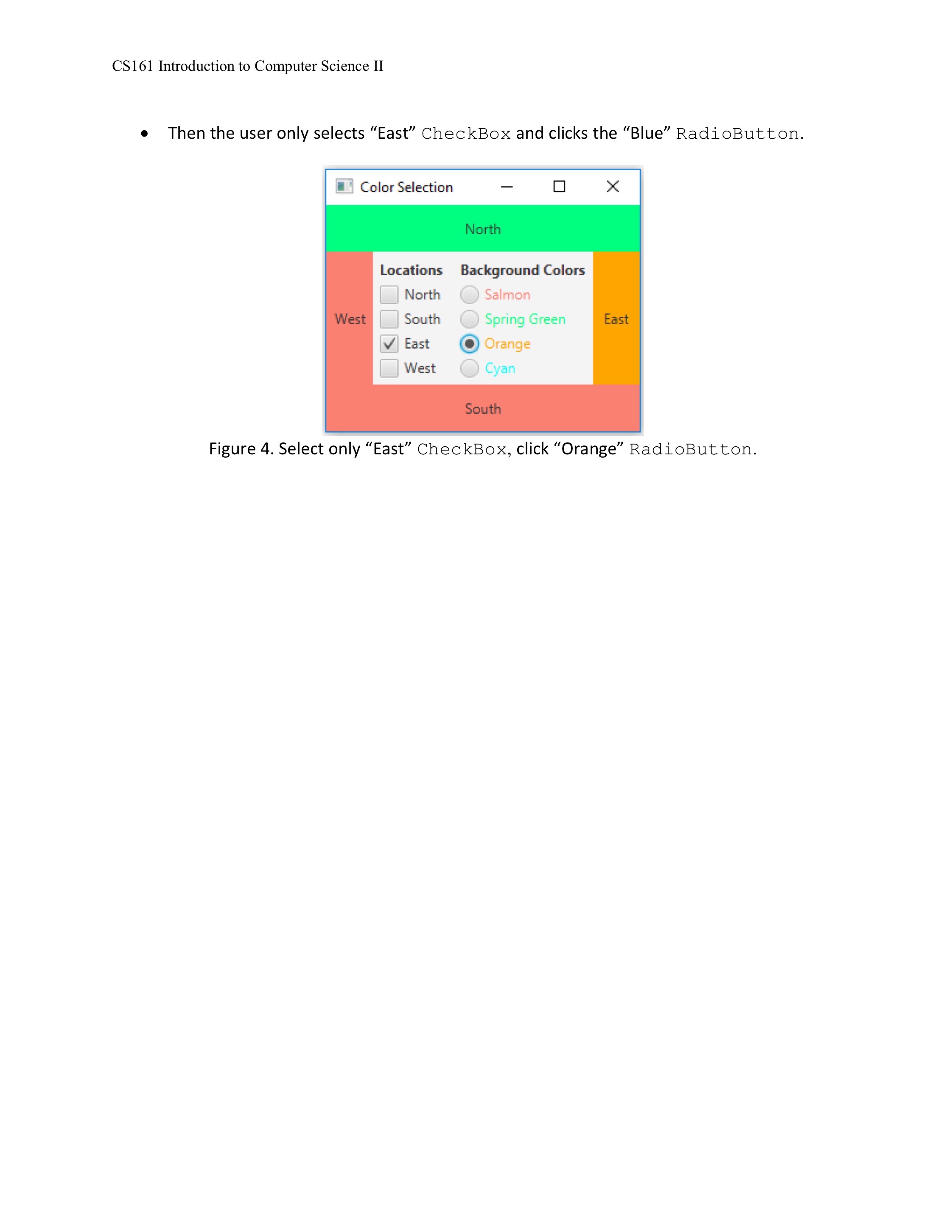
By completing this Lab, you will gain further experience using layout containers, GUI controls, formatting/styling, and Event-driven programming. Name your Eclipse project Lab4FirstNameLastName. GUI Construction Design and implement a GUI that changes the Label background color to the color chosen by a user. Reference Figure 1 to construct the GUI. Create the class ColorSelectionGUI. The GUI consists of Labels, RadioButtons, and CheckBoxes. The application has four Labels located around the perimeter of the window: o "North", "South", "East", and "West". o The String on the Label should be center-aligned. Initially select all four CheckBoxes that indicate the recoloring corresponding Labels. Set the initial background color of the four Labels to "cyan". o Or call the "Cyan" RadioButton's click event manually (see the Hints section) Set the text color of each RadioButton to its associated color (see Hints section). Initially select the "Cyan" RadioButton to "Cyan" RadioButtons should have radio button functionality (only one radio button can be selected at a time). Color Selection West Locations North South East West North Background Colors Salmon Spring Green East Orange Cyan South Figure 1. Initial GUI before a user's interaction. CS161 Introduction to Computer Science II Hints If you want to achieve the exact spacing of the provided GUI example, here are some formatting numbers that I used: All sections: O Submit Center section: Vertical gap: 4 North and South Labels: Alignment: Pos.CENTER Preferred size: 220 width, 160 height Horizontal gap: 15 Preferred size: primaryStage.getWidth() width, 40 height You must use this after primaryStage.show() to get the displayed window width. East and West Labels: Alignment: Pos.CENTER Alignment: Pos.CENTER If you don't want to set the background color of every Label individually at the beginning, you can call the "Cyan" RadioButton's Action Event manually using this method (after assigning it the proper event handler): o cyanRdo.fireEvent(new ActionEvent()); Preferred size: 40 width, primaryStage.getHeight() 80 height - You must use this after primaryStage.show() to get the displayed window height. Since all CheckBoxes are checked initially, this will set all background colors. To set the background color of a control, use the setStyle method: O Ex. northLbl.setStyle("-fx-background-color: springgreen"); To set the text color of a RadioButton or CheckBox, use setStyle(): O Ex. salmonRdo.setStyl("-fx-text-fill: salmon"); Submit the zipped Eclipse project folder to Brightspace. All source code should be properly documented. CS161 Introduction to Computer Science II Event Handling Implement the following event handling class. When the user clicks a RadioButton, change the background color of all Labels according to the selected CheckBoxes. Only one event handler should be written and assigned to all RadioButtons. Reference the examples below: o Figure 2 shows the resulting GUI when the user selects the "Spring Green" RadioButton with all CheckBoxes selected: Color Selection West Locations North South East West Color Selection West North Locations North South East West Figure 2. Select the "Spring Green background color. Figure 3 shows the resulting GUI when the user deselects "North" and "East" CheckBoxes and clicks the Salmon RadioButton. Background Colors Salmon Spring Green East Orange Cyan South North Background Colors Salmon X Spring Green Orange Cyan South X East Figure 3. Deselect "North" and "East" CheckBox, click "Salmon" RadioButton. CS161 Introduction to Computer Science II Then the user only selects "East" CheckBox and clicks the "Blue" RadioButton. Color Selection West Locations North South East West North Background Colors Salmon Spring Green East O Orange Cyan X South Figure 4. Select only "East" CheckBox, click "Orange" RadioButton.
Step by Step Solution
There are 3 Steps involved in it

Get step-by-step solutions from verified subject matter experts
 Study Help