







Question: CSBP 221 - Programming Lab I Lab 4 Objective: The exercises in this document introduce the Graphical User Interface (GUI) in Java. This lab maps
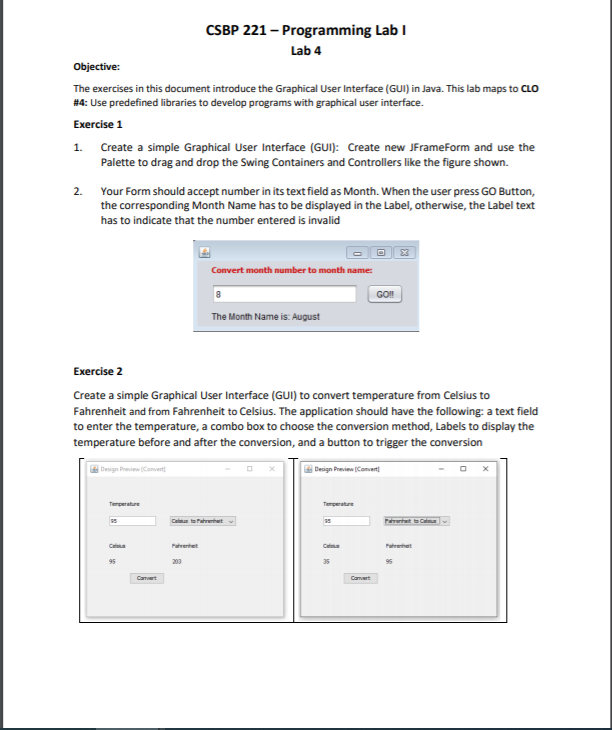
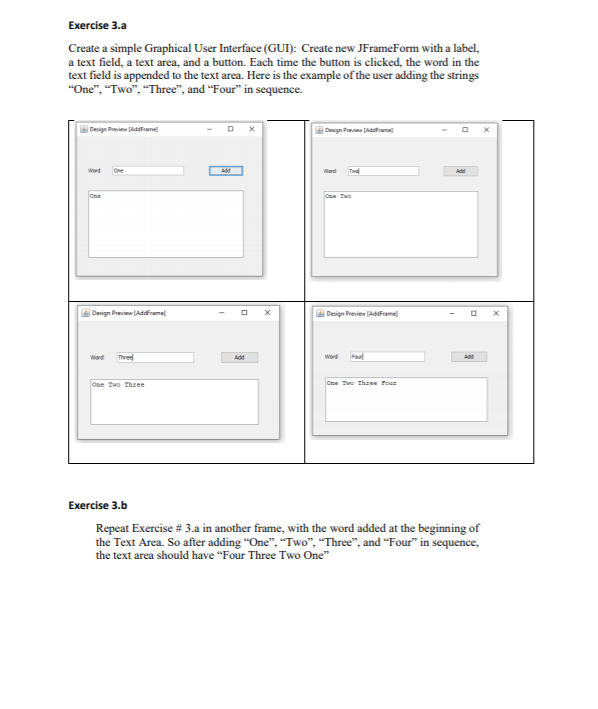
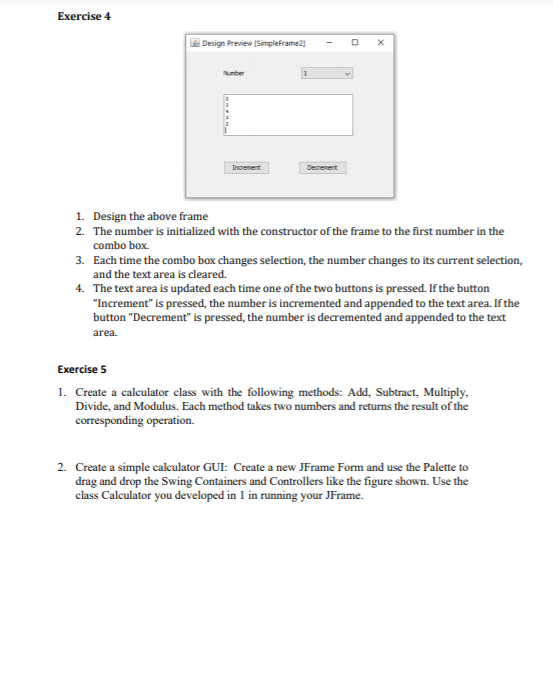
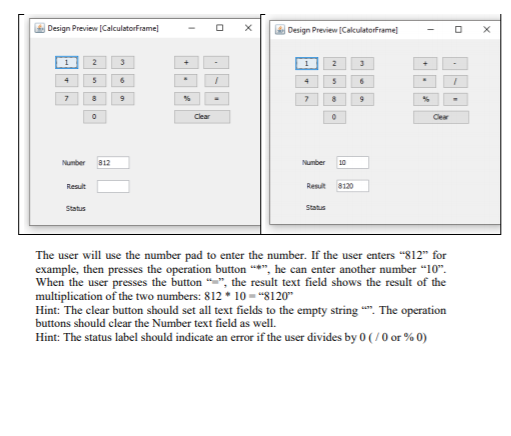
CSBP 221 - Programming Lab I Lab 4 Objective: The exercises in this document introduce the Graphical User Interface (GUI) in Java. This lab maps to CLO #4: Use predefined libraries to develop programs with graphical user interface. Exercise 1 1. Create a simple Graphical User Interface (GUI): Create new JFrameForm and use the Palette to drag and drop the Swing Containers and Controllers like the figure shown. Your Form should accept number in its text field as Month. When the user press Go Button, the corresponding Month Name has to be displayed in the label, otherwise, the Label text has to indicate that the number entered is invalid 2. Convert month number to month name: GOH The Month Name is: August Exercise 2 Create a simple Graphical User Interface (GUI) to convert temperature from Celsius to Fahrenheit and from Fahrenheit to Celsius. The application should have the following: a text field to enter the temperature, a combo box to choose the conversion method, Labels to display the temperature before and after the conversion, and a button to trigger the conversion Design Provimo Comet Design Preview Convert Temperature 90 Parantate Parenhet 200 95 35 Cart Exercise 3.a Create a simple Graphical User Interface (GUI): Create new JFrameForm with a label, a text field, a text area, and a button. Each time the button is clicked, the word in the text field is appended to the text area. Here is the example of the user adding the strings "One", "Two", "Three", and "Four" in sequence. Design Preview Design Prime Added Design Preview Addrama! Design Preview Adamel Thread Add One Two Three Che Swe The Tous Exercise 3.b Repeat Exercise # 3.a in another frame, with the word added at the beginning of the Text Area. So after adding "One", "Two", "Three, and Four" in sequence, the text area should have Four Three Two One" Exercise 4 Design Preview Simpleframe2 1 Increment Decrement 1. Design the above frame 2. The number is initialized with the constructor of the frame to the first number in the combo box 3. Each time the combo box changes selection, the number changes to its current selection, and the text area is cleared. 4. The text area is updated each time one of the two buttons is pressed. If the button "Increment" is pressed, the number is incremented and appended to the text area. If the button "Decrement" is pressed, the number is decremented and appended to the text area. Exercise 5 1. Create a calculator class with the following methods: Add Subtract, Multiply, Divide, and Modulus. Each method takes two numbers and returns the result of the corresponding operation. 2. Create a simple calculator GUI: Create a new JFrame Form and use the Palette to drag and drop the Swing Containers and Controllers like the figure shown. Use the class Calculator you developed in 1 in running your JFrame. - Design Preview (CalculatorFrame] X Design Preview (CalculatorFramel 1 2 3 + + 5 6 1 7 7 9 Clear Number 812 Number Result Result 8120 Status Status The user will use the number pad to enter the number. If the user enters "812" for example, then presses the operation button "*", he can enter another number 10. When the user presses the button "-", the result text field shows the result of the multiplication of the two numbers: 812 * 10 - "8120" Hint: The clear button should set all text fields to the empty string "". The operation buttons should clear the Number text field as well. Hint: The status label should indicate an error if the user divides by 0 (70 or %0)
Step by Step Solution
There are 3 Steps involved in it

Get step-by-step solutions from verified subject matter experts
 Study Help