







Question: CYSE 211 Lab 3: Virtual Memory A brief note about type setting conventions here. The font you are reading now is the font that describes
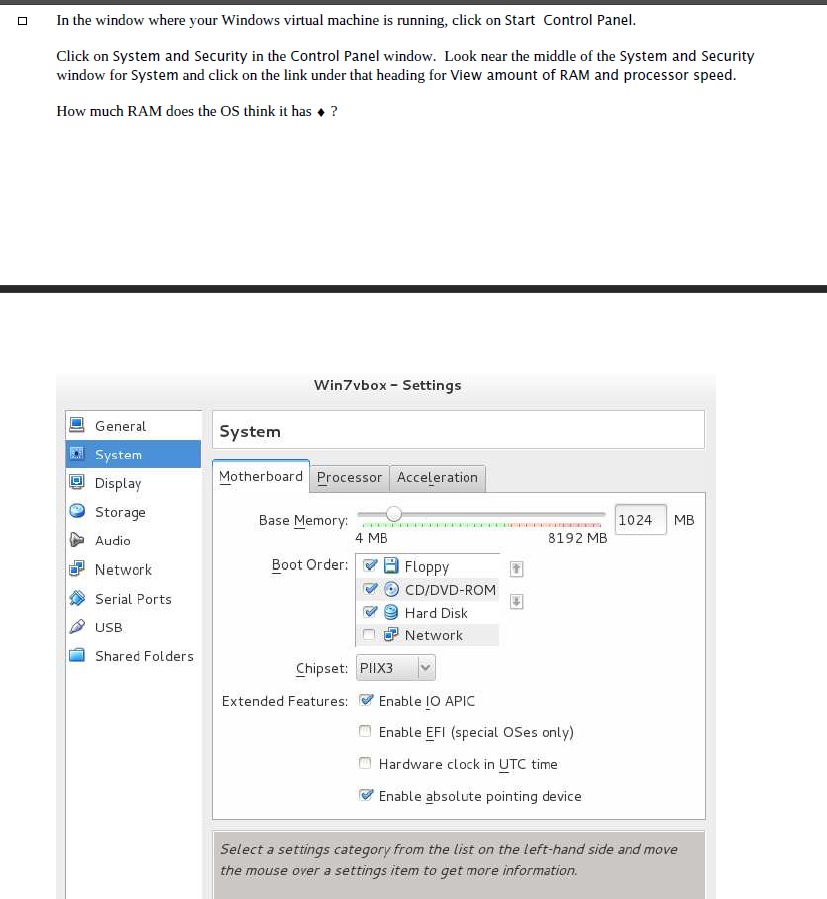
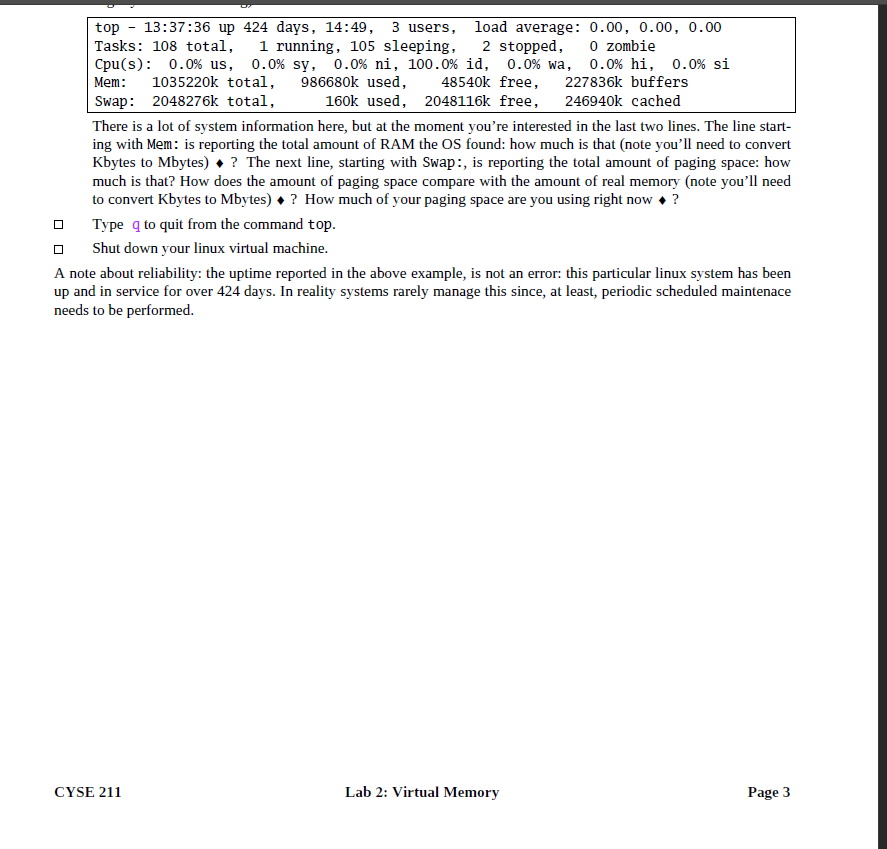
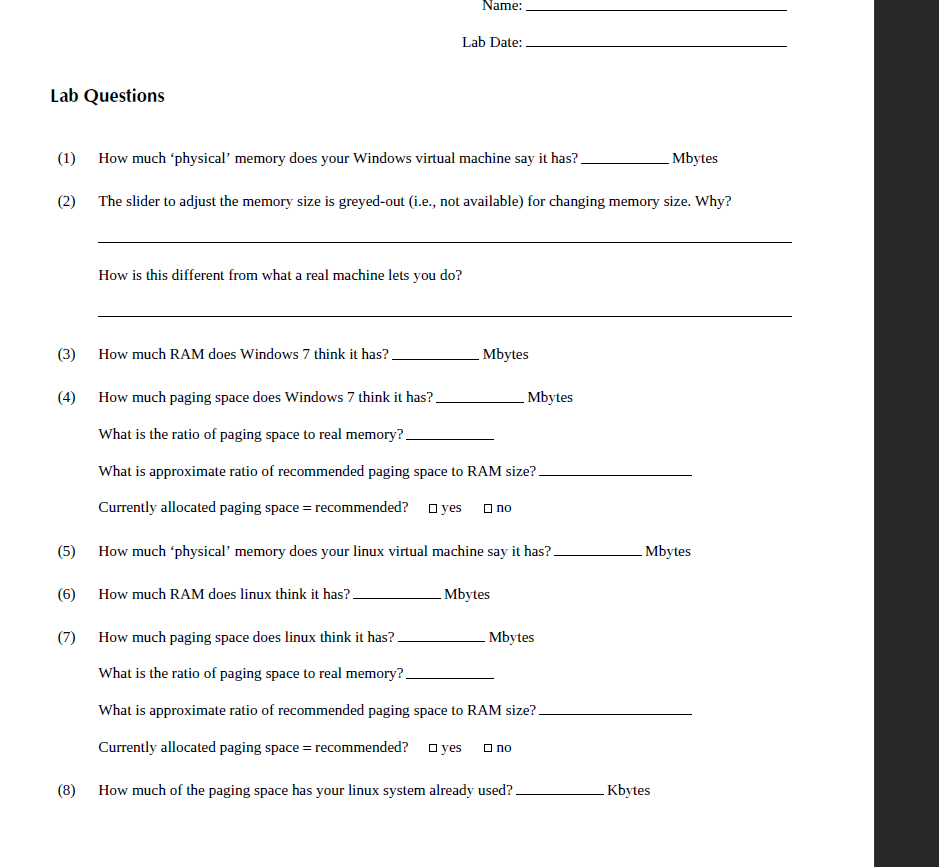
CYSE 211 Lab 3: Virtual Memory A brief note about type setting conventions here. The font you are reading now is the font that describes the steps you need to follow for the lab, and provides some background information. This font is used to show things in windows that you would select, click on or need to notice. This font is used for things you type in using the keyboard. NOTE: Questions appear in the lab text that you need to answer and hand in on a separate sheet with screenshot corresponding to each question. Those questions are marked with a black diamond (). Introduction In this lab you will briefly examine the virtual memory set up on Windows 7 and linux. Virtual memory is the total memory space available for running programs, and is the sum of total physical memory (RAM) + disk space dedicated to holding pages (page file in Windows, swap partition in *nix). Both Windows 7 and #nix use virtual memory: this provides two main advantages: (1) more processes can be accommodated at a time, and, (2) processes too big to fit in physical memory can be run. The price of these advantages includes: (1) catastrophic failure of system performance if too many processes are run at the same time (thrashing), and, (2) overall performance degradation due to page faults. Windows uses a special file on the disk (page file) to hold the pages written out from real memory frames. Linux is largely the same, but uses a separate disk partition (formatted differently than a partition containing files). You cre- ated that partition when you created your virtual linux disk. Refer to the lecture part of the 211 class on virtual memory for details on how virtual memory functions. The Lab The major steps in this lab: (1) examine virtual memory space on Windows 7 (2) examine virtual memory space on linux 1. Virtual Memory on Windows 7 Determine how much 'real' memory your virtual machine has: Start your Windows 7 virtual machine and log on as a user with Administrator privileges. Click on Machine in the command bar across the top of the window in which your Windows VM is running. Then click on Settings on the menu. From the list of items presented, choose System and you should see some- thing similar to what's shown in Figure 1. How much memory does your virtual machine have ? Note that the slider is "greyed-out, meaning you can- not use it now. Why is that? How is this different from what a real machine lets you do? You can dismiss the settings windows. So now you know how much memory the (virtual) machine has. Now, determine how much real memory the OS In the window where your Windows virtual machine is running, click on Start Control Panel. Click on System and Security in the Control Panel window. Look near the middle of the System and Security window for System and click on the link under that heading for View amount of RAM and processor speed. How much RAM does the OS think it has ? Win7vbox - Settings System General System Display Storage Audio Motherboard Processor Acceleration 1024 MB Base Memory: 4 MB Boot Order: 8192 MB Network Serial Ports USB Shared Folders Floppy CD/DVD-ROM Hard Disk Network Chipset: PlIX3 Extended Features: Enable IO APIC Enable EFI (special OSes only) Hardware clock in UTC time Enable absolute pointing device Select a settings category from the list on the left-hand side and move the mouse over a settings item to get more information Figure 1: Virtual Box settings for a running virtual machine Now check how much paging space Windows has. Click on Advanced system settings on the left panel of the window. Then click the Settings button under the Performance heading. This will open a Performance Options window: click on the Advanced tab. At last! You will see, at the bottom a heading Virtual Memory and will be told how much paging space you now have: how much is that? How does this size compare to the size of RAM? Click on Change. You will see a new window, Virtual Memory. Note that the settings here are not greyed out, i.e., you could change these now if you wanted to. Do not change these settings now. Why can you change these but not change the amount of RAM in the virtual machine? Is the currently allocated space the size that is recom- mended? What is the approximate ratio of recommended space to real RAM ? Click on Cancel in the Virtual Memory window to dismiss it. Click on Cancel in the Performance Options win- dow to dismiss it. Click on OK in the System Properties window to dismiss it. You can shutdown the Windows VM now. CYSE 211 Lab 2: Virtual Memory Page 2 2. Virtual Memory on linux Start your linux virtual machine. Determine how much real memory your virtual machine has: in the VirtualBox Manager window, ensure your linux virtual machine is selected and click on Settings and dismiss any warning message box. Click on Memory How much memory does your virtual machine have? Now check how much paging space linux has. Log in as the non-root user you created. Place your cursor somewhere on the desktop background, right click and choose Open in Terminal from pop-up menu). In the terminal window that opens, type the command top and press Enter. You'll see a full-screen of informa- tion that updates once per second. At the top, you'll see something like this (your version of CentOs will have slightly different labeling): top - 13:37:36 up 424 days, 14:49, 3 users, load average: 0.00, 0.00, 0.00 Tasks: 108 total, 1 running, 105 sleeping, 2 stopped, O zombie Cpu(s): 0.0% us, 0.0% sy, 0.0% ni, 100.0% id, 0.0% wa, 0.0% hi, 0.0% si Mem: 1035220k total, 986680k used, 48540k free, 227836k buffers Swap: 2048276k total, 160k used, 2048116k free, 246940k cached There is a lot of system information here, but at the moment you're interested in the last two lines. The line start- ing with Mem: is reporting the total amount of RAM the OS found: how much is that (note you'll need to convert Kbytes to Mbytes)? The next line, starting with Swap:, is reporting the total amount of paging space: how much is that? How does the amount of paging space compare with the amount of real memory (note you'll need to convert Kbytes to Mbytes)? How much of your paging space are you using right now? Type q to quit from the command top. Shut down your linux virtual machine. A note about reliability: the uptime reported in the above example, is not an error: this particular linux system has been up and in service for over 424 days. In reality systems rarely manage this since, at least, periodic scheduled maintenace needs to be performed. D CYSE 211 Lab 2: Virtual Memory Page 3 Name: Lab Date: Lab Questions (1) How much "physical memory does your Windows virtual machine say it has? Mbytes (2) The slider to adjust the memory size is greyed-out (i.e., not available) for changing memory size. Why? How is this different from what a real machine lets you do? (3) How much RAM does Windows 7 think it has? Mbytes (4) How much paging space does Windows 7 think it has? Mbytes What is the ratio of paging space to real memory? What is approximate ratio of recommended paging space to RAM size? Currently allocated paging space = recommended? yes no (5) How much physical' memory does your linux virtual machine say it has? Mbytes (6) How much RAM does linux think it has? Mbytes (7) How much paging space does linux think it has? Mbytes What is the ratio of paging space to real memory? What is approximate ratio of recommended paging space to RAM size? Currently allocated paging space = recommended? yes Ono (8) How much of the paging space has your linux system already used? Kbytes
Step by Step Solution
There are 3 Steps involved in it

Get step-by-step solutions from verified subject matter experts
 Study Help