





Question: Database Development NORTHEAST W Technical College Project 7: Physical Design Using the following solution for the Library case from Project 4, physically create the tables,
Database Development NORTHEAST W TechnicalDatabase Development NORTHEAST W Technical
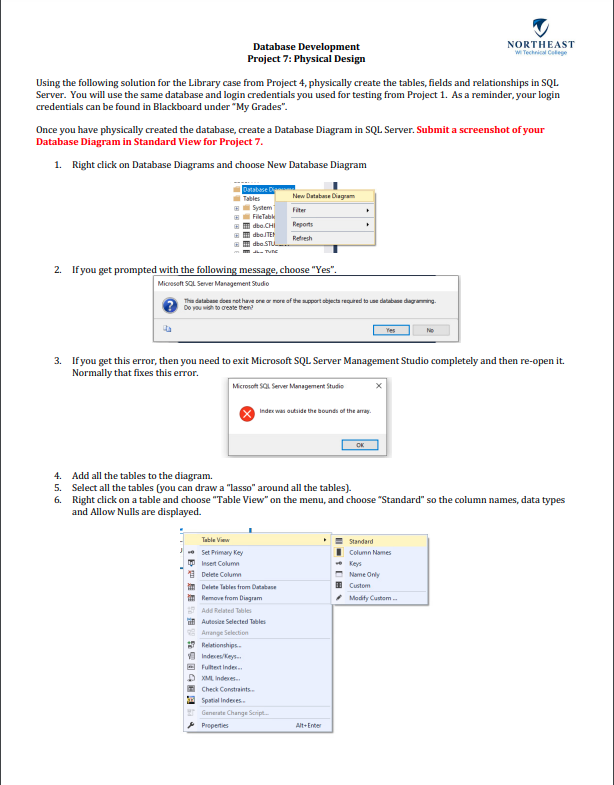
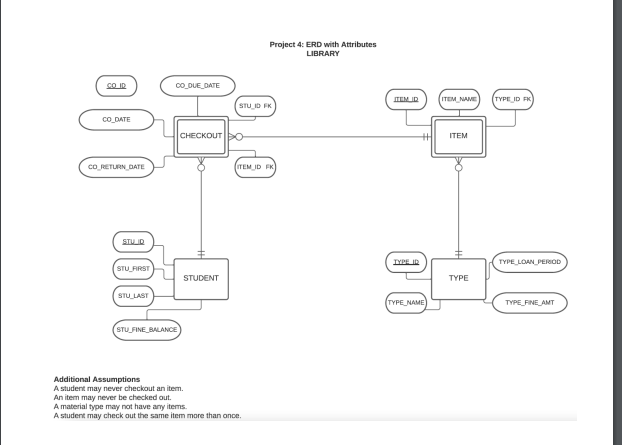
Database Development NORTHEAST W Technical College Project 7: Physical Design Using the following solution for the Library case from Project 4, physically create the tables, fields and relationships in SQL Server. You will use the same database and login credentials you used for testing from Project 1. As a reminder, your login credentials can be found in Blackboard under "My Grades"- Once you have physically created the database, create a Database Diagram in SQL Server. Submit a screenshot of your Database Diagram in Standard View for Project 7. 1. Right click on Database Diagrams and choose New Database Diagram Tables New Database Diagram System Filter FileTabk B I dba.CHI Report HI dba STU I JL. Tune 2. If you get prompted with the following message, choose "Yes". Microsoft SQL Server Management Studio Thin database does not have one or more of the support objects required to use database diagramming Do you wish to create them? 3. If you get this error, then you need to exit Microsoft SQL Server Management Studio completely and then re-open it. Normally that fixes this error. Microsoft SOL Server Management Studio X Index was autilde the bounds of the array. 4. Add all the tables to the diagram. 5. Select all the tables (you can draw a "lasso" around all the tables]. 6. Right click on a table and choose "Table View" on the menu, and choose "Standard" so the column names, data types and Allow Nulls are displayed. Tabin Visor Standard Set Primary Key Column Names Insert Column Delete Column Name Only Delete Tables from Database Cuaton Remove from Diagram Modify Custom .. Add Related Table Aulenice Selected Tables Aminge Selection AT Relationships- Fulhect Index.. XML Inder.. Check Coretraints.. ah Spurted Indexes. Germain Change Script.. Puopentis Alt+ EnterProject 4: ERD with Attributes LIBRARY CO ID CO_DUE_DATE ITEM ID TYPE_ID FK STU ID FK. CO_DATE CHECKOUT ITEM CO_RETURN DATE ITEM ID FK BILLID TYPE_LOAN PERIOD STU_FIRST STUDENT TYPE STU_LAST TYPE_NAME TYPE_FINE_AMT STU_FINE_BALANCE Additional Assumptions A student may never checkout an item. An itemn may never be checked out. A material type may not have any items. A student may check out the same item more than once

Step by Step Solution

There are 3 Steps involved in it

1 Expert Approved Answer
Step: 1 Unlock blur-text-image

Question Has Been Solved by an Expert!

Get step-by-step solutions from verified subject matter experts

Step: 2 Unlock
Step: 3 Unlock

Students Have Also Explored These Related Business Writing Questions!