







Question: DATAI DATA2 OBSERVED VARIABLE 2 VARIABLE 1 1 2 3 5 6 7 8 9 10 A 10 11 12 6 99 pvalue 0.059023955 B
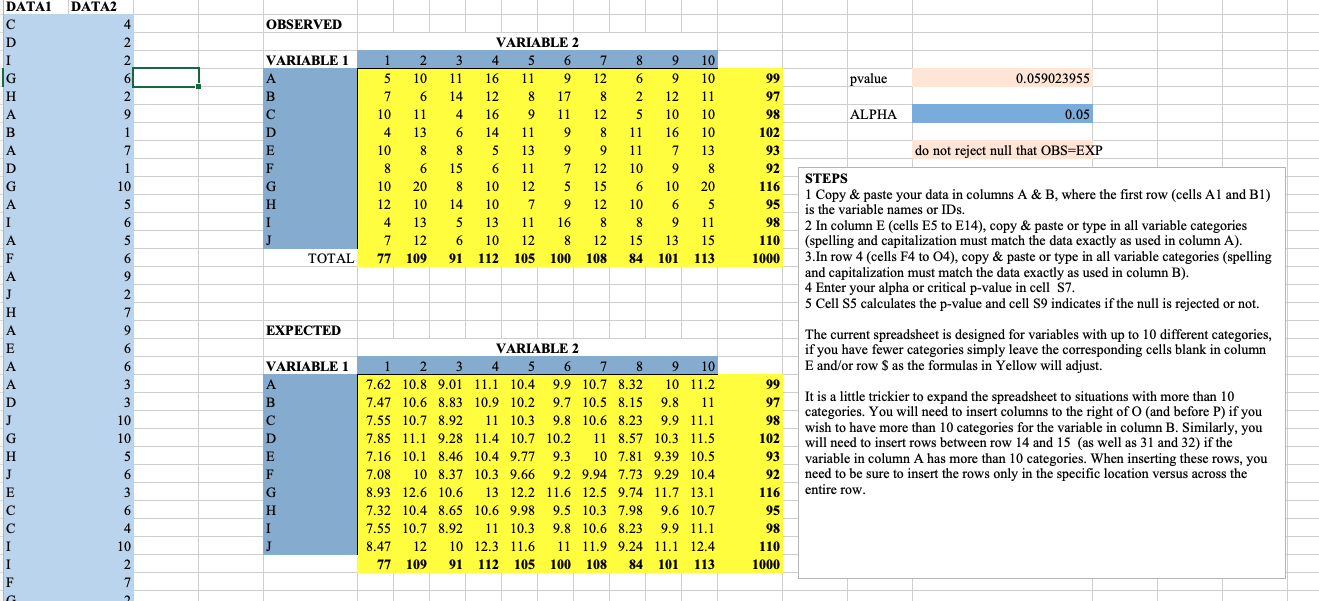
DATAI DATA2 OBSERVED VARIABLE 2 VARIABLE 1 1 2 3 5 6 7 8 9 10 A 10 11 12 6 99 pvalue 0.059023955 B 6 14 10 10 00 - 17 8 IN 97 C 11 4 16 11 12 5 98 ALPHA 0.05 A 13 6 14 11 8 11 16 102 10 8 8 5 13 9 9 11 13 93 do not reject null that OBS=EXP 8 6 15 6 11 7 12 10 8 92 10 20 8 10 12 5 15 6 10 20 116 STEPS 14 10 12 5 95 1 Copy & paste your data in columns A & B, where the first row (cells Al and BI) 12 10 10 is the variable names or IDs. 4 13 5 13 11 16 8 8 11 98 2 In column E (cells E5 to E14), copy & paste or type in all variable categories 12 10 12 12 15 13 15 110 (spelling and capitalization must match the data exactly as used in column A). TOTAL 77 109 91 112 105 100 108 84 101 113 1000 3.In row 4 (cells F4 to 04), copy & paste or type in all variable categories (spelling and capitalization must match the data exactly as used in column B). 4 Enter your alpha or critical p-value in cell S7. 5 Cell $5 calculates the p-value and cell S9 indicates if the null is rejected or not. EXPECTED The current spreadsheet is designed for variables with up to 10 different categories, VARIABLE 2 if you have fewer categories simply leave the corresponding cells blank in column VARIABLE 1 1 2 3 4 5 6 7 8 9 10 E and/or row $ as the formulas in Yellow will adjust. A 7.62 10.8 9.01 11.1 10.4 9.9 10.7 8.32 10 11.2 99 B 7.47 10.6 8.83 10.9 10.2 9.7 10.5 8.15 9.8 11 97 It is a little trickier to expand the spreadsheet to situations with more than 10 11 10.3 9.8 10.6 8.23 9.9 11.1 98 categories. You will need to insert columns to the right of O (and before P) if you C 7.55 10.7 8.92 wish to have more than 10 categories for the variable in column B. Similarly, you D 7.85 11.1 9.28 11.4 10.7 10.2 11 8.57 10.3 11.5 102 will need to insert rows between row 14 and 15 (as well as 31 and 32) if the 7.16 10.1 8.46 10.4 9.77 9.3 10 7.81 9.39 10.5 93 variable in column A has more than 10 categories. When inserting these rows, you 7.08 10 8.37 10.3 9.66 9.2 9.94 7.73 9.29 10.4 92 need to be sure to insert the rows only in the specific location versus across the 8.93 12.6 10.6 13 12.2 11.6 12.5 9.74 11.7 13.1 116 entire row. 7.32 10.4 8.65 10.6 9.98 9.5 10.3 7.98 9.6 10.7 95 7.55 10.7 8.92 11 10.3 9.8 10.6 8.23 9.9 11.1 98 8.47 12 10 12.3 11.6 11 11.9 9.24 11.1 12.4 110 77 109 91 112 105 100 108 84 101 1 1000
Step by Step Solution
There are 3 Steps involved in it

Get step-by-step solutions from verified subject matter experts
 Study Help