







Question: Demonstrate access to a database using Excel You will demonstrate the ability to connect to a SQL Server database with Microsoft Excel. When you
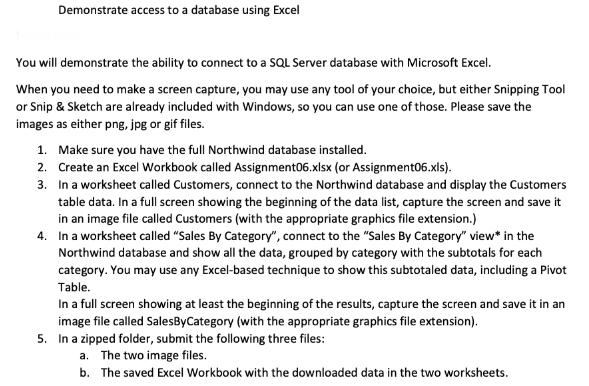
Demonstrate access to a database using Excel You will demonstrate the ability to connect to a SQL Server database with Microsoft Excel. When you need to make a screen capture, you may use any tool of your choice, but either Snipping Tool or Snip & Sketch are already included with Windows, so you can use one of those. Please save the images as either png, jpg or gif files. 1. Make sure you have the full Northwind database installed. 2. Create an Excel Workbook called Assignment06.xlsx (or Assignment06.xls). 3. In a worksheet called Customers, connect to the Northwind database and display the Customers table data. In a full screen showing the beginning of the data list, capture the screen and save it in an image file called Customers (with the appropriate graphics file extension.) 4. In a worksheet called "Sales By Category", connect to the "Sales By Category" view* in the Northwind database and show all the data, grouped by category with the subtotals for each category. You may use any Excel-based technique to show this subtotaled data, including a Pivot Table. In a full screen showing at least the beginning of the results, capture the screen and save it in an image file called Sales By Category (with the appropriate graphics file extension). 5. In a zipped folder, submit the following three files: a. The two image files. b. The saved Excel Workbook with the downloaded data in the two worksheets.
Step by Step Solution
3.45 Rating (152 Votes )
There are 3 Steps involved in it
I cant directly interact with your computers file system or run applications such as Excel or database management systems However I can guide you thro... View full answer

Get step-by-step solutions from verified subject matter experts
 Study Help