







Question: Description: Write a Python program (script) named InteractiveDrawing.py which dynamically creates a picture in a Graphic Window, using a revised coordinate system and mouse and
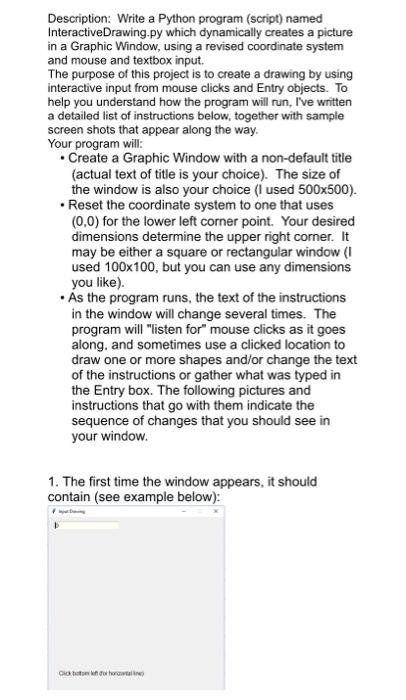
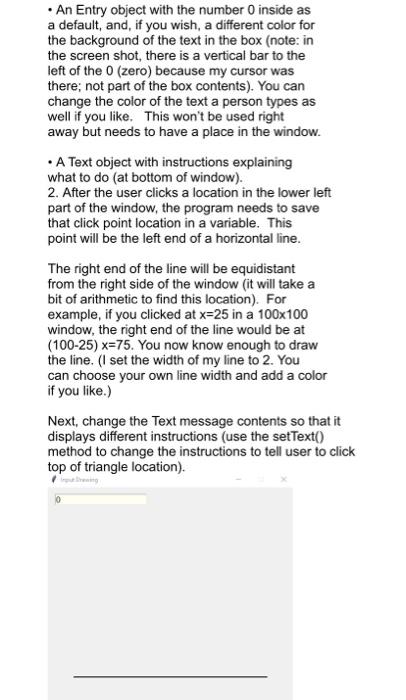
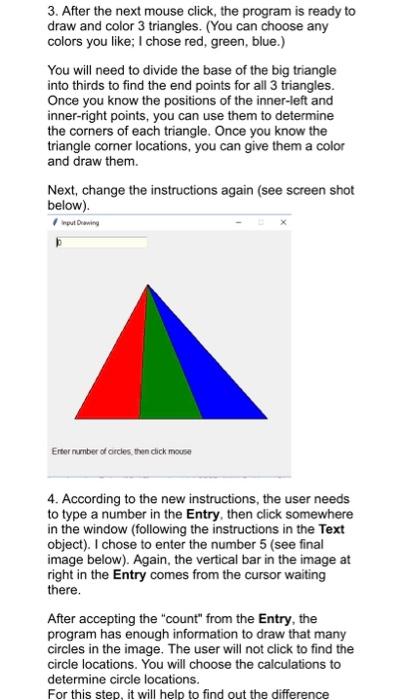
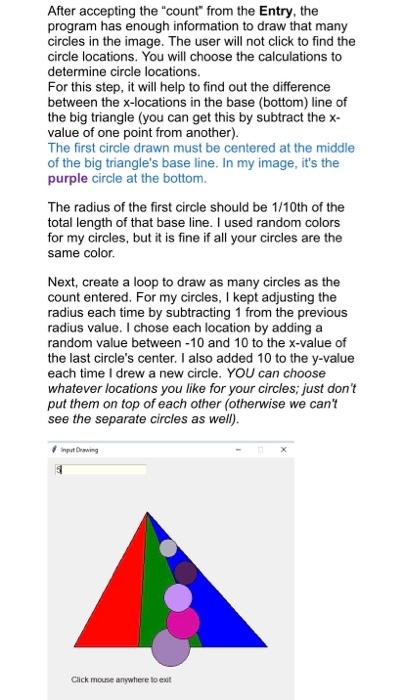
Description: Write a Python program (script) named InteractiveDrawing.py which dynamically creates a picture in a Graphic Window, using a revised coordinate system and mouse and textbox input. The purpose of this project is to create a drawing by using interactive input from mouse clicks and Entry objects. To help you understand how the program will run, I've written a detailed list of instructions below, together with sample screen shots that appear along the way. Your program will: - Create a Graphic Window with a non-default title (actual text of title is your choice). The size of the window is also your choice (I used 500500 ). - Reset the coordinate system to one that uses (0,0) for the lower left corner point. Your desired dimensions determine the upper right corner. It may be either a square or rectangular window (I used 100100, but you can use any dimensions you like). - As the program runs, the text of the instructions in the window will change several times. The program will "listen for" mouse clicks as it goes along. and sometimes use a clicked location to draw one or more shapes and/or change the text of the instructions or gather what was typed in the Entry box. The following pictures and instructions that go with them indicate the sequence of changes that you should see in your window. 1. The first time the window appears, it should contain (see example below): - An Entry object with the number 0 inside as a default, and, if you wish, a different color for the background of the text in the box (note: in the screen shot, there is a vertical bar to the left of the 0 (zero) because my cursor was there; not part of the box contents). You can change the color of the text a person types as well if you like. This won't be used right away but needs to have a place in the window. - A Text object with instructions explaining what to do (at bottom of window). 2. After the user clicks a location in the lower left part of the window, the program needs to save that click point location in a variable. This point will be the left end of a horizontal line. The right end of the line will be equidistant from the right side of the window (it will take a bit of arithmetic to find this location). For example, if you clicked at x=25 in a 100100 window, the right end of the line would be at (10025)x=75. You now know enough to draw 3. After the next mouse click, the program is ready to draw and color 3 triangles. (You can choose any colors you like; I chose red, green, blue.) You will need to divide the base of the big triangle into thirds to find the end points for all 3 triangles. Once you know the positions of the inner-left and inner-right points, you can use them to determine the corners of each triangle. Once you know the triangle comer locations, you can give them a color and draw them. Next, change the instructions again (see screen shot below). 4. According to the new instructions, the user needs to type a number in the Entry, then click somewhere in the window (following the instructions in the Text object). I chose to enter the number 5 (see final image below). Again, the vertical bar in the image at right in the Entry comes from the cursor waiting there. After accepting the "count" from the Entry, the program has enough information to draw that many circles in the image. The user will not click to find the circle locations. You will choose the calculations to determine circle locations. For this step, it will helo to find out the difference program has enough information to draw that many circles in the image. The user will not click to find the circle locations. You will choose the calculations to determine circle locations. For this step, it will help to find out the difference between the x-locations in the base (bottom) line of the big triangle (you can get this by subtract the x value of one point from another). The first circle drawn must be centered at the middle of the big triangle's base line. In my image, it's the purple circle at the bottom. The radius of the first circle should be 1/10 th of the total length of that base line. I used random colors for my circles, but it is fine if all your circles are the same color. Next, create a loop to draw as many circles as the count entered. For my circles, I kept adjusting the radius each time by subtracting 1 from the previous radius value. I chose each location by adding a random value between 10 and 10 to the x-value of the last circle's center. I also added 10 to the y-value each time I drew a new circle. YOU can choose whatever locations you like for your circles; just don't put them on top of each other (otherwise we can't see the separate circles as well). Uack mouse anywnere so exr Finally, use the setText() method to change the instructions one last time and have your program act accordingly when the final mouse click occurs. You do NOT have to use random values for the circle locations, but you can if you like! See the hints describing how to get random values that are on the last page of this document. If you wish to use random color generation for your circles, it isn't that difficult! To generate a random color, add these elements to your program: - from random import randrange - Since each of the red-green-blue values must be between 0 and 255 , use (for example) red = randrange (0,256) to get a value in that range and save it in a variable (need to do this 3 times for every circle you draw, once each for red-green-blue part of the color element). - Create a new color for your circle by using color_rgb(red,green,blue) At the end of the program, the user can click the mouse anywhere in the window to close that window. As you write the program, remember to include: 1. Proper heading (name, due date, program name, and description of the program's purpose) 2. Import statement(s) at the beginning of the program 3. Comments describing each section of code and which part of the drawing it handles 4. Variable names which describe the parts of the drawing you are creating 5. A call to invoke the main() method at the end of the file You can find a full list of tKinter named colors at this web site: http://wiki.tcl.tk/37701
Step by Step Solution
There are 3 Steps involved in it

Get step-by-step solutions from verified subject matter experts
 Study Help