





Question: do the same for this, but only 125 words Joseph Canzurlo : Jun 10 4:31pm Wireless Printing Troubleshooting The issue is a laptop computer trying

do the same for this, but only 125 words
do the same for this, but only 125 words Joseph
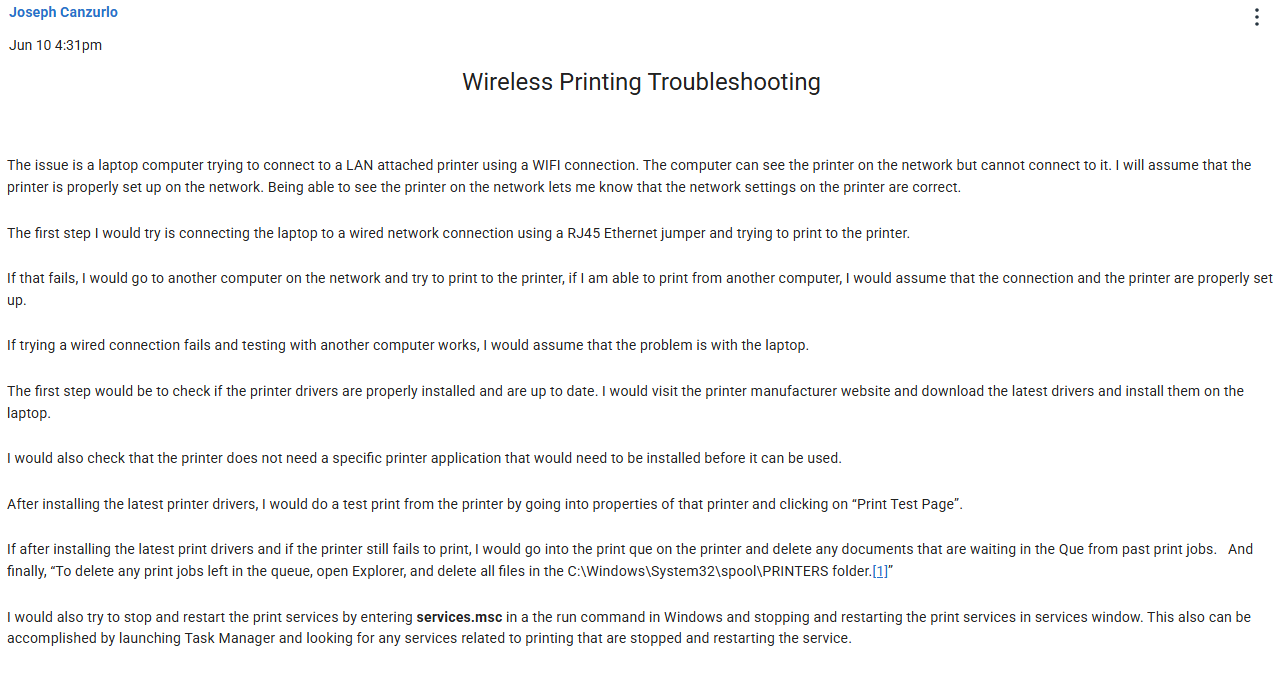
Joseph Canzurlo : Jun 10 4:31pm Wireless Printing Troubleshooting The issue is a laptop computer trying to connect to a LAN attached printer using a WIFI connection. The computer can see the printer on the network but cannot connect to it. | will assume that the printer is properly set up on the network. Being able to see the printer on the network lets me know that the network settings on the printer are correct. The first step | would try is connecting the laptop to a wired network connection using a RJ45 Ethernet jumper and trying to print to the printer. If that fails, | would go to another computer on the network and try to print to the printer, if | am able to print from another computer, | would assume that the connection and the printer are properly set up. If trying a wired connection fails and testing with another computer works, | would assume that the problem is with the laptop. The first step would be to check if the printer drivers are properly installed and are up to date. | would visit the printer manufacturer website and download the latest drivers and install them on the laptop. | would also check that the printer does not need a specific printer application that would need to be installed before it can be used. After installing the latest printer drivers, | would do a test print from the printer by going into properties of that printer and clicking on \"Print Test Page". If after installing the latest print drivers and if the printer still fails to print, | would go into the print que on the printer and delete any documents that are waiting in the Que from past print jobs. And finally, \"To delete any print jobs left in the queue, open Explorer, and delete all files in the C:'\\\\Windows\\System32\\spool\\PRINTERS folder.[1]" | would also try to stop and restart the print services by entering services.mse in a the run command in Windows and stopping and restarting the print services in services window. This also can be accomplished by launching Task Manager and looking for any services related to printing that are stopped and restarting the service

Step by Step Solution

There are 3 Steps involved in it

1 Expert Approved Answer
Step: 1 Unlock blur-text-image

Question Has Been Solved by an Expert!

Get step-by-step solutions from verified subject matter experts

Step: 2 Unlock
Step: 3 Unlock

Students Have Also Explored These Related Accounting Questions!