Question: eCity Order Form Customer ID Shipping Method State Code SKU Quantity Price QoH Category Description Shipping Subtotal Grand Total Assignment: Open Assignment Data File .
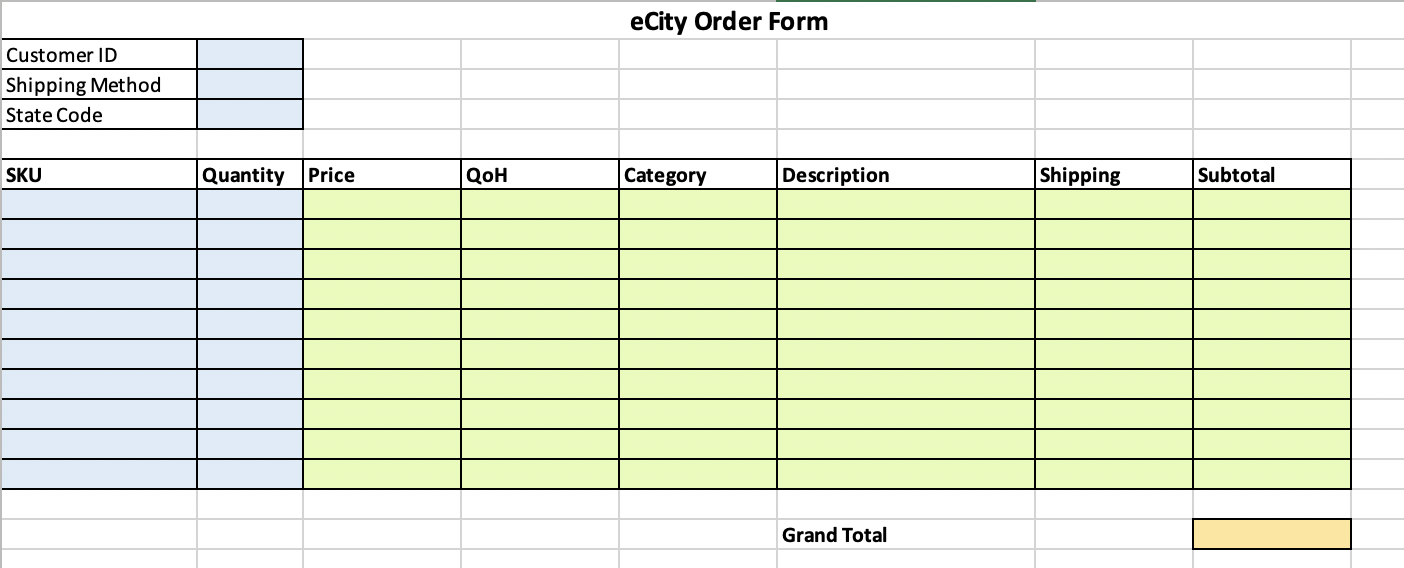
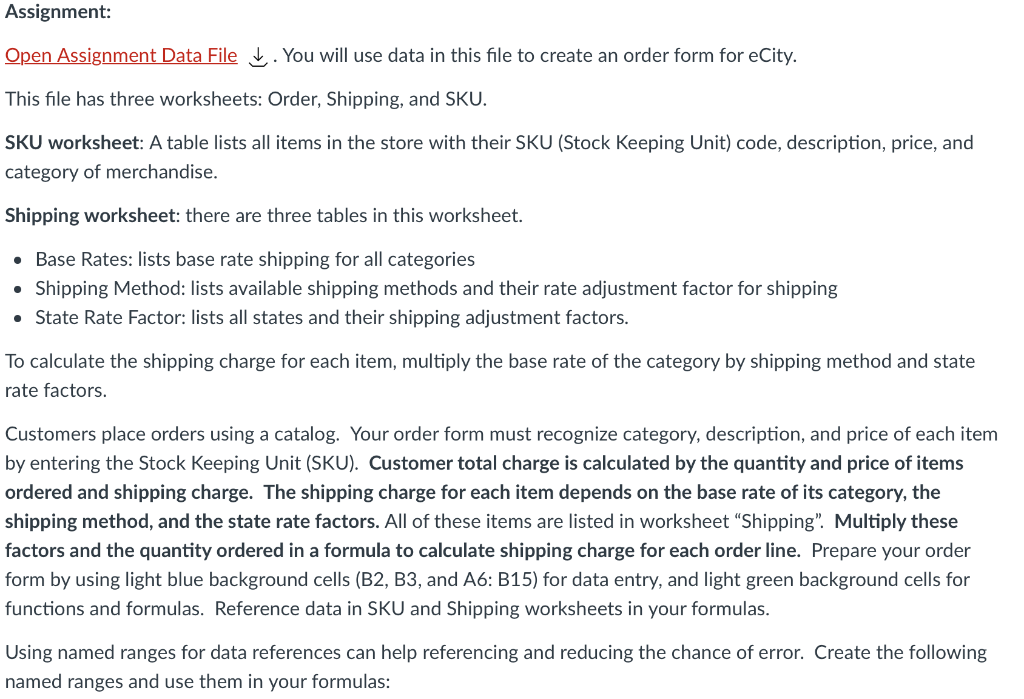
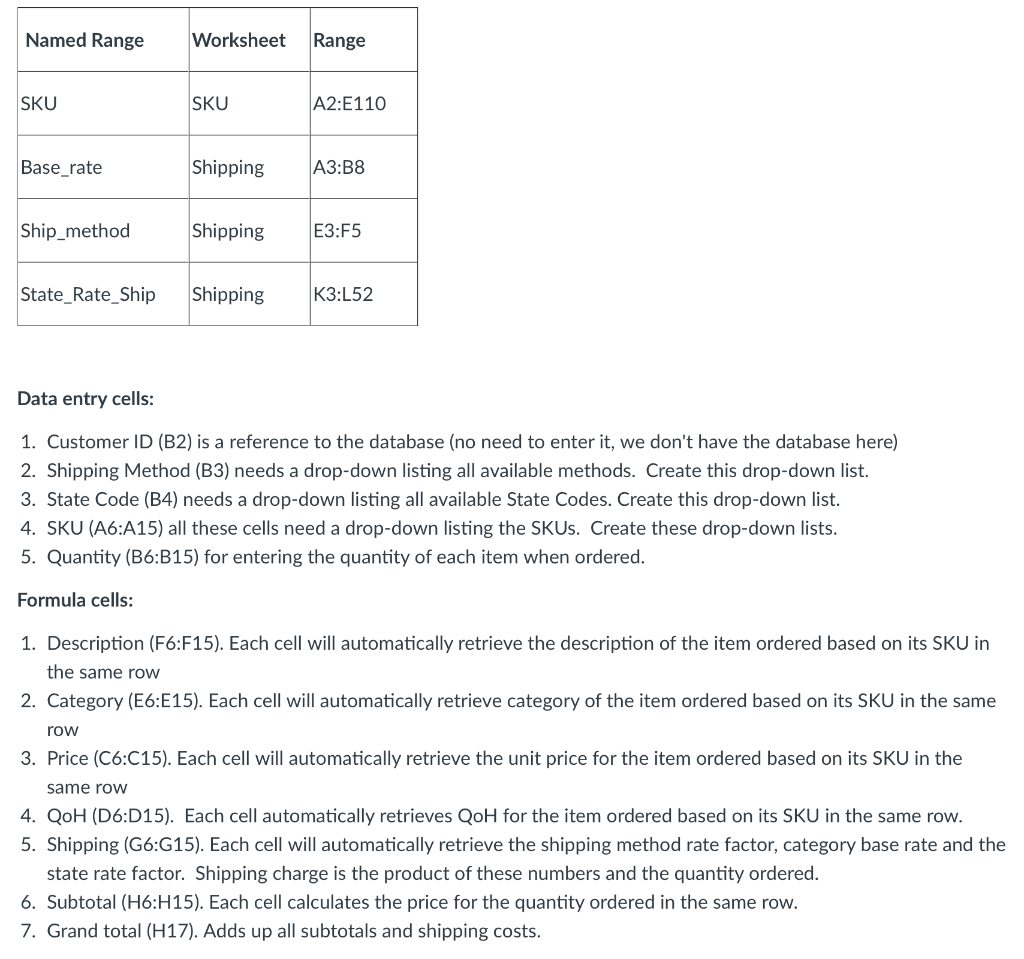
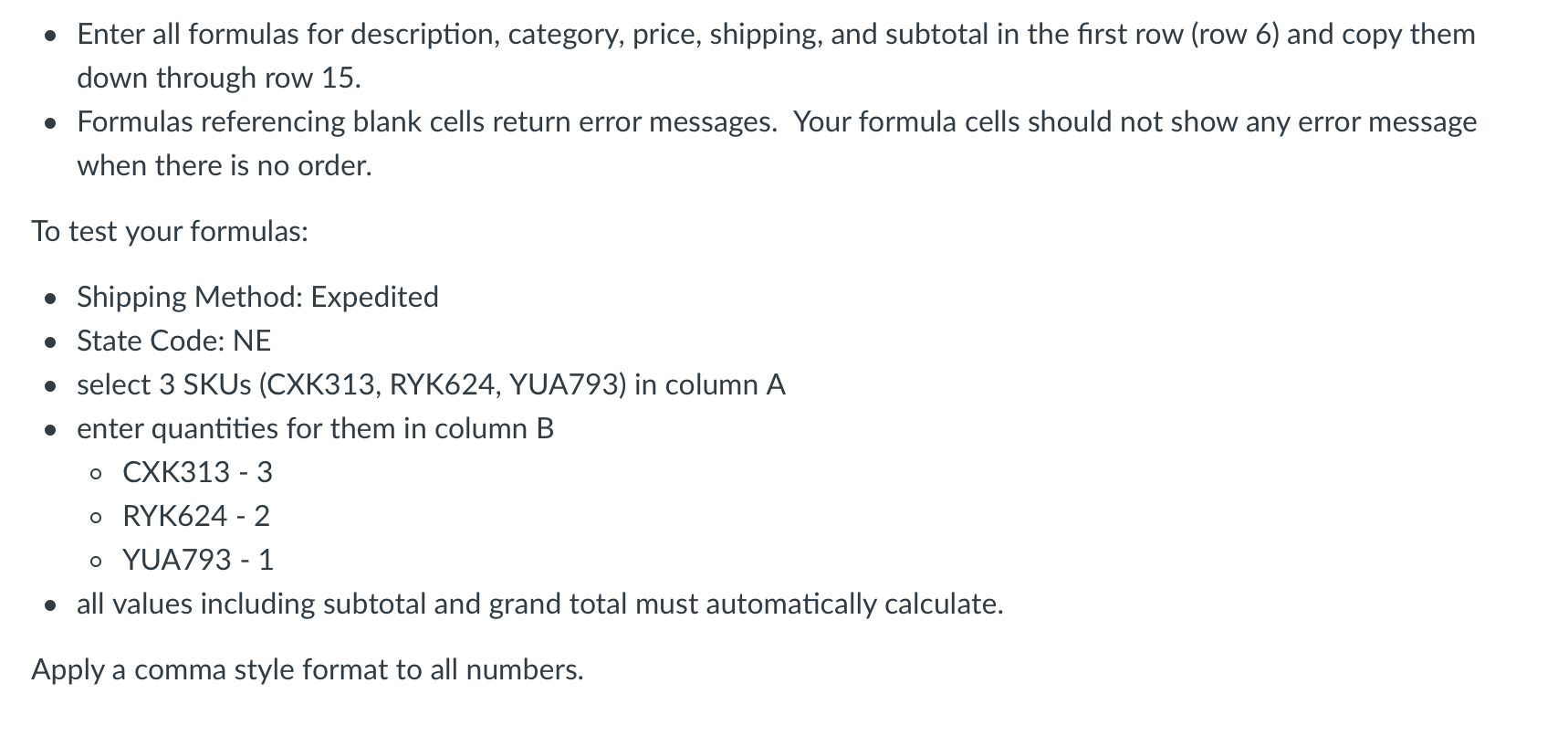
eCity Order Form Customer ID Shipping Method State Code SKU Quantity Price QoH Category Description Shipping Subtotal Grand Total Assignment: Open Assignment Data File . You will use data in this file to create an order form for eCity. This file has three worksheets: Order, Shipping, and SKU. SKU worksheet: A table lists all items in the store with their SKU (Stock Keeping Unit) code, description, price, and category of merchandise. Shipping worksheet: there are three tables in this worksheet. Base Rates: lists base rate shipping for all categories Shipping Method: lists available shipping methods and their rate adjustment factor for shipping State Rate Factor: lists all states and their shipping adjustment factors. To calculate the shipping charge for each item, multiply the base rate of the category by shipping method and state rate factors. Customers place orders using a catalog. Your order form must recognize category, description, and price of each item by entering the Stock Keeping Unit (SKU). Customer total charge is calculated by the quantity and price of items ordered and shipping charge. The shipping charge for each item depends on the base rate of its category, the shipping method, and the state rate factors. All of these items are listed in worksheet "Shipping" Multiply these factors and the quantity ordered in a formula to calculate shipping charge for each order line. Prepare your order form by using light blue background cells (B2, B3, and A6: B15) for data entry, and light green background cells for functions and formulas. Reference data in SKU and Shipping worksheets in your formulas. Using named ranges for data references can help referencing and reducing the chance of error. Create the following named ranges and use them in your formulas: Named Range Worksheet Range SKU SKU A2:E110 Base_rate Shipping A3:B8 Ship_method Shipping E3:F5 State_Rate_Ship Shipping K3:L52 Data entry cells: 1. Customer ID (B2) is a reference to the database (no need to enter it, we don't have the database here) 2. Shipping Method (B3) needs a drop-down listing all available methods. Create this drop-down list. 3. State Code (B4) needs a drop-down listing all available State Codes. Create this drop-down list. 4. SKU (A6:A15) all these cells need a drop-down listing the SKUs. Create these drop-down lists. 5. Quantity (B6:B15) for entering the quantity of each item when ordered. Formula cells: 1. Description (F6:F15). Each cell will automatically retrieve the description of the item ordered based on its SKU in the same row 2. Category (E6:E15). Each cell will automatically retrieve category of the item ordered based on its SKU in the same row 3. Price (C6:C15). Each cell will automatically retrieve the unit price for the item ordered based on its SKU in the same row 4. QoH (D6:D15). Each cell automatically retrieves QoH for the item ordered based on its SKU in the same row. 5. Shipping (G6:G15). Each cell will automatically retrieve the shipping method rate factor, category base rate and the state rate factor. Shipping charge is the product of these numbers and the quantity ordered. 6. Subtotal (H6:H15). Each cell calculates the price for the quantity ordered in the same row. 7. Grand total (H17). Adds up all subtotals and shipping costs. Enter all formulas for description, category, price, shipping, and subtotal in the first row (row 6) and copy them down through row 15. Formulas referencing blank cells return error messages. Your formula cells should not show any error message when there is no order. To test your formulas: Shipping Method: Expedited State Code: NE select 3 SKUs (CXK313, RYK624, YUA793) in column A enter quantities for them in column B o CXK313 - 3 0 RYK624 - 2 o YUA793 - 1 all values including subtotal and grand total must automatically calculate. Apply a comma style format to all numbers. eCity Order Form Customer ID Shipping Method State Code SKU Quantity Price QoH Category Description Shipping Subtotal Grand Total Assignment: Open Assignment Data File . You will use data in this file to create an order form for eCity. This file has three worksheets: Order, Shipping, and SKU. SKU worksheet: A table lists all items in the store with their SKU (Stock Keeping Unit) code, description, price, and category of merchandise. Shipping worksheet: there are three tables in this worksheet. Base Rates: lists base rate shipping for all categories Shipping Method: lists available shipping methods and their rate adjustment factor for shipping State Rate Factor: lists all states and their shipping adjustment factors. To calculate the shipping charge for each item, multiply the base rate of the category by shipping method and state rate factors. Customers place orders using a catalog. Your order form must recognize category, description, and price of each item by entering the Stock Keeping Unit (SKU). Customer total charge is calculated by the quantity and price of items ordered and shipping charge. The shipping charge for each item depends on the base rate of its category, the shipping method, and the state rate factors. All of these items are listed in worksheet "Shipping" Multiply these factors and the quantity ordered in a formula to calculate shipping charge for each order line. Prepare your order form by using light blue background cells (B2, B3, and A6: B15) for data entry, and light green background cells for functions and formulas. Reference data in SKU and Shipping worksheets in your formulas. Using named ranges for data references can help referencing and reducing the chance of error. Create the following named ranges and use them in your formulas: Named Range Worksheet Range SKU SKU A2:E110 Base_rate Shipping A3:B8 Ship_method Shipping E3:F5 State_Rate_Ship Shipping K3:L52 Data entry cells: 1. Customer ID (B2) is a reference to the database (no need to enter it, we don't have the database here) 2. Shipping Method (B3) needs a drop-down listing all available methods. Create this drop-down list. 3. State Code (B4) needs a drop-down listing all available State Codes. Create this drop-down list. 4. SKU (A6:A15) all these cells need a drop-down listing the SKUs. Create these drop-down lists. 5. Quantity (B6:B15) for entering the quantity of each item when ordered. Formula cells: 1. Description (F6:F15). Each cell will automatically retrieve the description of the item ordered based on its SKU in the same row 2. Category (E6:E15). Each cell will automatically retrieve category of the item ordered based on its SKU in the same row 3. Price (C6:C15). Each cell will automatically retrieve the unit price for the item ordered based on its SKU in the same row 4. QoH (D6:D15). Each cell automatically retrieves QoH for the item ordered based on its SKU in the same row. 5. Shipping (G6:G15). Each cell will automatically retrieve the shipping method rate factor, category base rate and the state rate factor. Shipping charge is the product of these numbers and the quantity ordered. 6. Subtotal (H6:H15). Each cell calculates the price for the quantity ordered in the same row. 7. Grand total (H17). Adds up all subtotals and shipping costs. Enter all formulas for description, category, price, shipping, and subtotal in the first row (row 6) and copy them down through row 15. Formulas referencing blank cells return error messages. Your formula cells should not show any error message when there is no order. To test your formulas: Shipping Method: Expedited State Code: NE select 3 SKUs (CXK313, RYK624, YUA793) in column A enter quantities for them in column B o CXK313 - 3 0 RYK624 - 2 o YUA793 - 1 all values including subtotal and grand total must automatically calculate. Apply a comma style format to all numbers









 Study Help