







Question: Editing Groups - Platinum Level 0. Alex wants to compare the Platinum group data for January by specialty. He asks you to create a PivotTable
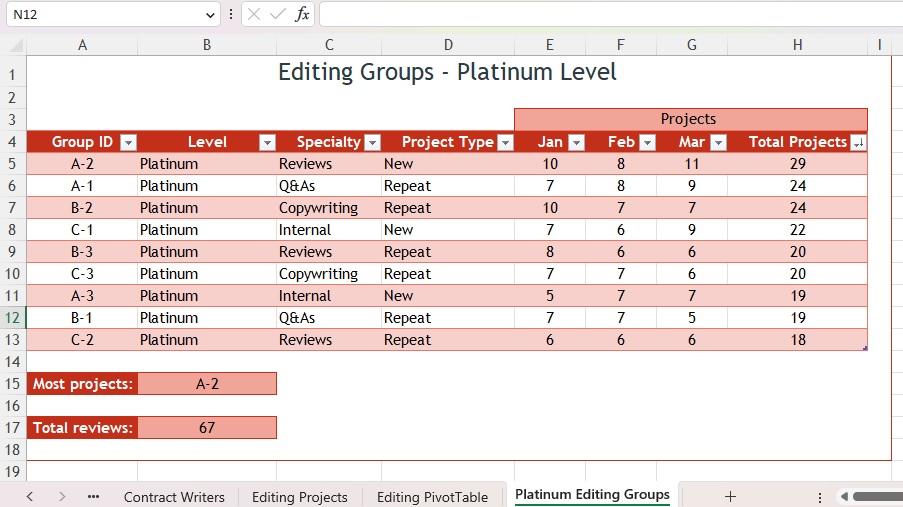
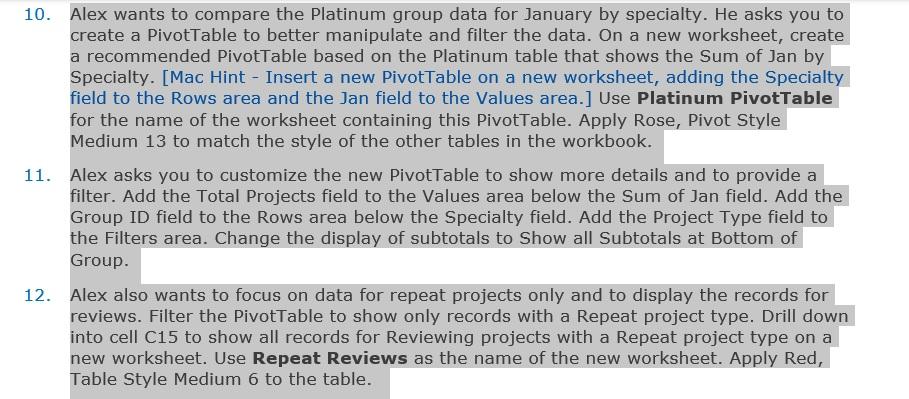
Editing Groups - Platinum Level 0. Alex wants to compare the Platinum group data for January by specialty. He asks you to create a PivotTable to better manipulate and filter the data. On a new worksheet, create a recommended PivotTable based on the Platinum table that shows the Sum of Jan by Specialty. [Mac Hint - Insert a new PivotTable on a new worksheet, adding the Specialty field to the Rows area and the Jan field to the Values area.] Use Platinum PivotTable for the name of the worksheet containing this PivotTable. Apply Rose, Pivot Style Medium 13 to match the style of the other tables in the workbook. 1. Alex asks you to customize the new PivotTable to show more details and to provide a filter. Add the Total Projects field to the Values area below the Sum of Jan field. Add the Group ID field to the Rows area below the Specialty field. Add the Project Type field to the Filters area. Change the display of subtotals to Show all Subtotals at Bottom of Group. 2. Alex also wants to focus on data for repeat projects only and to display the records for reviews. Filter the PivotTable to show only records with a Repeat project type. Drill down into cell C15 to show all records for Reviewing projects with a Repeat project type on a new worksheet. Use Repeat Reviews as the name of the new worksheet. Apply Red, Table Style Medium 6 to the table. Editing Groups - Platinum Level 0. Alex wants to compare the Platinum group data for January by specialty. He asks you to create a PivotTable to better manipulate and filter the data. On a new worksheet, create a recommended PivotTable based on the Platinum table that shows the Sum of Jan by Specialty. [Mac Hint - Insert a new PivotTable on a new worksheet, adding the Specialty field to the Rows area and the Jan field to the Values area.] Use Platinum PivotTable for the name of the worksheet containing this PivotTable. Apply Rose, Pivot Style Medium 13 to match the style of the other tables in the workbook. 1. Alex asks you to customize the new PivotTable to show more details and to provide a filter. Add the Total Projects field to the Values area below the Sum of Jan field. Add the Group ID field to the Rows area below the Specialty field. Add the Project Type field to the Filters area. Change the display of subtotals to Show all Subtotals at Bottom of Group. 2. Alex also wants to focus on data for repeat projects only and to display the records for reviews. Filter the PivotTable to show only records with a Repeat project type. Drill down into cell C15 to show all records for Reviewing projects with a Repeat project type on a new worksheet. Use Repeat Reviews as the name of the new worksheet. Apply Red, Table Style Medium 6 to the table
Step by Step Solution
There are 3 Steps involved in it

Get step-by-step solutions from verified subject matter experts
 Study Help