


Question: Examine ch04-proj02.html in a browser and then in the editor of your choice. Do not make any changes to the code in this file. 1.Edit
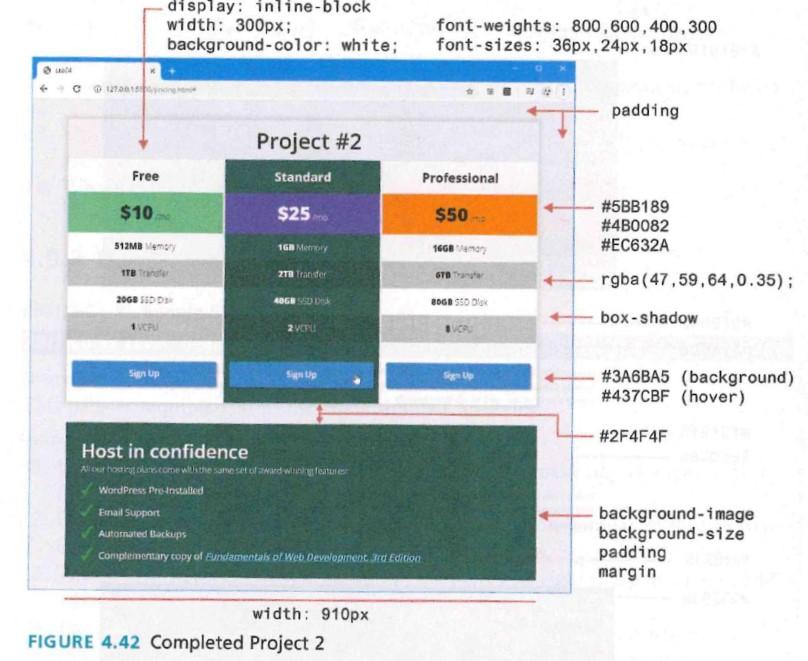
 Examine ch04-proj02.html in a browser and then in the editor of

Examine ch04-proj02.html in a browser and then in the editor of your choice. Do not make any changes to the code in this file.

1.Edit the file ch04-proj02.css by defining styles so that it looks similar to that shown in Figure 4.42. The steps below provide more details.

2. Add about 40px padding to the

. Set the width of the

to 910px. You will need a variety of different text styling, using a variety pf different font sizes and font weights, as shown in Figure 4.42. 3. Each of the column
elements must have its display property set to inline-block. This will allow the
element to sit together on the same line. Also set some of the other column properties to the values shown in Figure 4.42. The second column will have a different background color. Remove the list bullets by setting the list-style-type to none. 4. For the list items within each column, make every second item a different color using the nth-child pseudo selector. Use the rgba() function, which will darken the underlying background color. 5. Specify the link, visited, and hover formatting of the Sign Up link. Notice the rounded corners and the box shadow. 6. For the bottom confidence
, the list items have a background image (checkmark.svg). Set the backgound-size property to 24px. The padding-left and the margin of each
  • item will have to be modified so they dont overlap the checkmark image. Remove the bullet from each list item.

    ch04-proj02.html DO NOT EDIT

    Lab04

    Project #2

    Free

    $10 /mo

    • 512MB memory
    • 1TB transfer
    • 20GB SSD Disk
    • 1 vCPU
    • Sign Up

      Standard

      $25 /mo

      • 1GB memory
      • 2TB transfer
      • 40GB SSD Disk
      • 2 vCPU
      • Sign Up

        Professional

        $50 /mo

        • 16GB memory
        • 6TB transfer
        • 80GB SSD Disk
        • 8 vCPU
        • Sign Up

          Host in confidence

          All our hosting plans come with the same set of award-winning features:

          • WordPress Pre-Installed
          • Email Support
          • Automated Backups
          • Complementary copy of Fundamentals of Web Development, 3rd Edition
          • ch04-proj02.css ONLY EDIT THIS FILE

            * {
            box-sizing: border-box;
            }
            body, section, header, div, p, h1, h2, h3, ul, li {
            margin: 0;
            padding: 0;
            }
            body {
            font-family: 'Open Sans', sans-serif;
            box-sizing: border-box;
            background-color: #e4e7eb;
            font-weight: 300;
            }
            header {
            margin-left: 20px;
            }
            h1 {
            text-align: center;
            font-weight: 600;
            font-size: 42px;
            padding: 10px 0;
            }
            /* add styles here */
            FIGURE 4.42 Completed Project 2 FIGURE 4.42 Completed Project 2
          • Step by Step Solution

            There are 3 Steps involved in it

            1 Expert Approved Answer
            Step: 1 Unlock blur-text-image
            Question Has Been Solved by an Expert!

            Get step-by-step solutions from verified subject matter experts

            Step: 2 Unlock
            Step: 3 Unlock

            Students Have Also Explored These Related Databases Questions!