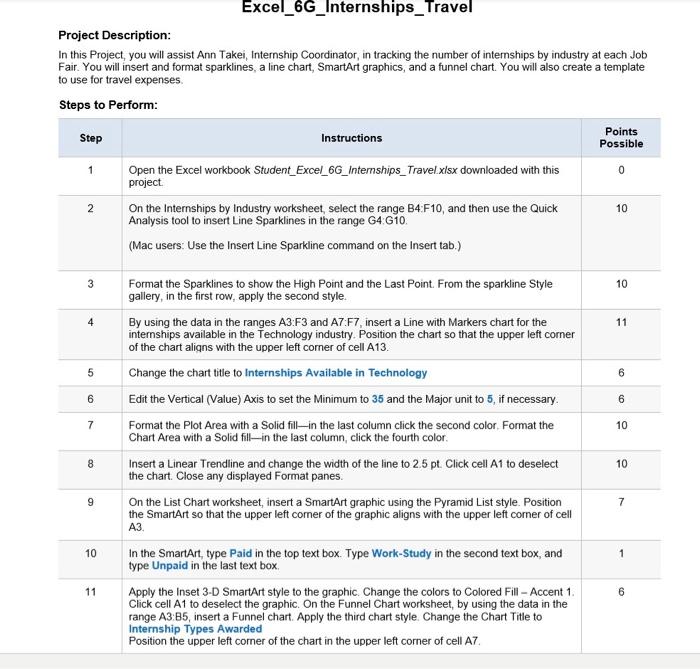
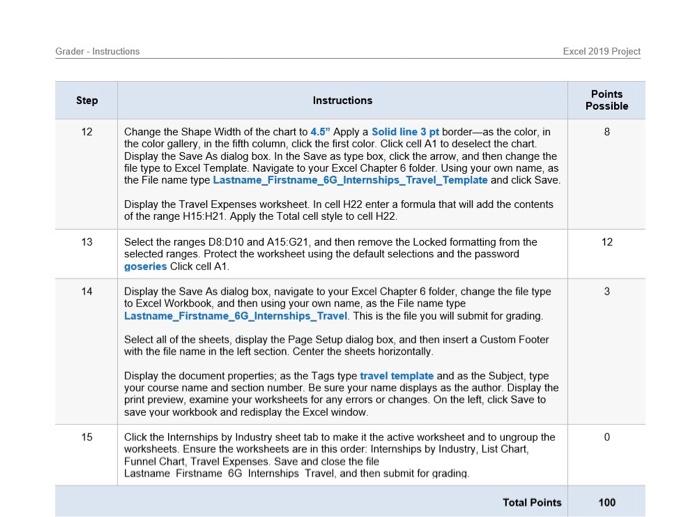
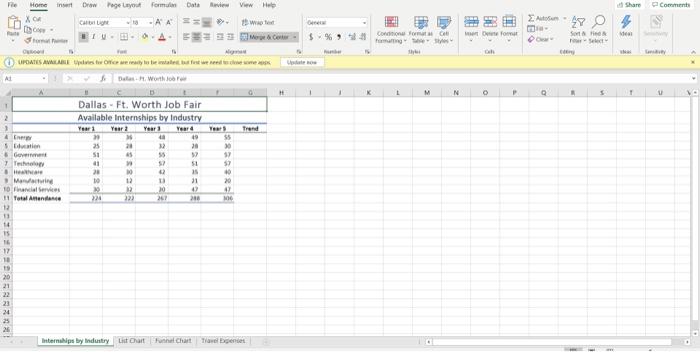
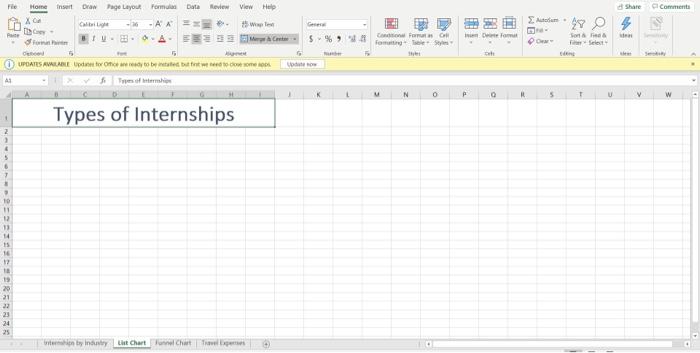
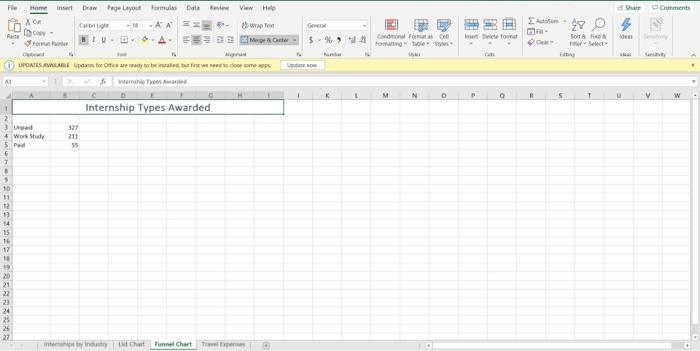
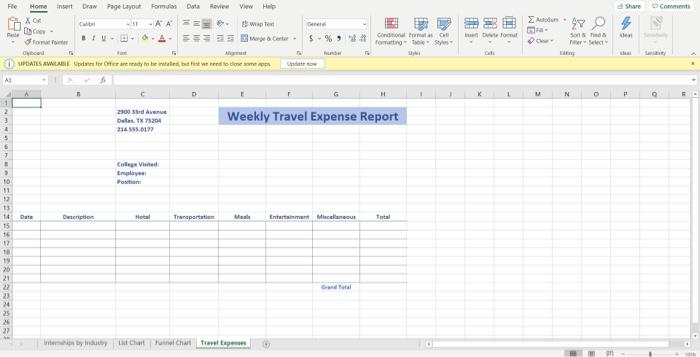
Excel_6G_Internships_Travel Project Description: In this Project, you will assist Ann Takei, Internship Coordinator, in tracking the number of internships by industry at each Job Fair. You will insert and format sparklines, a line chart, SmartArt graphics, and a funnel chart. You will also create a template to use for travel expenses Steps to Perform: Step Instructions Points Possible 1 0 2 Open the Excel workbook Student_Excel_6G_Internships_Travel.xlsx downloaded with this project On the Internships by Industry worksheet, select the range B4:F10, and then use the Quick Analysis tool to insert Line Sparklines in the range G4 G10 (Mac users: Use the Insert Line Sparkline command on the Insert tab.) 10 3 10 4 11 ch 6 6 6 7 10 8 Format the Sparklines to show the High Point and the Last Point. From the sparkline Style gallery, in the first row, apply the second style. By using the data in the ranges A3:F3 and A7:F7, insert a Line with Markers chart for the internships available in the Technology industry. Position the chart so that the upper left corner of the chart aligns with the upper left corner of cell A13. Change the chart title to Internships Available in Technology Edit the Vertical (Value) Axis to set the Minimum to 35 and the Major unit to 5, if necessary. Format the Plot Area with a Solid fill-in the last column click the second color. Format the Chart Area with a solid fill in the last column, click the fourth color Insert a Linear Trendline and change the width of the line to 25 pt. Click cell A1 to deselect the chart. Close any displayed Format panes. On the List Chart worksheet, insert a SmartArt graphic using the Pyramid List style. Position the SmartArt so that the upper left corner of the graphic aligns with the upper left corner of cell A3 In the SmartArt, type Paid in the top text box. Type Work-Study in the second text box, and type Unpaid in the last text box Apply the Inset 3-D SmartArt style to the graphic Change the colors to Colored Fill-Accent 1. Click cell A1 to deselect the graphic. On the Funnel Chart worksheet, by using the data in the range A3:85, insert a Funnel chart. Apply the third chart style. Change the Chart Title to Internship Types Awarded Position the upper left corner of the chart in the upper left corner of cell A7 10 9 7 10 1 11 Grader - Instructions Excel 2019 Project Step Instructions Points Possible 12 8 13 12 14 3 Change the Shape Width of the chart to 4.5" Apply a Solid line 3 pt border-as the color in the color gallery, in the fifth column, click the first color. Click cell A1 to deselect the chart Display the Save As dialog box. In the Save as type box, click the arrow, and then change the file type to Excel Template Navigate to your Excel Chapter 6 folder. Using your own name, as the File name type Lastname_Firstname_6G_Internships_Travel_Template and click Save Display the Travel Expenses worksheet. In cell H22 enter a formula that will add the contents of the range H15:H21. Apply the Total cell style to cell H22 Select the ranges D8:010 and A15 G21, and then remove the Locked formatting from the selected ranges. Protect the worksheet using the default selections and the password goseries Click cell A1 Display the Save As dialog box, navigate to your Excel Chapter 6 folder, change the file type to Excel Workbook, and then using your own name, as the File name type Lastname_Firstname_6G_Internships_Travel. This is the file you will submit for grading Select all of the sheets, display the Page Setup dialog box, and then insert a Custom Footer with the file name in the left section Center the sheets horizontally Display the document properties, as the Tags type travel template and as the subject, type your course name and section number. Be sure your name displays as the author. Display the print preview, examine your worksheets for any errors or changes. On the left, click Save to save your workbook and redisplay the Excel window. Click the Internships by Industry sheet tab to make it the active worksheet and to ungroup the worksheets. Ensure the worksheets are in this order Internships by Industry, List Chart, Funnel Chart Travel Expenses Save and close the file Lastname Firstname 6G Internships Travel and then submit for grading. 15 0 Total Points 100 More Insert Dewage Layout w Share Comments X 2.-27 C wood SY Wear Condition form Tamang th Select POATS AVAILABLE OCs wat between Dates With AL # M N 1 1 2 Trend 55 0 Dallas - Ft. Worth Job Fair Available Internships by Industry Year 1 Year 2 Year Yeard aa 40 25 20 20 51 55 41 52 22 0 35 10 2 31 2 0 224 33 280 59 40 20 42 267 M6 G 7 Men 10 Fri Services 11 Total Antenne 12 11 14 15 16 17 16 20 21 22 23 24 25 26 Internships by Industry List Cart Fun Chat Talent File Home Insert Page Layout Review ViewHelp Share Comment DAC Form Data -A = - Wale 2904 Pic $% 9 I am Com family DO Select UPOATS ALLE Oct ble but to come soles of N P w Types of Internships 10 2 13 14 15 TE 12 18 19 20 21 23 25 by in Lit Chart Chart Home Share Cments XOR Draw Page Layout Formulas Data Bei Vw Here Cabi -10 - AA we BU A MO 29 0 - en Forum Defowa Sot Bent UPOATES AV Updas for October bumps Up AL N O 5 T V w Internship Types Awarded 2 + Wort Study Pad 211 55 8 10 11 12 13 14 15 16 17 18 19 20 21 22 23 24 25 26 27 net by Chart Funnel Chart Fe Home inst Dr Page Layout Romas Duta Ravi Help Share Comments Ieston 27 % -AA Gene wa we Center D- formato put Com Do was D Shad Sect UPDATES AWARE O be webstedene som D . N 0 2500 33rd Avenue Dallas TX 75204 21455.617 Weekly Travel Expense Report 7 College Vie Emel Position Date Description otal Transportation M Entert Mc Total 10 11 12 13 14 15 16 12 10 19 20 21 22 23 24 25 by in it Chat welchart Two Excel_6G_Internships_Travel Project Description: In this Project, you will assist Ann Takei, Internship Coordinator, in tracking the number of internships by industry at each Job Fair. You will insert and format sparklines, a line chart, SmartArt graphics, and a funnel chart. You will also create a template to use for travel expenses Steps to Perform: Step Instructions Points Possible 1 0 2 Open the Excel workbook Student_Excel_6G_Internships_Travel.xlsx downloaded with this project On the Internships by Industry worksheet, select the range B4:F10, and then use the Quick Analysis tool to insert Line Sparklines in the range G4 G10 (Mac users: Use the Insert Line Sparkline command on the Insert tab.) 10 3 10 4 11 ch 6 6 6 7 10 8 Format the Sparklines to show the High Point and the Last Point. From the sparkline Style gallery, in the first row, apply the second style. By using the data in the ranges A3:F3 and A7:F7, insert a Line with Markers chart for the internships available in the Technology industry. Position the chart so that the upper left corner of the chart aligns with the upper left corner of cell A13. Change the chart title to Internships Available in Technology Edit the Vertical (Value) Axis to set the Minimum to 35 and the Major unit to 5, if necessary. Format the Plot Area with a Solid fill-in the last column click the second color. Format the Chart Area with a solid fill in the last column, click the fourth color Insert a Linear Trendline and change the width of the line to 25 pt. Click cell A1 to deselect the chart. Close any displayed Format panes. On the List Chart worksheet, insert a SmartArt graphic using the Pyramid List style. Position the SmartArt so that the upper left corner of the graphic aligns with the upper left corner of cell A3 In the SmartArt, type Paid in the top text box. Type Work-Study in the second text box, and type Unpaid in the last text box Apply the Inset 3-D SmartArt style to the graphic Change the colors to Colored Fill-Accent 1. Click cell A1 to deselect the graphic. On the Funnel Chart worksheet, by using the data in the range A3:85, insert a Funnel chart. Apply the third chart style. Change the Chart Title to Internship Types Awarded Position the upper left corner of the chart in the upper left corner of cell A7 10 9 7 10 1 11 Grader - Instructions Excel 2019 Project Step Instructions Points Possible 12 8 13 12 14 3 Change the Shape Width of the chart to 4.5" Apply a Solid line 3 pt border-as the color in the color gallery, in the fifth column, click the first color. Click cell A1 to deselect the chart Display the Save As dialog box. In the Save as type box, click the arrow, and then change the file type to Excel Template Navigate to your Excel Chapter 6 folder. Using your own name, as the File name type Lastname_Firstname_6G_Internships_Travel_Template and click Save Display the Travel Expenses worksheet. In cell H22 enter a formula that will add the contents of the range H15:H21. Apply the Total cell style to cell H22 Select the ranges D8:010 and A15 G21, and then remove the Locked formatting from the selected ranges. Protect the worksheet using the default selections and the password goseries Click cell A1 Display the Save As dialog box, navigate to your Excel Chapter 6 folder, change the file type to Excel Workbook, and then using your own name, as the File name type Lastname_Firstname_6G_Internships_Travel. This is the file you will submit for grading Select all of the sheets, display the Page Setup dialog box, and then insert a Custom Footer with the file name in the left section Center the sheets horizontally Display the document properties, as the Tags type travel template and as the subject, type your course name and section number. Be sure your name displays as the author. Display the print preview, examine your worksheets for any errors or changes. On the left, click Save to save your workbook and redisplay the Excel window. Click the Internships by Industry sheet tab to make it the active worksheet and to ungroup the worksheets. Ensure the worksheets are in this order Internships by Industry, List Chart, Funnel Chart Travel Expenses Save and close the file Lastname Firstname 6G Internships Travel and then submit for grading. 15 0 Total Points 100 More Insert Dewage Layout w Share Comments X 2.-27 C wood SY Wear Condition form Tamang th Select POATS AVAILABLE OCs wat between Dates With AL # M N 1 1 2 Trend 55 0 Dallas - Ft. Worth Job Fair Available Internships by Industry Year 1 Year 2 Year Yeard aa 40 25 20 20 51 55 41 52 22 0 35 10 2 31 2 0 224 33 280 59 40 20 42 267 M6 G 7 Men 10 Fri Services 11 Total Antenne 12 11 14 15 16 17 16 20 21 22 23 24 25 26 Internships by Industry List Cart Fun Chat Talent File Home Insert Page Layout Review ViewHelp Share Comment DAC Form Data -A = - Wale 2904 Pic $% 9 I am Com family DO Select UPOATS ALLE Oct ble but to come soles of N P w Types of Internships 10 2 13 14 15 TE 12 18 19 20 21 23 25 by in Lit Chart Chart Home Share Cments XOR Draw Page Layout Formulas Data Bei Vw Here Cabi -10 - AA we BU A MO 29 0 - en Forum Defowa Sot Bent UPOATES AV Updas for October bumps Up AL N O 5 T V w Internship Types Awarded 2 + Wort Study Pad 211 55 8 10 11 12 13 14 15 16 17 18 19 20 21 22 23 24 25 26 27 net by Chart Funnel Chart Fe Home inst Dr Page Layout Romas Duta Ravi Help Share Comments Ieston 27 % -AA Gene wa we Center D- formato put Com Do was D Shad Sect UPDATES AWARE O be webstedene som D . N 0 2500 33rd Avenue Dallas TX 75204 21455.617 Weekly Travel Expense Report 7 College Vie Emel Position Date Description otal Transportation M Entert Mc Total 10 11 12 13 14 15 16 12 10 19 20 21 22 23 24 25 by in it Chat welchart Two