







Question: Exercise 1 1 - 2 Size a picture for different viewports In this exercise, you'll use the img element to display an image with different
Exercise Size a picture
for different viewports
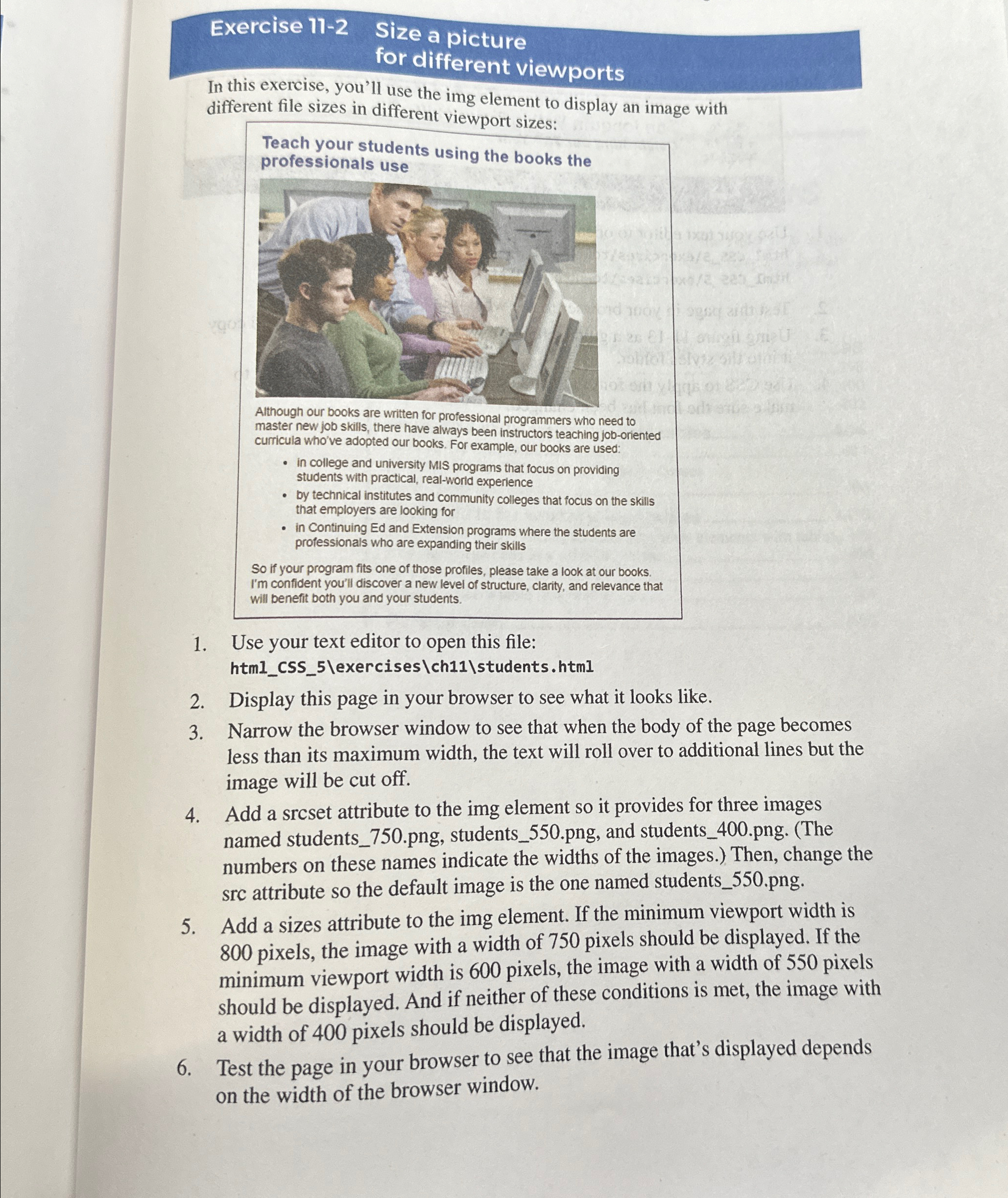
In this exercise, you'll use the img element to display an image with different file sizes in different viewport sizes:
Teach your students usina tho hant...
curricula who've adopted our always peen instructors teaching joboriented
in colle
students with university MIS programs that focus on providing
by technical practical, realworld experience
that employers
in consoyers are looking for
in Continuing Ed and Extension programs where the students are professionals who are expanding their skills
So if your program fits one of those profiles, please take a look at our books. Im confident you'll discover a new level of structure, clarity, and relevance that will benefit both you and your students.
Use your text editor to open this file: htmCSSexerciseschstudentshtml
Display this page in your browser to see what it looks like.
Narrow the browser window to see that when the body of the page becomes less than its maximum width, the text will roll over to additional lines but the image will be cut off.
Add a srcset attribute to the img element so it provides for three images named studentspng studentspng and studentspngThe numbers on these names indicate the widths of the images. Then, change the src attribute so the default image is the one named studentspng
Add a sizes attribute to the img element. If the minimum viewport width is pixels, the image with a width of pixels should be displayed. If the minimum viewport width is pixels, the image with a width of pixels should be displayed. And if neither of these conditions is met, the image with a width of pixels should be displayed.
Test the page in your browser to see that the image that's displayed depends on the width of the browser window.
Step by Step Solution
There are 3 Steps involved in it
1 Expert Approved Answer
Step: 1 Unlock

Question Has Been Solved by an Expert!
Get step-by-step solutions from verified subject matter experts
Step: 2 Unlock
Step: 3 Unlock
 Study Help