







Question: Exercise 8 - 2 Create and use a class library In this exercise, you'll create a class library that includes the Invitem and InvitemDB classes
Exercise Create and use a class library
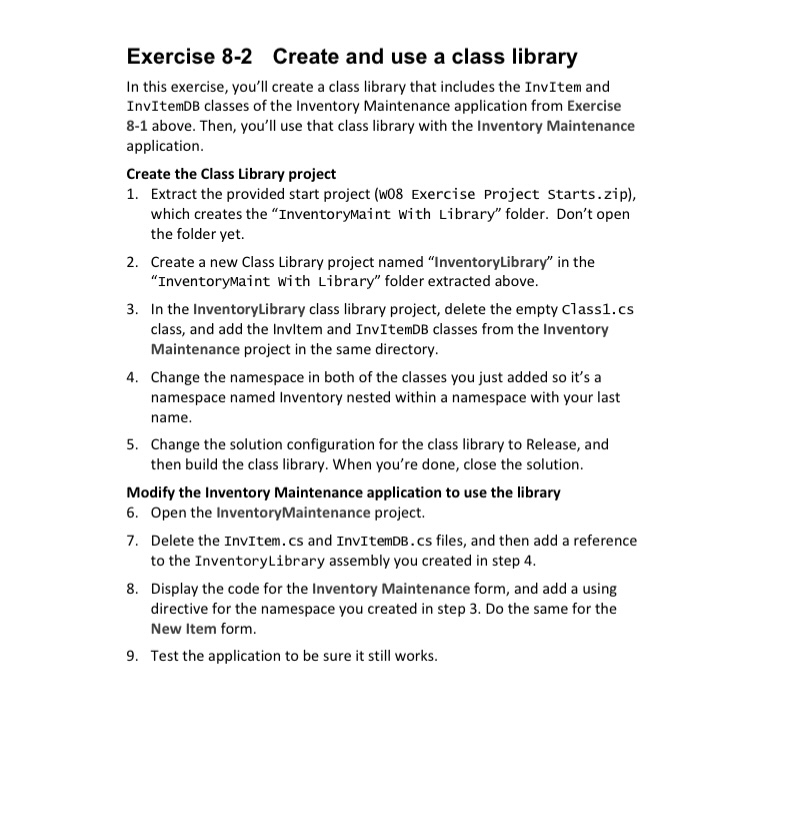
In this exercise, you'll create a class library that includes the Invitem and InvitemDB classes of the Inventory Maintenance application from Exercise above. Then, you'll use that class library with the Inventory Maintenance application.
Create the Class Library project
Extract the provided start project w Exercise Project Starts.zip which creates the "Inventorymaint with Library" folder. Don't open the folder yet.
Create a new Class Library project named "InventoryLibrary" in the "InventoryMaint with Library" folder extracted above.
In the InventoryLibrary class library project, delete the empty Classcs class, and add the Invitem and InvItemDB classes from the Inventory Maintenance project in the same directory.
Change the namespace in both of the classes you just added so it's a namespace named Inventory nested within a namespace with your last name.
Change the solution configuration for the class library to Release, and then build the class library. When you're done, close the solution.
Modify the Inventory Maintenance application to use the library
Open the InventoryMaintenance project.
Delete the Invitem.cs and InvItemDB.cs files, and then add a reference to the InventoryLibrary assembly you created in step
Display the code for the Inventory Maintenance form, and add a using directive for the namespace you created in step Do the same for the New Item form.
Test the application to be sure it still works.
Step by Step Solution
There are 3 Steps involved in it
1 Expert Approved Answer
Step: 1 Unlock

Question Has Been Solved by an Expert!
Get step-by-step solutions from verified subject matter experts
Step: 2 Unlock
Step: 3 Unlock
 Study Help