





Question: File Edit View Insert Format Arrange > a 8 Thu Apr 14 9:11 PM PowerPoint Tools Slide Show Window Help IS300-L22-Exercise Slide Show Review View
File Edit View Insert Format Arrange > a 8 ThuFile Edit View Insert Format Arrange > a 8 Thu

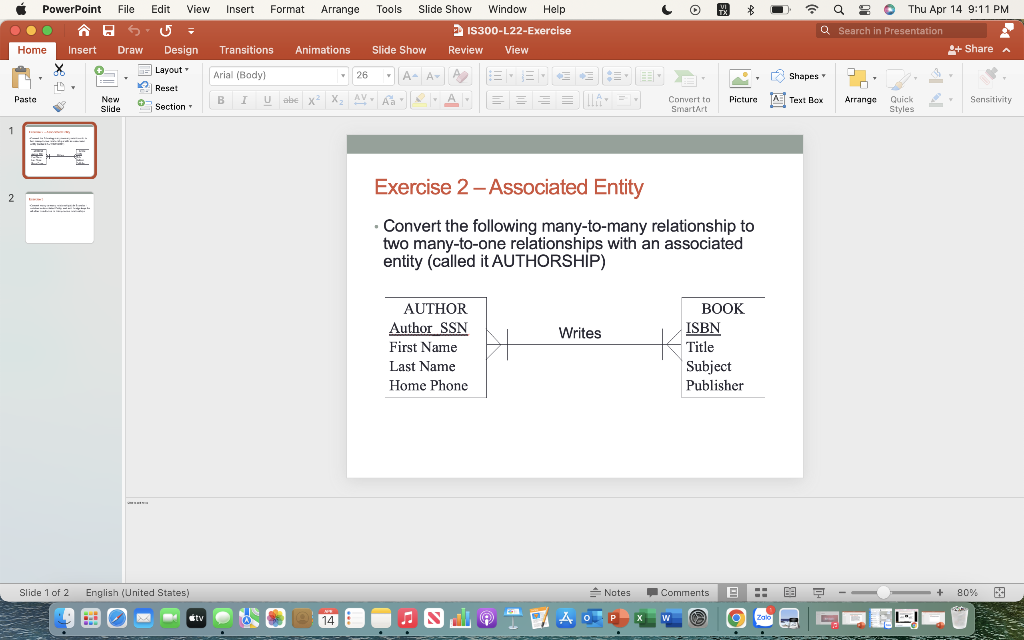
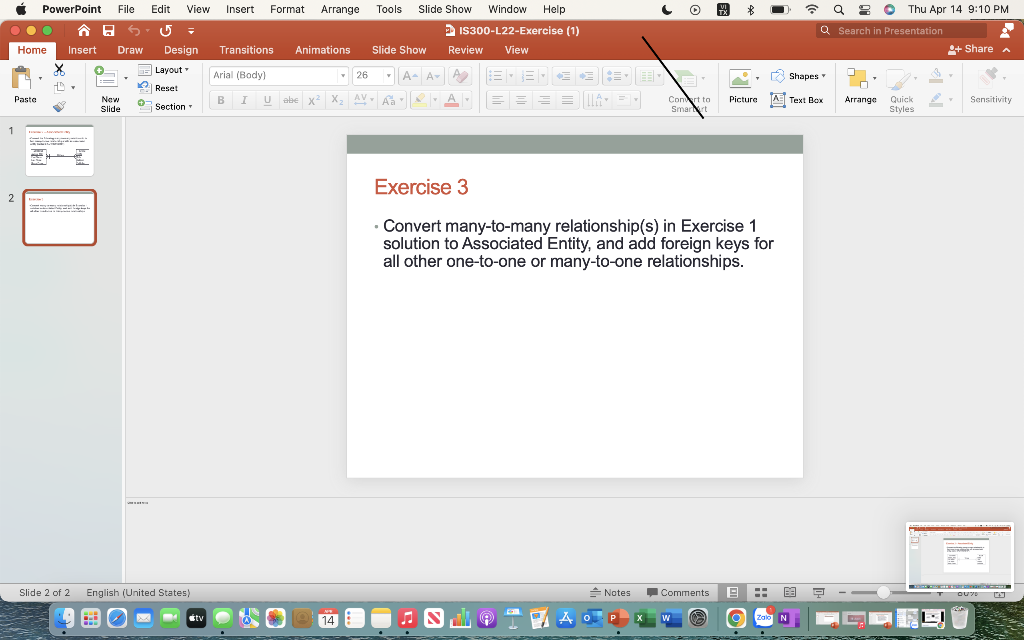
File Edit View Insert Format Arrange > a 8 Thu Apr 14 9:11 PM PowerPoint Tools Slide Show Window Help IS300-L22-Exercise Slide Show Review View Q Search in Presentation Home Insert Draw Design Transitions Animations 9+ Share Layout Arial (Bady) 26 A- A A Shapes Reset Pasta B 1 abe X2 XAVA Picture New Slide Arrange A Text Box Sensitivity Convert to SmartArt Section - Quick Styles Exercise 2-Associated Entity 2 Convert the following many-to-many relationship to two many-to-one relationships with an associated entity (called it AUTHORSHIP) Writes AUTHOR Author SSN First Name Last Name Home Phone BOOK ISBN Title Subject Publisher Slide 1 of 2 English (United States) Notes Comments + 80% sty e 14 NI AO W Zalo o > a 8 Thu Apr 14 9:10 PM Q Search in Presentation + Share PowerPoint File Edit View Insert Format Arrange Tools Slide Show Window Help 00 su IS300-L22-Exercise (1) Home Insert Draw Design Transitions Animations Slide Show Review View + Layout Arial (Body) 26 - A- Ar AA Reset Paste B 1 abe X2 XAVA Slide Section - Shapes Now Picture Congrt to Smart A Text Box Arrange Quick Styles Sensitivity Exercise 3 2 Convert many-to-many relationship(s) in Exercise 1 solution to Associated Entity, and add foreign keys for all other one-to-one or many-to-one relationships. Slide 2 of 2 English (United States) Notes Comments 1 TUY stv e 14 NI AO W Zalo N N

Step by Step Solution

There are 3 Steps involved in it

1 Expert Approved Answer
Step: 1 Unlock blur-text-image

Question Has Been Solved by an Expert!

Get step-by-step solutions from verified subject matter experts

Step: 2 Unlock
Step: 3 Unlock

Students Have Also Explored These Related General Management Questions!