







Question: For this project you are to finish programming an application that opens a Console window, asks for some information and displays the time, day of
For this project you are to finish programming an application that opens a Console window, asks for some information and displays the time, day of the week, and the date. The application updates the time every second and also displays it in various colors. It will be your responsibility to complete the TimeClass that is partially implemented/defined in TimeClass.h and TimeClass.cpp
Since the beginning of this class we have been putting all of our code into one file. In the real world this is not the case. Just as we break up our program and place code in functions, we can also do a better job at organization by putting code in separate files. As long as the compiler and linker know of them, the end result is exactly the same. .h files (header) typically contain declarations. In this programming exercise they will contain the class declarations. The .cpp (implementation) files contain definitions.
Again it is your job to complete the program implementation and flesh out TimeClass.
The Code
ConsoleClass is a class that encapsulates some of the functionality of the console window. You do not have to change anything in this class. Just create an instance of it and call its methods/functions. See the header and implementation files for comments.
TimeClass is a class that encapsulates the functionality dates and time. TimeClass.h is complete. You only need to implement the following functions in the file TimeClass.cpp:
short GetYear();
string GetMonth();
short GetDay();
string GetDayOfWeek();
short GetHour();
short GetMinute();
short GetSecond();
The constructor is finished and needs no modification.
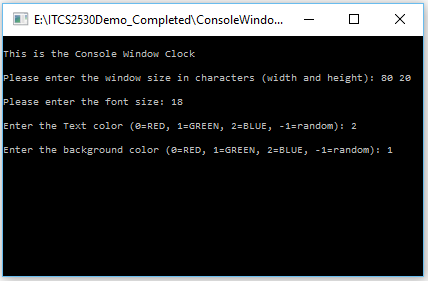
ConsoleWindowClock.cpp is where main lives. This is where you will be doing most of your programming. Now would be a good time to run the example executable. You will notice that the example pauses for about one second before updating. Use the function Sleep(1000); to put the console window to sleep for 1 second. Use system(cls); to clear the console window when you need to display fresh information. Example input should look like the following:
The output should then appear and resemble the following:
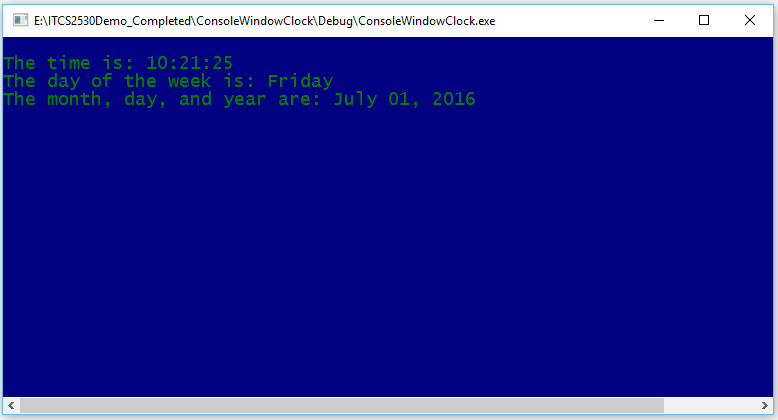
When complete there are 2 files to submit, ConsoleWindowClock.cpp which will contain the function main that implements your program and the file TimeClass.cpp which is the implementation of the functions declared in TimeClass.h.
ConsoleWindowClock.cpp code:
// ConsoleWindowClock.cpp : Defines the entry point for the console application.
//
#include "ConsoleClass.h"
#include "TimeClass.h"
#include
#include
using namespace std;
///////////////////////////////////////////////////////////////////////////////////
int main()
{
// Instantiate "ConsoleClass" and call its functions here to implement the programming assignment.
// Instantiate "TimeClass" and call its functions here to implement the programming assignment.
return 0;
}
TimeClass.h code:
#pragma once
///////////////////////////////////////////////////////////////////////////////
// Class to help with the usage of time.
///////////////////////////////////////////////////////////////////////////////
#include
#include
using namespace std;
///////////////////////////////////////////////////////////////////////////////
class CTimeClass
{
public:
CTimeClass();
~CTimeClass();
short GetYear();
string GetMonth();
short GetDay();
string GetDayOfWeek();
short GetHour();
short GetMinute();
short GetSecond();
private:
// See: http://msdn.microsoft.com/en-us/library/windows/desktop/ms724950(v=vs.85).aspx
SYSTEMTIME m_st;
};
TimeClass.cpp code:
#include "TimeClass.h"
///////////////////////////////////////////////////////////////////////////////
// Class to help with the usage of time.
///////////////////////////////////////////////////////////////////////////////
CTimeClass::CTimeClass()
{
// Notice that the time is stored whenever this time object is created.
// Use this to your advantage in "main".
// "m_st" holds the time and date information.
GetLocalTime(&m_st);
}
///////////////////////////////////////////////////////////////////////////////
CTimeClass::~CTimeClass()
{
// Empty - Nothing to destroy here.
}
short CTimeClass::GetYear()
{
// Place your code here to return the year as a short.
}
///////////////////////////////////////////////////////////////////////////////
string CTimeClass::GetMonth()
{
// Place your code here to return the month as a string.
}
///////////////////////////////////////////////////////////////////////////////
short CTimeClass::GetDay()
{
// Place your code here to return the day as a short.
}
///////////////////////////////////////////////////////////////////////////////
string CTimeClass::GetDayOfWeek()
{
// Place your code here to return the day of the week as a string.
}
///////////////////////////////////////////////////////////////////////////////
short CTimeClass::GetHour()
{
// Place your code here to return the hour as a short.
}
///////////////////////////////////////////////////////////////////////////////
short CTimeClass::GetMinute()
{
// Place your code here to return the minute as a short.
}
///////////////////////////////////////////////////////////////////////////////
short CTimeClass::GetSecond()
{
// Place your code here to return the second as a short.
}
ConsoleClass.cpp code:
#include "ConsoleClass.h" #include
// Hide the console cursor... CONSOLE_CURSOR_INFO ConCurInf; ConCurInf.dwSize = 10; ConCurInf.bVisible = FALSE; SetConsoleCursorInfo(m_hConsole, &ConCurInf);
// Initialize the console window size. SetConsoleWindowSize(70, 20);
// Seed the random-number generator with the current time so that // the numbers will be different every time we run. srand(static_cast
} /////////////////////////////////////////////////////////////////////////////// CConsoleClass::~CConsoleClass() { // Empty - Nothing to destroy here. } /////////////////////////////////////////////////////////////////////////////// // See: http://www.cplusplus.com/forum/windows/10731/ /////////////////////////////////////////////////////////////////////////////// bool CConsoleClass::SetConsoleWindowSize(int iWidth, int iHeight) { // Call the Windows function to get the console window buffer... CONSOLE_SCREEN_BUFFER_INFO csbi; if (!GetConsoleScreenBufferInfo(m_hConsole, &csbi)) return false;
// Set the window size... SMALL_RECT r; r.Left = r.Top = 0; r.Right = iWidth - 1; r.Bottom = iHeight - 1; SetConsoleWindowInfo(m_hConsole, TRUE, &r);
// Set the window buffer size... COORD c; c.X = iWidth; c.Y = iHeight; SetConsoleScreenBufferSize(m_hConsole, c);
// Save these for later use. m_iConsoleWidth = iWidth; m_iConsoleHeight = iHeight;
return true; } /////////////////////////////////////////////////////////////////// // Set the Console window text and background colors... void CConsoleClass::SetConsoleColor(CONSOLECOLOR eColorText, CONSOLECOLOR eColorBkGrnd) { COORD coord = { 0, 0 }; DWORD dwWritten;
// These should have beed set earlier. // We need to fill the entire console window with the choosen color. int iNumCharsToFill = m_iConsoleWidth * m_iConsoleHeight;
// Determiene the text color... // FOREGROUND_RED, FOREGROUND_GREEN, and FOREGROUND_BLUE are Microsoft defined bitmaps. int iTextColor = 0; switch (eColorText) { case RED: iTextColor = FOREGROUND_RED; break; case GREEN: iTextColor = FOREGROUND_GREEN; break; case BLUE: iTextColor = FOREGROUND_BLUE; break; default: iTextColor = GetRandomTextColor(); break; }
// Determiene the text color... // BACKGROUND_RED, BACKGROUND_GREEN, and BACKGROUND_BLUE are Microsoft defined bitmaps. int iBkGrndColor = 0; switch (eColorBkGrnd) { case RED: iBkGrndColor = BACKGROUND_RED; break; case GREEN: iBkGrndColor = BACKGROUND_GREEN; break; case BLUE: iBkGrndColor = BACKGROUND_BLUE; break; default: iBkGrndColor = GetRandomBackGrndColor(); break; }
// Are text color and background color the same? We don't want that (can't see the text) // some bitmap manipulation.... while (iTextColor == (iBkGrndColor >> 4)) { // Then change it.... if (eColorText == RANDOM) iTextColor = GetRandomTextColor(); else iBkGrndColor = GetRandomBackGrndColor(); }
// Call the Windows API function to set the Console window attributes. FillConsoleOutputAttribute(m_hConsole, iTextColor | iBkGrndColor, iNumCharsToFill, coord, &dwWritten); } //////////////////////////////////////////////////// // See: http://www.cplusplus.com/forum/general/118967/ //////////////////////////////////////////////////// void CConsoleClass::SetFontSize(int FontSize) { // Call the Windows API function to set the Console window attributes. CONSOLE_FONT_INFOEX info = { 0 }; info.cbSize = sizeof(info); info.dwFontSize.Y = FontSize; // leave X as zero info.FontWeight = FW_NORMAL; lstrcpy(info.FaceName, L"Lucida Console"); // NOTE: You have other choices here SetCurrentConsoleFontEx(m_hConsole, NULL, &info); } //////////////////////////////////////////////////// int CConsoleClass::GetRandomTextColor() { // Use the C++ STL to randomize the text color std::bitset bsColorText(rand()); return bsColorText.to_ulong(); } //////////////////////////////////////////////////// int CConsoleClass::GetRandomBackGrndColor() { // Use the C++ STL to randomize the background color std::bitset bsColorBkgnd(rand()); return bsColorBkgnd.to_ulong()
ConsoleClass.h code:
#pragma once /////////////////////////////////////////////////////////////////////////////// // Helper Class to encapsulates some of the functionality of the Windows Console. /////////////////////////////////////////////////////////////////////////////// #include
void SetConsoleColor(CONSOLECOLOR, CONSOLECOLOR); bool SetConsoleWindowSize(int, int); void SetFontSize(int);
private:
HANDLE m_hConsole;
int m_iConsoleWidth; int m_iConsoleHeight;
int GetRandomTextColor(); int GetRandomBackGrndColor(); };
ENITCS2530Demo-CompletedConsoleWindo This is the Console Window Clock Please enter the window size in characters (width and height): 8 20 Please enter the font size: 18 Enter the Text color (e-RED, 1-GREEN, 2-BLUE, -1-random) 2 Enter the background color (e-RED, 1-GREEN, 2-BLUE, -1-random): 1 2 nter the background color ( RED, 1-GREEN, 2 BLUE, 1random): 1
Step by Step Solution
There are 3 Steps involved in it

Get step-by-step solutions from verified subject matter experts
 Study Help