







Question: Goal 1: Learn how to display data on a Google Map using a google fusion table? Code so far: My Google Map html, body {
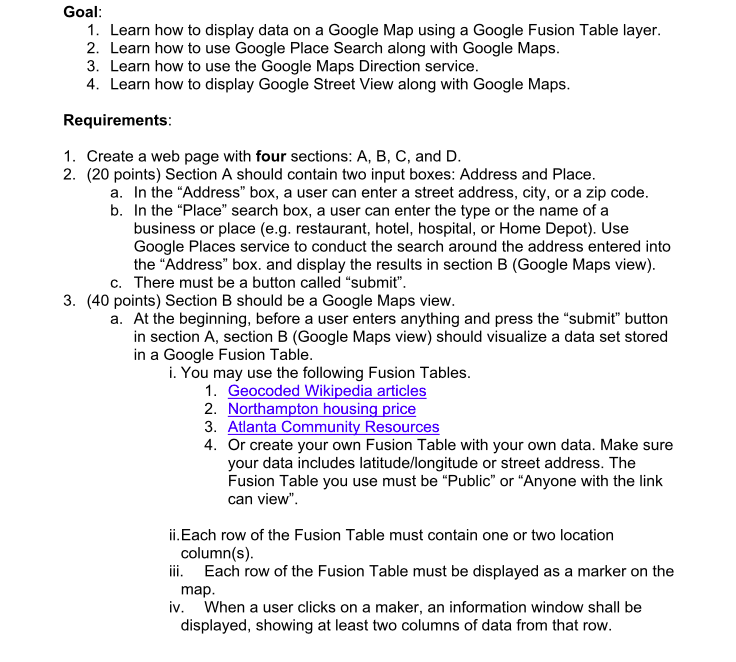
Goal 1: Learn how to display data on a Google Map using a google fusion table?
Code so far:
html, body {
height: 100%;
margin: 0;
padding: 0;
}
#map, #pan {
float: left;
height: 100%;
width: 50%;
}
#description {
font-family: Roboto;
font-size: 15px;
font-weight: 300;
}
#infowindow-content .title {
font-weight: bold;
}
#infowindow-content {
display: none;
}
#map #infowindow-content {
display: inline;
}
.pac-card {
margin: 10px 10px 0 0;
border-radius: 2px 0 0 2px;
box-sizing: border-box;
-moz-box-sizing: border-box;
outline: none;
box-shadow: 0 2px 6px rgba(0, 0, 0, 0.3);
background-color: #fff;
font-family: Roboto;
}
#pac-container {
padding-bottom: 12px;
margin-right: 12px;
}
.pac-controls {
display: inline-block;
padding: 5px 11px;
}
.pac-controls label {
font-family: Roboto;
font-size: 13px;
font-weight: 300;
}
#pac-input {
background-color: #fff;
font-family: Roboto;
font-size: 15px;
font-weight: 300;
margin-left: 12px;
padding: 0 11px 0 13px;
text-overflow: ellipsis;
width: 400px;
}
#pac-input:focus {
border-color: #4d90fe;
}
#title {
color: #fff;
background-color: #4d90fe;
font-size: 25px;
font-weight: 500;
padding: 6px 12px;
}
#target {
width: 345px;
}
function initMap() {
var map = new google.maps.Map(document.getElementById('map'), {
center: { lat: 33.7318232, lng: -84.3679},
zoom: 10
});
// Create the search box and link it to the UI element.
var input = document.getElementById('pac-input');
var searchBox = new google.maps.places.SearchBox(input);
map.controls[google.maps.ControlPosition.TOP_LEFT].push(input);
// Bias the SearchBox results towards current map's viewport.
map.addListener('bounds_changed', function() {
searchBox.setBounds(map.getBounds());
});
var markers = [];
// Listen for the event fired when the user selects a prediction and retrieve
// more details for that place.
searchBox.addListener('places_changed', function() {
var places = searchBox.getPlaces();
if (places.length == 0) {
return;
}
// Clear out the old markers.
markers.forEach(function(marker) {
marker.setMap(null);
});
markers = [];
// For each place, get the icon, name and location.
var bounds = new google.maps.LatLngBounds();
places.forEach(function(place) {
if (!place.geometry) {
console.log("Returned place contains no geometry");
return;
}
var icon = {
url: place.icon,
size: new google.maps.Size(71, 71),
origin: new google.maps.Point(0, 0),
anchor: new google.maps.Point(17, 34),
scaledSize: new google.maps.Size(25, 25)
};
// Create a marker for each place.
markers.push(new google.maps.Marker({
map: map,
icon: icon,
title: place.name,
position: place.geometry.location
}));
if (place.geometry.viewport) {
// Only geocodes have viewport.
bounds.union(place.geometry.viewport);
} else {
bounds.extend(place.geometry.location);
}
});
map.fitBounds(bounds);
});
}
var layer = new google.maps.FusionTablesLayer({
query: {
select: 'location',
from: '1NICsBtZWfpi3kF_3OHsDe7Z9CU2biwyx_A4HRg'
}
});
layer.setMap(map);
var panorama = new google.maps.StreetViewPanorama(
document.getElementById('pan'), {
position: atlanta,
pov: {
heading: 34,
pitch: 10
}
});
map.setStreetView(panorama);
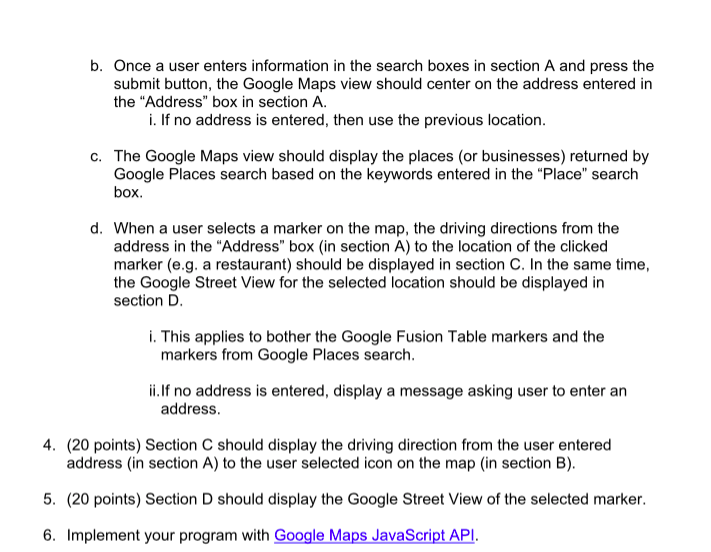
Goal 1. Learn how to display data on a Google Map using a Google Fusion Table layer 2. Learn how to use Google Place Search along with Google Maps 3. Learn how to use the Google Maps Direction service 4. Learn how to display Google Street View along with Google Maps Requirements 1. Create a web page with four sections: A, B, C, and D 2. (20 points) Section A should contain two input boxes: Address and Place In the "Address" box, a user can enter a street address, city, or a zip code In the "Place" search box, a user can enter the type or the name of a business or place (e.g. restaurant, hotel, hospital, or Home Depot). Use Google Places service to conduct the search around the address entered into the "Address" box. and display the results in section B (Google Maps view) a. b. c. There must be a button called "submit" 3. (40 points) Section B should be a Google Maps view a. At the beginning, before a user enters anything and press the "submit" button in section A, section B (Google Maps view) should visualize a data set stored in a Google Fusion Table i. You may use the following Fusion Tables 1. Geocoded Wikipedia articles 2. Northampton housing price 3. Atlanta Community Resources 4. Or create your own Fusion Table with your own data. Make sure your data includes latitude/longitude or street address. The Fusion Table you use must be "Public" or "Anyone with the link can view". ii.Each row of the Fusion Table must contain one or two location ii. Each row of the Fusion Table must be displayed as a marker on the iv. When a user clicks on a maker, an information window shall be column(s) map displayed, showing at least two columns of data from that row
Step by Step Solution
There are 3 Steps involved in it

Get step-by-step solutions from verified subject matter experts
 Study Help