







Question: Google Earth is an interesting resource for getting a quick image-based geographic overview, a modern, web-dependent, high-tech version of the trusty old map or aerial
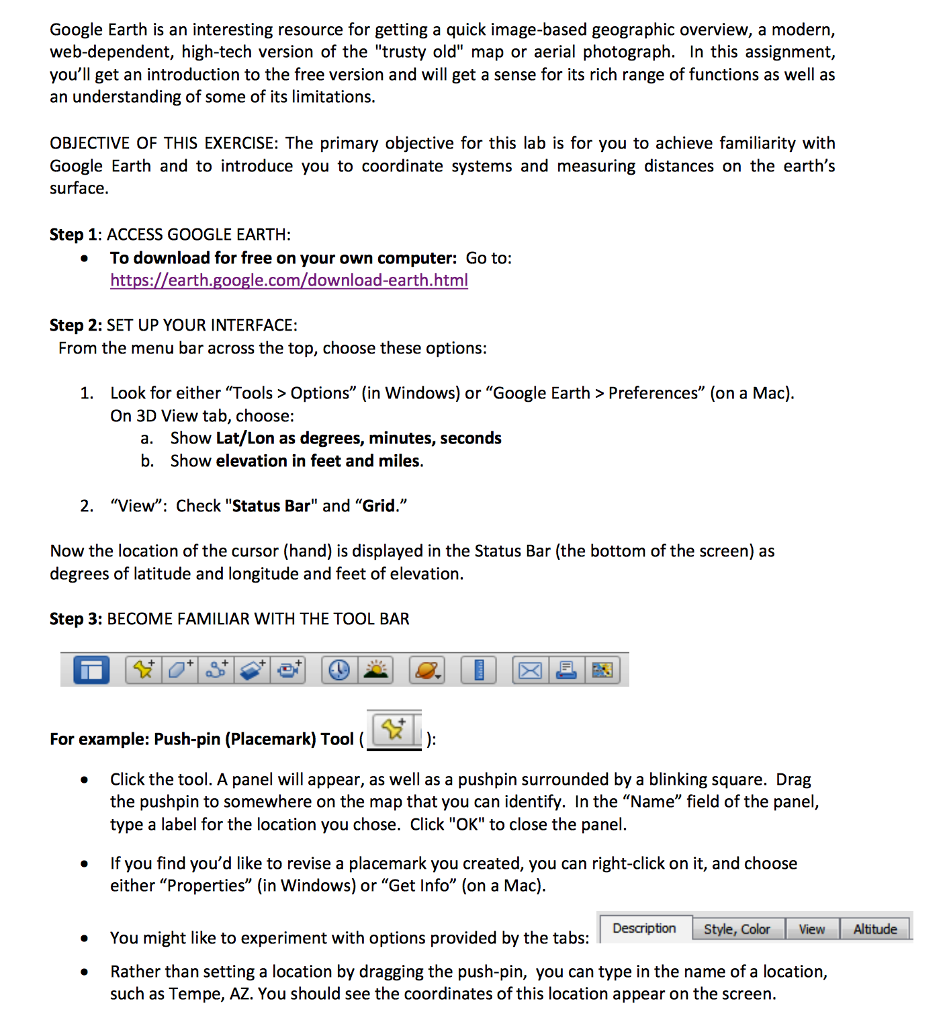
Google Earth is an interesting resource for getting a quick image-based geographic overview, a modern, web-dependent, high-tech version of the "trusty old" map or aerial photograph. In this assignment, you'll get an introduction to the free version and will get a sense for its rich range of functions as well as an understanding of some of its limitations OBJECTIVE OF THIS EXERCISE: The primary objective for this lab is for you to achieve familiarity with Google Earth and to introduce you to coordinate systems and measuring distances on the earth's surface Step 1: ACCESS GOOGLE EARTH To download for free on your own computer: Go to: https://earth.google.com/download-earth.html Step 2: SET UP YOUR INTERFACE: From the menu bar across the top, choose these options Look for either "Tools> Options" (in Windows) or "Google Earth > Preferences" (on a Mac) On 3D View tab, choose: 1. Show Lat/Lon as degrees, minutes, seconds Show elevation in feet and miles a. b. 2. "View": Check "Status Bar" and "Grid." Now the location of the cursor (hand) is displayed in the Status Bar (the bottom of the screen) as degrees of latitude and longitude and feet of elevation Step 3: BECOME FAMILIAR WITH THE TOOL BAR For example: Push-pin (Placemark) Tool ( Click the tool. A panel will appear, as well as a pushpin surrounded by a blinking square. Drag the pushpin to somewhere on the map that you can identify. In the "Name" field of the panel, type a label for the location you chose. Click "OK" to close the panel If you find you'd like to revise a placemark you created, you can right-click on it, and choose either "Properties" (in Windows) or "Get Info" (on a Mac) You might like to experiment with options provided by the tabs: Rather than setting a location by dragging the push-pin, you can type in the name of a location, Description Style, Color View Altitude such as Tempe, AZ. You should see the coordinates of this location appear on the screen
Step by Step Solution
There are 3 Steps involved in it

Get step-by-step solutions from verified subject matter experts
 Study Help