







Question: H - J 1 A B D E F 1 Chapter 13: Applying Excel 2 3 Data 4 Example E Cost of equipment needed $60,000
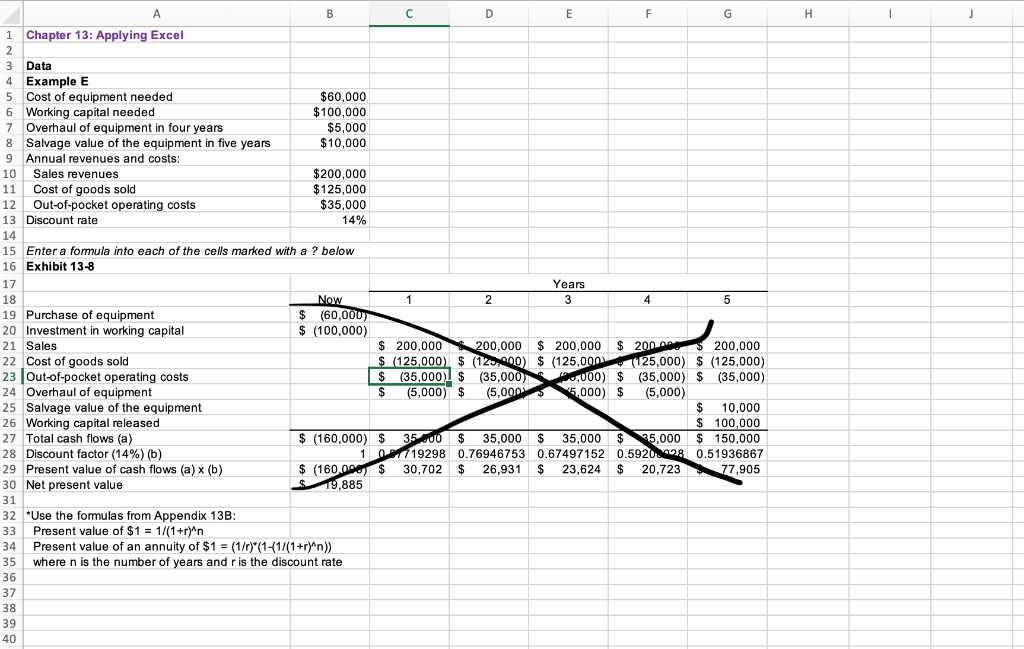
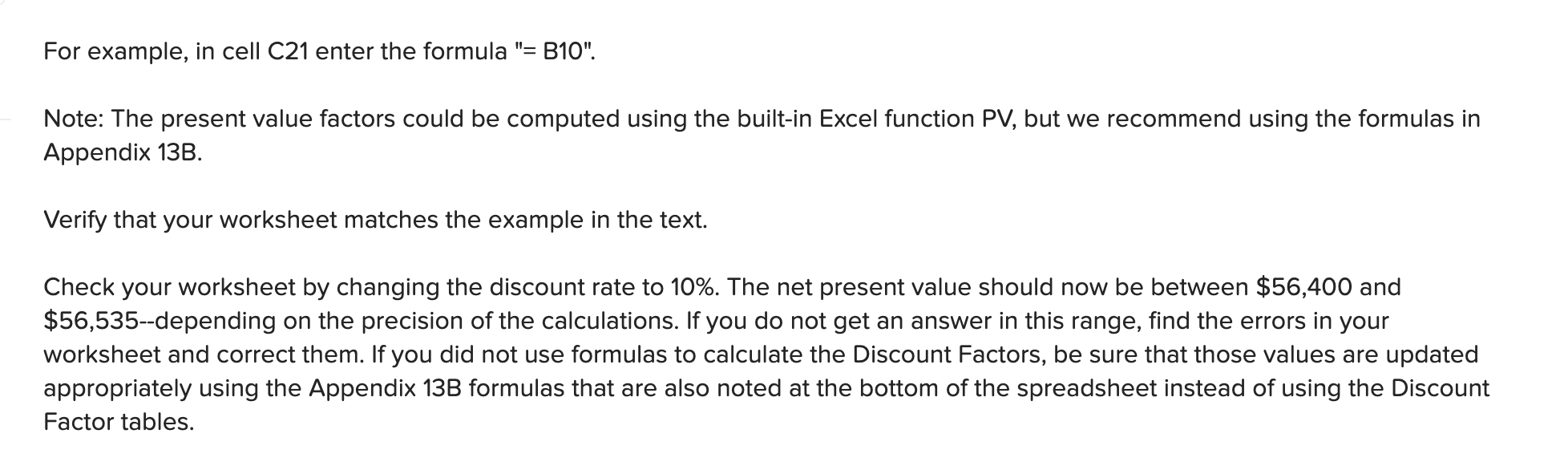
H - J 1 A B D E F 1 Chapter 13: Applying Excel 2 3 Data 4 Example E Cost of equipment needed $60,000 6 Working capital needed $100,000 7 Overhaul of equipment in four years $5,000 8 Salvage value of the equipment in five years $10,000 9 Annual revenues and costs: 10 Sales revenues $200,000 11 Cost of goods sold $125,000 12 Out-of-pocket operating costs $35,000 13 Discount rate 14% 14 10 15 Enter a formula into each of the cells marked with a ? below 16 Exhibit 13-8 17 Years 18 Now 2 3 4 5 19 Purchase of equipment $ (60,000) 20 Investment in working capital $ (100,000) 21 Sales $ 200,000 200,000 $ 200,000 $ 200. $ 200,000 22 Cost of goods sold $ (125,000) $ (12:00) $ (125,000 (125,000) $ (125,000) 23 Out-of-pocket operating costs $ (35,000) $ (35,000) 0,000) $ (35,000) $ (35,000) 24 Overhaul of equipment $ (5,000) $ (5,000 5.000) $ (5,000) 25 Salvage value of the equipment $ 10,000 26 Working capital released $ 100,000 27 Total cash flows (a) $ (160,000) $ 3500 $ 35,000 $ 35,000 $ 35,000 $ 150,000 28 Discount factor (14%) (b) 102119298 0.76946753 0.67497152 0.5920298 0.51936867 29 Present value of cash flows (a) (b) $ (160.000 $ 30,702 $ 26,931 $ 23,624 $ 20,723 77,905 30 Net present value 19,885 31 32 *Use the formulas from Appendix 13B: 33 Present value of $1 = 1/(1+r)^n 34 Present value of an annuity of $1 = (1/r)*(1-(1/(1+r)^n)) 35 where n is the number of years and r is the discount rate 36 37 38 39 40 For example, in cell C21 enter the formula "=B10". Note: The present value factors could be computed using the built-in Excel function PV, but we recommend using the formulas in Appendix 13B. Verify that your worksheet matches the example in the text. Check your worksheet by changing the discount rate to 10%. The net present value should now be between $56,400 and $56,535--depending on the precision of the calculations. If you do not get an answer in this range, find the errors in your worksheet and correct them. If you did not use formulas to calculate the Discount Factors, be sure that those values are updated appropriately using the Appendix 13B formulas that are also noted at the bottom of the spreadsheet instead of using the Discount Factor tables
Step by Step Solution
There are 3 Steps involved in it

Get step-by-step solutions from verified subject matter experts
 Study Help